In this release, we have enhanced the Job Application Form and Qualification/Role Master configuration by introducing new fields, improving qualification and industry mapping, enhancing resume parsing, updating candidate summary visibility, and improving application data handling across candidate workflows.
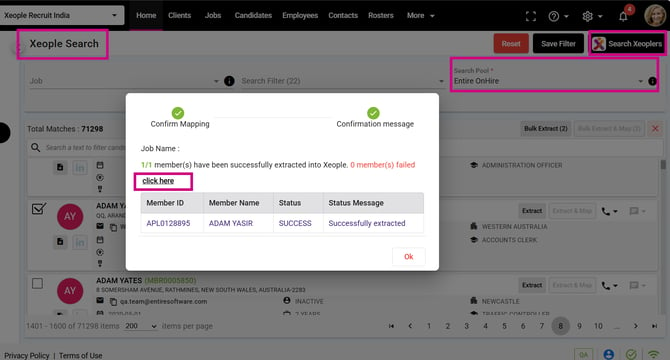
We also enhanced the duplicate profile check logic and improved Xeople Search > Search Pool > EOH functionality. The system now captures applicant/member DOB during candidate extraction, and the DOB is reflected in the generated Excel report.
Additionally, we fixed issues related to Education field validation during Autofill, inactive checklist visibility on candidate cards, email template formatting, screening note entry in Split Screen > EOH > Applicant, and qualifications/roles appearing in the Application Form drop-down despite not being available in the Qualification Master.
Content
📈Enhancements
-
Apply with SEEK – Coming Soon (Awaiting SEEK Approval)
-
Master Data - Qualification / Role
-
Configure Job Application Form
-
Industry and Qualification Logic – Application form – Candidate Apply (Data Populating)
-
Share Job Apply page - Candidate Apply
-
Seek - Link Out
-
Candidate Summary (Profile Details)
-
Job Action – Applications Tab
-
Job Action – Share Candidate as an Applicant
-
Push Candidate as an Applicant - Candidate Landing & Summary
-
Create a Candidate via Form
-
Create a Candidate via Application Form
-
Job Log
-
Candidate Activity
-
System Audit Log
-
Create a Contact
-
Create Employee
-
Xeople Search - EOH Pool - Date of Birth (DOB)
1. Master Data - Qualification / Role
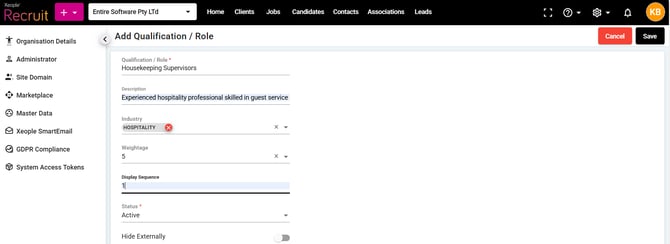
In this release, we updated and reorganised the Qualification / Role Master data structure for better clarity and usability.
- The field Qualification has been renamed to Qualification / Role across the application and master configuration to provide greater flexibility in capturing either the candidate’s educational qualification or professional role/title, depending on the hiring requirement.
- Qualification / Role is the primary unique identifier and cannot be duplicated in the system. It is used as the main reference to identify a record and will also function as the Code. This remains a mandatory text field with no changes to its functionality.
- Description is newly added as an optional alphanumeric text field with a maximum limit of 100 characters. The Description field is for informational purposes only and is not used as a code.
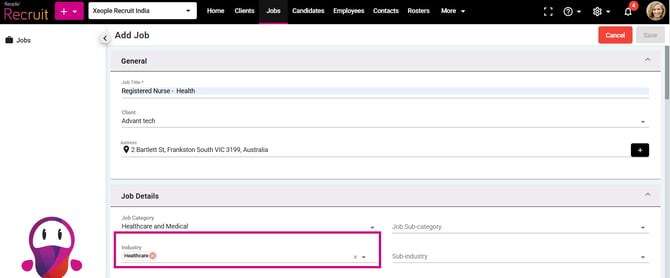
- Industry is now an optional multi-select field, allowing one or multiple industries to be linked to the same Qualification / Role.
2. Configure Job Application Form
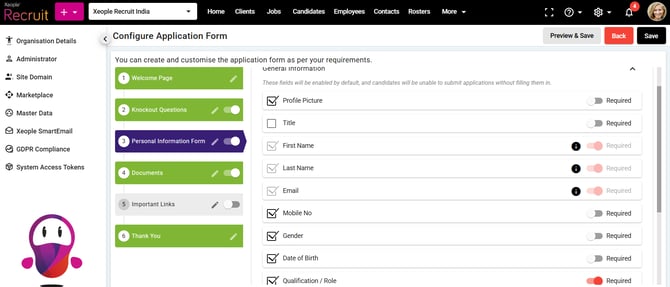
We have added new fields under the General Information section of the application form, including Title, Gender, Date of Birth (DOB), and Qualification/Role, along with a checkbox and a Required toggle for each field. These fields have been added to capture more complete candidate information at the time of application, strengthening profile accuracy and supporting more efficient recruitment and onboarding.
Checkboxes have also been added for Address, Skills, Additional Information, Experience, and Education to control their visibility on the application form. When a checkbox is selected, the corresponding field will be displayed to candidates. Additionally, enabling the Required toggle will make the field mandatory. Mandatory fields are highlighted in red/pink, while fields with the toggle turned OFF (grey) will remain optional.
The existing Qualification field under the Education section remains mandatory. Both fields source their values from the Qualification Master.
These fields will be available to candidates applying through any shared application form, including the Shared Job Apply Page and Seek / Broadbean link-out applications, based on the configured field visibility settings.
|
Field Name |
Description |
Data Source / Behaviour |
Mandatory Rule |
|
Title |
Candidate’s title (e.g., Mr, Mrs, Miss, Ms, Dr, Prof). |
XR system-defined dropdown. Select manually. |
Optional, visible if checkbox ticked and mandatory if Required toggle is ON; no EOH dependency. |
|
Gender |
Candidate’s gender (e.g., Male, Female). |
XR system-defined dropdown. Select manually. |
Optional, visible if checkbox ticked and mandatory if Required toggle is ON |
|
DOB (Date of birth) |
Candidate’s date of birth (as per official records) |
Functions like a calendar; future dates are not allowed. Select manually. |
Optional, appears only if enabled via check box and mandatory via Required toggle |
|
Qualification/Role |
Displays relevant qualifications and roles based on job, client, and industry mapping. Includes job-specific, industry-specific, and global qualifications depending on availability. |
Manually select. Populated list sorting:
|
Optional; appears only if enabled via the checkbox and becomes mandatory when the Required toggle is on. |
3. Industry and Qualification Logic – Application form – Candidate Apply (Data Populating) Rules
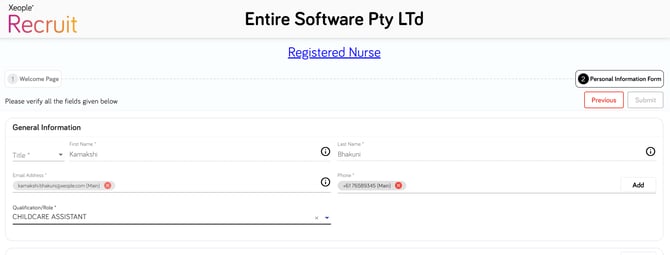
When a candidate applies via the application form, the Qualification/Role drop-down displays qualifications/roles based on the logic below:
- If Industry is mapped to both Job and Client → Shows Job-specific qualifications/roles + Global qualifications.
- If Industry is mapped to Client but NOT Job → Shows Client (Industry) specific + Global qualifications.
- If Industry is mapped to job→ Shows Job-specific qualifications/roles + Global qualifications.
-
If Industry is set as default from the Industry master (under primary column) → Industry selected qualifications/roles + Global qualifications.
- If no Industry mapping exists → Shows all active Global qualifications (not tied to any industry).
- Priority Order: Job > Client > Industry Master >Global Qualification.
When a candidate selects a Qualification/Role in the application form and submits the application, the system checks whether the selected Qualification/Role is mapped to any Industry.
- If a mapping exists, the corresponding Industry is automatically updated in Candidate Summary > General Information > Industry.
- If no mapping exists, no Industry is updated.
4. Share Job Apply page - Candidate Apply
Provides detailed information on application field behaviour, value mapping, and mandatory or optional field configurations when candidates apply through the Shared Job Apply Page.
The uploaded resume is automatically parsed, and the extracted details can be viewed under Candidate Summary > Resume > Parsed Resume.
5. Seek - Link Out
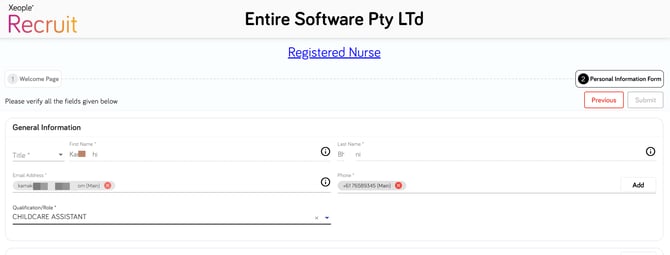
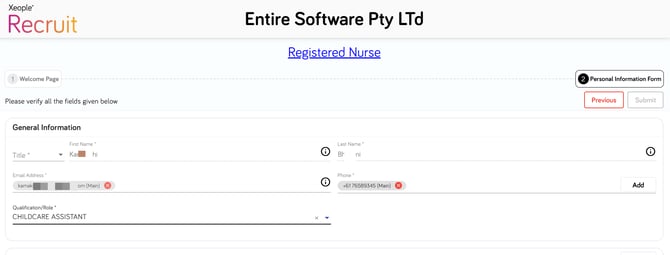
Provides detailed information on application field behaviour, value mapping, and mandatory or optional field configurations when candidates apply through Seek – Link Out. The uploaded resume is automatically parsed, and the extracted details can be viewed under Candidate Summary > Resume > Parsed Resume.
6. Candidate Summary (Profile Details)
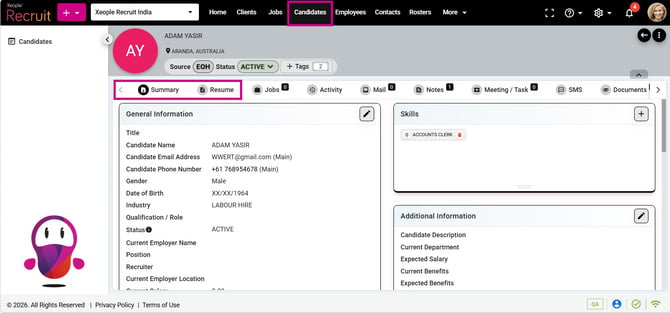
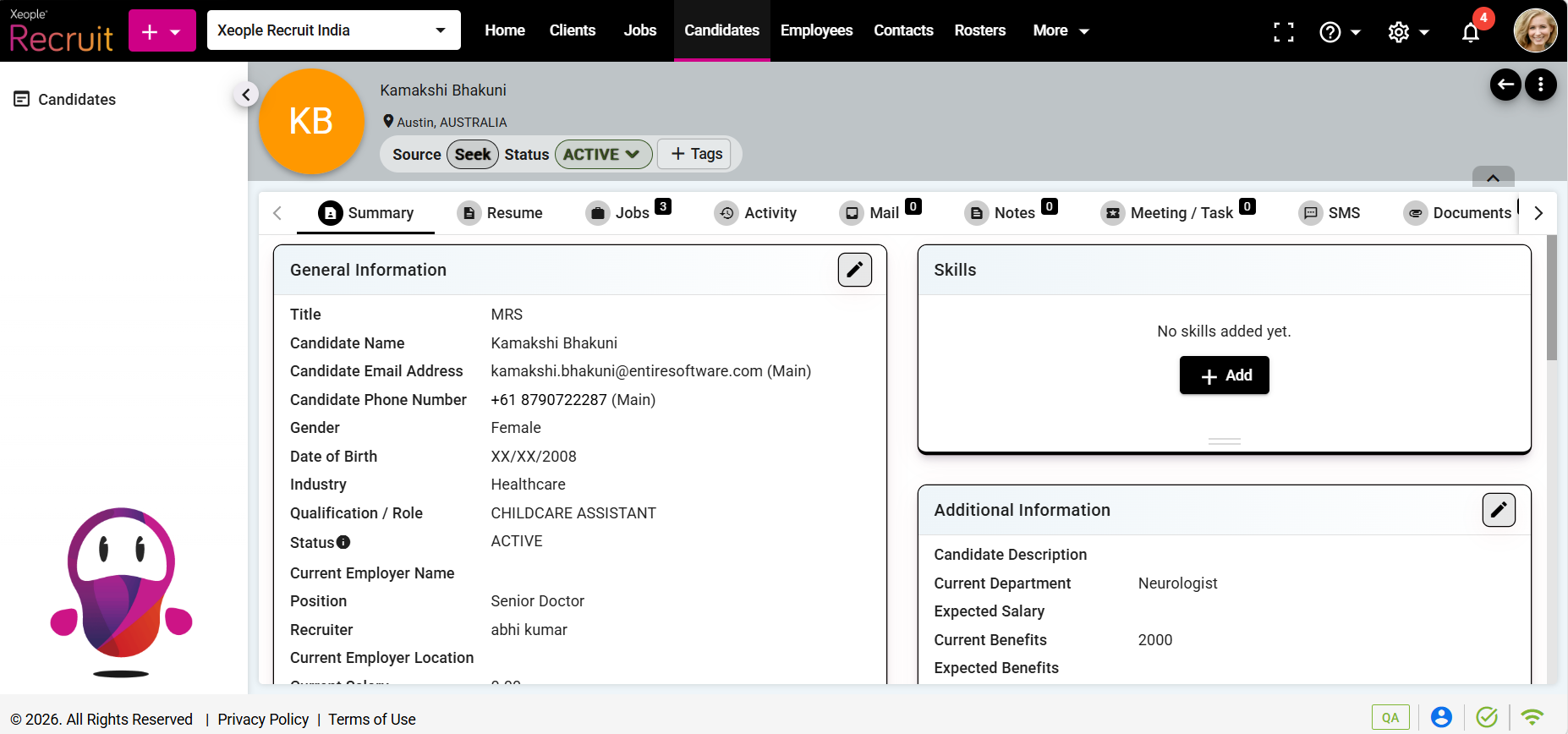
All sections under the Summary tab will display details without a scroll bar. The field sequence in the General Information section has also been enhanced, with Industry, Gender, and DOB moved from the Additional Information section to the General Information section for better visibility and structure.
All candidate details will be saved under Candidate Summary > Summary.
The resume will be automatically parsed, and the extracted information can be viewed under Resume > Parsed Resume.
7. Job Action – Applications Tab
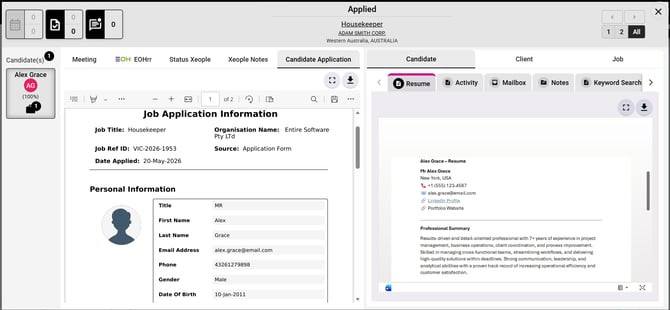
Displays a consolidated PDF containing candidate details captured through the Shared Job Apply Page and SEEK link-out application flows. The PDF also includes additional candidate information, such as Title, Gender, Date of Birth (DOB), Qualification/Role, and other available details, if provided during the application process. Additionally, for knocked-out candidates, the system maintains corresponding logs for tracking and reference purposes.
8. Split Scree (Job Action) – EOH - Share Candidate as an Applicant
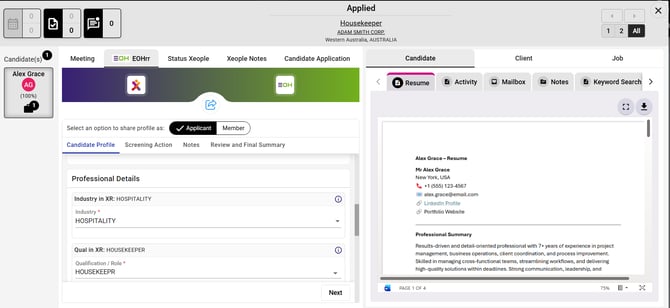
Enhanced the Applicant fields by making Gender, Date of Birth, and Address optional, while keeping Resume mandatory.
Industry and Qualification Mapping between XR and EOH
Industry Mapping
- EOH Industry Code is mapped with the XR Industry External ID.
- The Industry field is auto-filled using values received from the EOH API (EOH Industry).
-
If the EOH Industry is mapped to the XR Industry in the candidate profile, an informational label is displayed above the field in the following format:
- Industry in XR: [XR Industry]
- Example:
- If the mapped XR Industry is Education, the label displays:
- Industry in XR: Education
- Industry in XR: Education
- If the mapped XR Industry is Education, the label displays:
- Example:
- Industry in XR: [XR Industry]
-
-
- This label is for reference only and does not modify the selected EOH Industry value.
- If no XR Industry mapping exists:
- The label displays:
- Industry in XR: -
- Industry in XR: -
- The label displays:
- If the XR Industry is not mapped to the selected EOH Industry and the field remains blank:
- Users must manually select an EOH Industry value before proceeding.
-
Qualification/Role Mapping
- EOH Qualification Code is mapped with the XR Qualification/Role Name.
- The Qualification/Role field is auto-filled using values received from the EOH API (EOH Qualification).
- If the EOH Qualification is mapped to the XR Qualification/Role in the candidate profile, an informational label is displayed above the field in the format:
- Qual in XR: [XR Qualification]
- Example:
- If the selected EOH Qualification is RN and the mapped XR Qualification is RNS, the label displays:
- Qual in XR: RNS
- If the selected EOH Qualification is RN and the mapped XR Qualification is RNS, the label displays:
- This label is for reference only and does not modify the selected EOH Qualification value.
- If no XR Qualification/Role mapping exists:
- The label displays:
- Qual in XR: -
- The label displays:
- If the XR Qualification/Role is not mapped to the selected EOH Qualification/Role and the field remains blank:
- Users must manually select an EOH Qualification/Role value before proceeding.
- Example:
- Qual in XR: [XR Qualification]
Updated the profile matching logic while sharing profiles from XR to EOH. Profile matching is now validated only using:
- Email, or
- Mobile Number
The duplicate profile check based on the combination of Last Name + Date of Birth + Gender has been removed to prevent unnecessary multiple profile match errors during profile sync.
The default country code selected for the phone number is +61. As set under System Settings → Internationalisation.
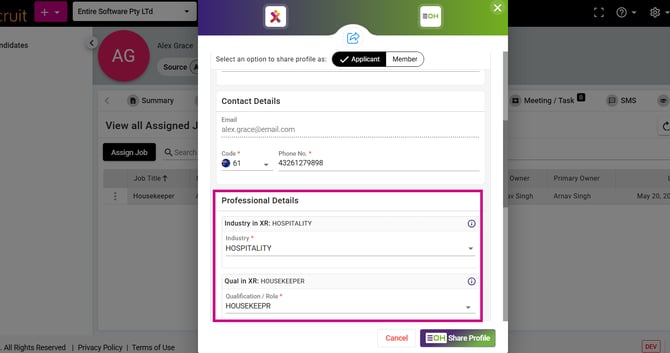
9. Push Candidate as an Applicant - Candidate Landing & Summary
Same changes have been updated as above, since a profile can be shared as an applicant from various places.
10. Create a Candidate via Form
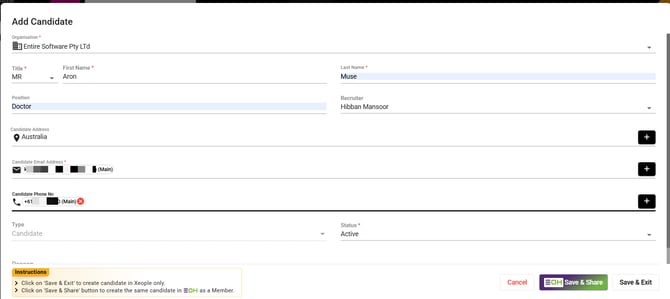
A Title field has been added while creating a candidate to provide better context. The dropdown includes XR system-configured values such as Mr, Mrs, Miss, Ms, etc.
All candidate details will be saved under Candidate Summary > Summary.
Once a resume is uploaded or updated, the candidate details are automatically extracted and saved under Candidate Summary > Resume > Parsed Resume.
11. Create a Candidate via Application Form
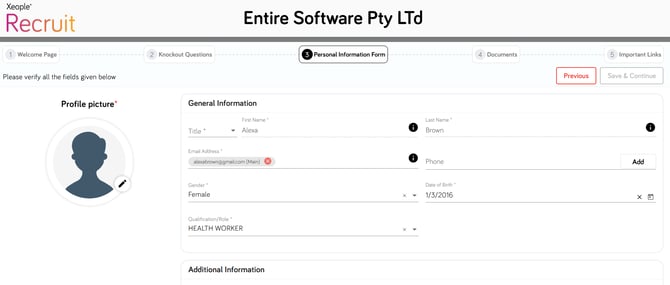
A Title, Gender, DOB and Qualification/role field has been added to the application form which appears based on the Application form configuration (based on the checkbox selected and required toggle on/off).
All candidate details will be saved under Candidate Summary > Summary. Candidate details are automatically parsed and saved under Candidate Summary > Resume > Parsed Resume.
12. Job Log
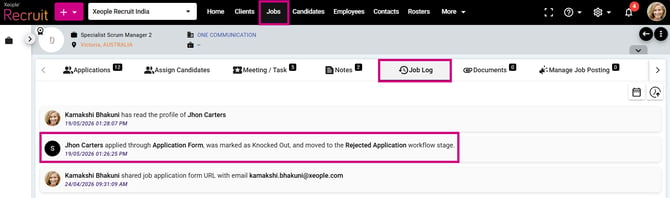
For Knocked Out candidates, logs are maintained in the system for tracking and audit purposes.
- Donna Reynolds applied through the Application Form, was marked as Knocked Out, and moved to the Rejected workflow stage (with timestamp).
- Donna Reynolds was assigned to the Business Analyst job (Ref ID: VX02) and marked as Knocked Out.
- John successfully applied for the job “Business Analyst” (Ref: 990) via the Application Form.
- John applied for the job “Business Analyst” (Ref: XR-990) via the Application Form and was marked as Knocked Out.
13. Candidate Activity
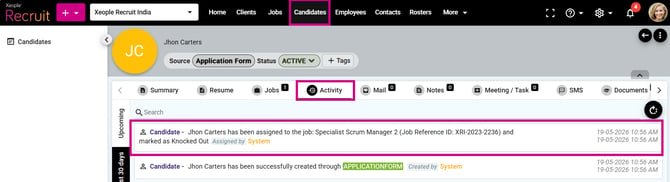
For Knocked Out candidates, logs are maintained in the system for tracking and audit purposes.
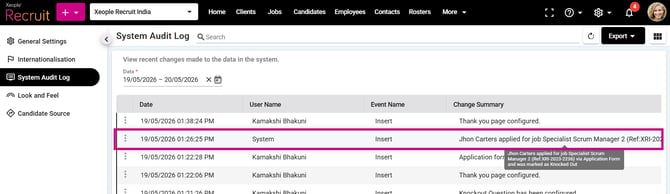
14. System Audit Log
For Knocked Out candidates, logs are maintained in the system for tracking and audit purposes.
15. Create a Contact
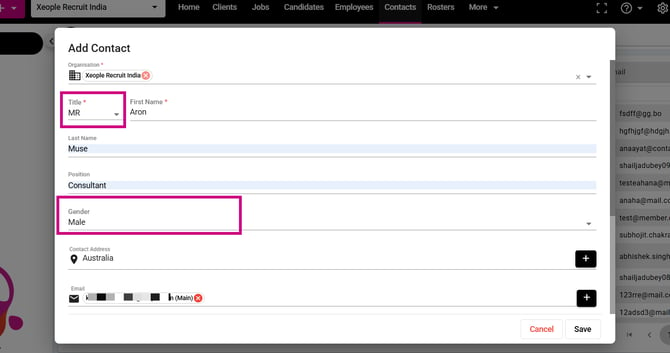
A Title field have been added while creating a contact to provide better context. The dropdown includes XR system-configured values such as Mr, Mrs, Miss, Ms, etc.
16. Create Employee
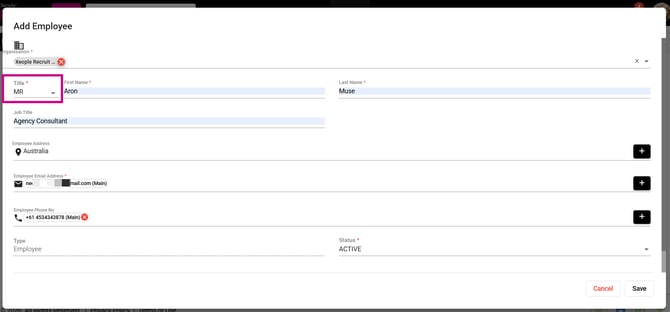
A Title field has been added while creating an employee to provide better context. The dropdown includes XR system-configured values such as Mr, Mrs, Miss, Ms, etc.
17. Xeople Search - EOH Pool - Date of Birth (DOB)
The system captures the applicant/member DOB during candidate extraction from Search Pool > EOH Pool via Xeople Search (XR). This DOB field is also reflected in the Excel report generated after extraction.