
Qualification/Role refers to the combination of academic, professional, and technical credentials (such as degrees, certifications, licenses, and formal recognitions) along with the functional or job role a person performs. Together, these elements represent an individual’s educational background, area of expertise, and level of responsibility, and help determine their suitability, capability, and alignment with specific job requirements.
Purpose of Qualification/Role
Qualification/Role is used to:
- Capture educational and professional details
- Classify candidates or employees
- Support filtering and search
- Enable eligibility and matching logic
- Standardise data across the system
Qualification/Role Master – Example
|
Qualification/Role Name |
Description |
Industry |
|
Chef |
Experienced culinary professional skilled in food preparation and dietary meal planning . |
Hospitality, Healthcare, Education |
|
Nurse |
Healthcare professional experienced in patient care and medical support . |
Healthcare, Hospitality, Education |
|
Housekeeper |
Professional responsible for maintaining cleanliness and hygiene standards . |
Hospitality, Healthcare, Education |
|
Teacher |
Education professional skilled in classroom teaching and student development . |
Education |
|
Doctor |
Medical professional specialised in diagnosis and patient treatment . |
Healthcare, Education |
To navigate to the Qualification/Role Master, follow the steps below:
- Click on the Profile picture and select Administrator from the drop-down menu.
- Click on Master Data from the left navigation panel and select Qualification/Role under General.
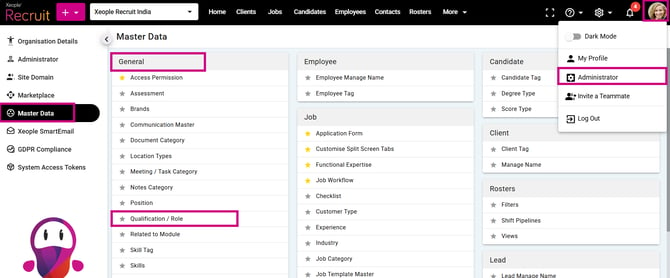
Profile Picture – Administrator – Master Data – Qualification
- Click on the (+) add button on the top left.
- Enter the required fields and click Save.
Qualification/Role Master – Field Description
|
Field Name |
Input Type / Control |
Details / Description |
|
Qualification/Role |
Type in Text field, Unique, Mandatory |
Primary unique identifier. (Cannot be duplicated in the system and used as the main reference to identify a record). Functions as the code. |
|
Description |
Text (Type-in), Optional |
Supports alphanumeric characters with a maximum limit of 100 characters. Description will not be used as a code. |
|
Industry |
Multi- select, Optional |
A Qualification / Role can be linked to one or multiple Industries, and an Industry can also be linked to multiple Qualifications / Roles. Qualification / Role remains the unique identifier. It is not unique per Industry. |
|
Weightage |
Single Select Dropdown |
Assign a weightage to define the importance of the qualification. |
|
Display Sequence |
Number |
Define the order in which qualifications are displayed. |
|
Status |
Dropdown (Active/Inactive) |
Specify whether the qualification is active or inactive in the system. |
Example:
Suppose the Qualification / Role “Nurse” is created in the system. A Nurse may be required in different industries, such as:
- Health → Hospital Nurse
- Education → School/College Nurse
- Hospitality → Resort or Hotel Medical Staff
Even though the industries are different, the Qualification / Role remains the same: “Nurse”.
So, the system does not create separate records like:
- Nurse – Health
- Nurse – Education
- Nurse – Hospitality
Instead, it creates only one unique Qualification / Role: “Nurse”, and links it to multiple industries.
This means:
- One Qualification / Role can belong to many industries.
- The Qualification / Role name stays unique across the system.
- Industry mapping only controls where the qualification should appear.
- That is why the Qualification / Role is called globally unique and not unique per industry.
- Click on the three-dot button placed in front of each qualification/role to edit or delete it.
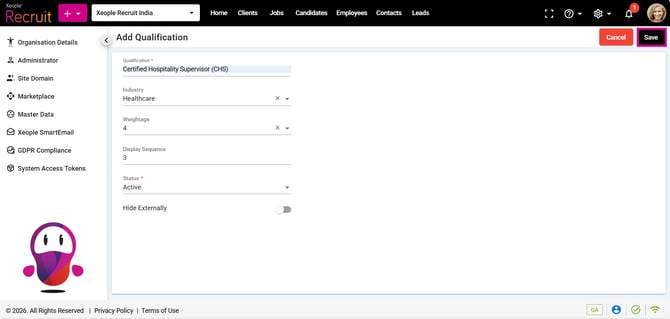
Add Qualification/Role – Save
- After you add the qualification/role, it will appear in the Qualification/Role landing page with the same display sequence. Qualification /Role, Description, Industry, Weightage, Display Sequence and Status.
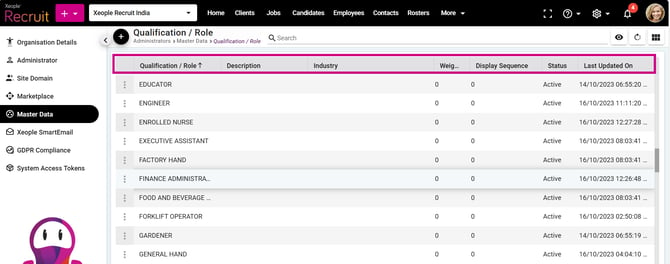
Qualification and Industry Logic:Qualification/Role - Landing Page
- If no industry is selected, all active global qualifications (not tied to any industry) will be displayed.
- If an industry is selected, industry-specific qualifications and active global qualifications (not tied to the selected industry) will be displayed. For more details, click here: Industry and Qualification Logic – Application form – Candidate Apply.
Recommend Reading: How the Qualification/Role field is configured in the application form: Configure Job Application Form.
Recommend Reading: How the Qualification/Role field values populate when candidates apply via application form, click here: Share Job Apply Page, Job Posting - Link Out.
Recommend Reading: How the XR Industry and Qualification/Role are mapped with the EOH Industry and Qualification/Role, click here: Job Action (Split Screen), Push Candidate as an Applicant - Candidate Landing & Summary.
FAQs
1. What is the Qualification / Role Master used for?
The Qualification / Role Master is used to create and manage qualifications/ roles in the system and map them to one or multiple industries.
2. What is the purpose of the Industry field in Qualification / Role Master?
The Industry field helps map qualifications/roles to specific industries so that relevant qualifications are displayed during job creation and candidate application.
3. What happens if no industry is selected in Qualification / Role Master?
If no industry is selected, the qualification becomes a global qualification and will be available across all industries.
4. Is Qualification / Role unique for each industry?
No. Qualification / Role remains globally unique and is not unique per industry.
5. What is the purpose of Weightage?
Weightage defines the importance or priority of a qualification/role during candidate evaluation and shortlisting.
6. What does Display Sequence control?
Display Sequence determines the order in which qualifications/roles appear in dropdowns and application forms.
7. Which qualifications are displayed if no industry is mapped?
If no industry mapping exists, all active global qualifications (not tied to any industry) are displayed.
8. Which qualifications are displayed if an industry is selected?
If an industry is selected, the system displays:
- Industry-specific qualifications/roles, and
- Active global qualifications not tied to any industry.
9. How does the system decide which qualifications/roles to display during candidate application?
The system displays qualifications/roles based on Industry mapping and follows the below logic:
- If Industry is mapped to both Job and Client → Shows Job-specific qualifications/roles + Global qualifications.
- If Industry is mapped to Client but NOT Job → Shows Client (Industry)-specific qualifications/roles + Global qualifications.
- If Industry is mapped to Job → Shows Job-specific qualifications/roles + Global qualifications.
- If Industry is set as default from the Industry Master (under Primary column) → Shows Industry-selected qualifications/roles + Global qualifications.
- If no Industry mapping exists → Shows all active Global qualifications (not tied to any industry).
- Priority Order: Job> Client > Industry Master > Global Qualification