
Job posting refers to the process of advertising job vacancies or openings within an organisation to attract potential candidates. It typically involves creating detailed job descriptions and posting them on various platforms such as company websites, job boards, etc. The goal of job posting is to reach a wide audience of qualified candidates and encourage them to apply for the available positions.
SEEK is an online job board and employment marketplace where employers can post job listings and individuals can search and apply for jobs.
This feature provides access to SEEK across all eight markets in which SEEK operates. Customers in ANZ, Hong Kong, Singapore, Philippines, Indonesia, Malaysia, and Thailand will enjoy a new APAC experience.
This includes seamless access to all available ad types in each region, with pricing displayed in local currency. You can advertise clear role information using the salary type and currency relevant to your hiring market.
Additionally, you can reach more relevant candidates by using suburb-level locations and country-specific job categories tailored to your market.
Recommend Reading: How to enable SEEK Integration from Marketplace, click here: Marketplace Configuration - SEEK.
To post a job on SEEK, follow these steps:
Optional Reading: How to Create a Job, click here: Create a Job.
- While creating a Job, you will find an option to Publish to Job Boards at the end of the create job page.
- Once you enable the toggle button, it will redirect you to the Job Boards page where you can select SEEK to post a job.
- Similarly, once a job is created it will appear on the Job Landing page, under the Publish column, clicking it will redirect you to the Job Boards page.
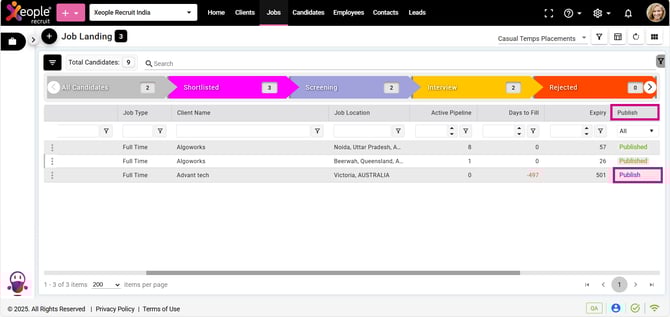
Job Landing Page - Job Created - Publish - SEEK
-
Similarly, upon clicking View Job from the three-dot button, you will be directed to the Job Summary page. From there, navigate to Manage Job Posting and select SEEK to post a job.
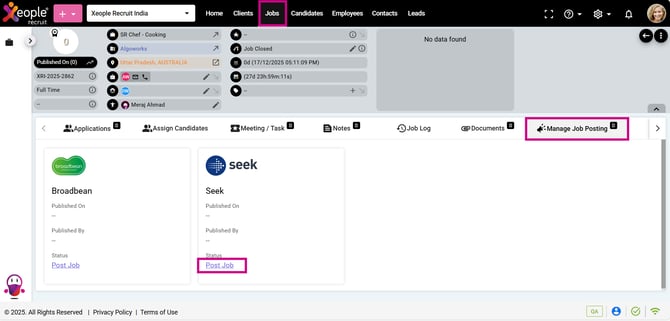
Job Posting - SEEK
- Upon clicking on Post Job, you will be redirected to the Job Ad Detail page.
- Fill in all the mandatory fields.
Fields in the Seek Form are as follows:
All fields remain the same for both Native Apply and Link Out, except for the Apply Type. Apply Type can be set to Native Apply (with or without an application form) or Link Out (where an application form is mandatory). This scenario refers to a Native Apply case.
This article outlines the required and optional fields when posting a job advertisement to SEEK via the system.
|
Organisation |
Select the organisation the job will be published from.
You have the option to publish Job Ads based on the selected Organisation (Hirer ID); in cases where multiple Hirer IDs are available, multiple Organisations will be displayed. |
| Account | Select the account the job is being posted from
|
|
Apply Type |
We have two apply type options — Native Apply and Link Out. The Apply Type is fetched from SEEK’s API based on your job configuration. This is a mandatory field. As long as we have your correct:
Two apply type options:
Native Apply Options Screening Questions are optional in Native Apply. You can use Native Apply in two ways: · Native Apply (Without Screening (Knockout) Questions)
· Native Apply (With Screening (Knockout) Questions Enabled) If you enable Screening Questions using the checkbox:
Note: You must contact your SEEK Account Manager to enable or adjust these options if they are not displaying. Link Out: In the case of Link Out, if the SEEK Job Posting Integration is enabled, then upon publishing the job, candidates will see an additional application option - Apply with SEEK alongside the existing options Autofill with resume and Apply manually. Recommend Reading: How job posting - link out works in detail, click here: Job Posting - Link Out. For Link Out applications, if screening (knockout) questions are configured, candidates who meet the expected criteria are created and mapped to the Applied stage of the job workflow. Candidates who do not meet the criteria are still created in the system (under the Candidate module) but are not mapped to the job. If screening questions are not configured, all candidates are mapped to the Applied stage (mapped to the Apply stage type) of the job workflow.” Recommend Reading: When candidates apply and answer the screening questions, the End application if the candidate is knocked out toggle functionality is applied accordingly. For more details, click here: Knockout Questions. |
|
Job Title |
Job Title will auto populate from the Job.
|
|
Job Location |
Job Location of the new Job.
Provide at least three initial characters of the job location and the Job Location list gets activated with State, Suburb, Area, and Country. For example, for “Australia” – type “aus” to select the job locations available for “Australia”. SEEK has expanded its location hierarchy in key Asia-Pacific regions including the relevant currencies for the location selected. |
|
Category |
Category and Subcategory are fetched from SEEK’s API and represent the job’s industry. The available options depend on the selected Job Title and Location. If needed, click Choose Different Category, select a Category, and then choose from the available Subcategory options.
|
|
Work Type |
Work Types (Casual, Full Time, Part Time and Contract) are fetched from SEEK and will auto-select only when it exactly matches SEEK’s format (e.g., FullTime ↔ FullTime). If the formats don’t match (e.g., FullTime vs Full-time), it will not be preselected.
|
|
Job Expiry |
SEEK Job Expiry – How It Works
Setting an Earlier Expiry
Editing or Republishing a Job
Job Expiry and Closure Scenarios The following scenarios explain how candidate applications are handled when a job has expired or been closed in XR but remains visible on SEEK or Broadbean. Case 1 – Job Expired in XR (Application Form Enabled) (Link Out) If a job expires in XR but remains live on SEEK or Broadbean using an Application Form (Link Out), candidates who attempt to apply will receive a "Link Expired" message. As a result, they will not be able to submit an application. Case 2 – Job Closed in XR If a job is closed in XR before the job advertisement reaches SEEK's 30-day expiry period, the job may still remain visible on SEEK or Broadbean. Candidates can continue to submit applications through the advertisement; however, those applications will not be mapped to or associated with the closed job in XR. A candidate record will still be created in the system. Case 3 – Job Expired in XR (No Application Form) ( Native Apply) If the job expiry date in XR is reached before the SEEK expiry date, the job may remain active on SEEK. Candidates can continue to apply through SEEK, and their applications will be created in XR and mapped to the corresponding job. Key Rules
|
|
Pay Type |
Annual Salary, Hourly Rate, Monthly Salary, and Annual and Commission — fields are available and fetched directly from SEEK’s API. You can select as per your requirement.
|
|
Salary Type/Range |
Currency: The default currency value is automatically selected based on the chosen Job Location, which allows you to modify the value as needed. Validation for Salary Range - Maximum Salary should be greater than Minimum Salary. This field will auto populate from the job if exists. It is mandatory to include Salary details. This means candidates can search for salary, but it is not visible on the live seek ad. |
| Hide Pay Information from Ad | Option to hide salary details from the live SEEK advertisement
|
|
Pay Label |
Pay Label is a short, custom text field that lets you display a brief salary or pay-related message to candidates, for example: Competitive salary + bonuses or $80K–$90K package depending on experience. Click on the checkbox to hide this by default it is enabled. This is displayed on the live seek ad. |
| Use Job Description from Job Detail Page | Option to auto-pull the job description from the job record.
|
|
Job Ad Description |
The character limit for the Job Ad Description is limited to 15000 characters. Click on the check box to include from the Job if added. When copying and pasting content, be aware that extra HTML may exceed the character limit. To avoid this, first paste the content into a Word document, then copy it again before adding it here. |
|
Video |
Paste a valid URL to add a YouTube video link to your Seek job ad. |
|
Job Search Keywords |
Free text field and is limited to 150 characters. Short summary displayed in SEEK search results. |
|
Type of Advertisement |
The available ad types are displayed based on your selected job location and automatically fetched from SEEK’s API. For example, in the Australia and New Zealand market, you may see options such as Basic, Branded Basic, Branded Advanced, and Premium. The range of SEEK ad products may vary by market and evolve over time as new ad types are introduced. |
Seek Ad Type Comparison
|
Ad Type |
Branding Option |
Key Selling Points |
|
Basic |
No branding required – logo/cover not shown. |
None. Standard job listing with basic exposure. |
|
Branded / Branded Basic |
Branding included: logo plus cover image appear. |
Includes 3 text selling points in search results. |
|
Branded Advanced |
Branding applied plus higher-level features. |
Same 3 selling points + better visibility & targeting. |
|
Premium |
Branding allowed; ad gets highest exposure & priority listing. |
Maximum visibility, strong brand impression, priority reach. |
| Key Selling Points |
|
| Internal Billing Reference | Appears on SEEK invoices.
|
- Click on Continue.
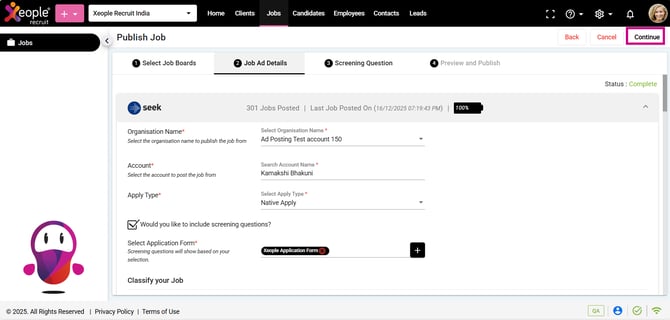
SEEK Form - Continue
- After clicking Continue (for Apply Type – Native Apply), if an application form is mapped, you’ll be directed to the Screening Questions tab for selection. These questions will appear when candidates apply directly on SEEK using Quick Apply.
If no application form exists, a message, ‘No application form found. Configure an application form before proceeding’ will appear.
- The screening questions are sourced from the application form mapped to the job. If no questions are configured, a message — No screening questions found will appear.
- Click Manage Screening Questions to navigate to the Master Data > Knockout Questions section of the application form to configure them.
You can add up to 15 knockout (screening) questions in the application form as this is the maximum limit.
- Don’t forget to click Save after adding all the questions in the Application Form>Knockout Question page. Once saved, they will appear under this section.
Recommend Reading: How to configure an application form, click here: Configure Application Form.
Screening Section – Actions to perform:
- Select all lets you choose all questions from the list.
- Search bar lets you find specific questions using keywords.
- Click on the check box placed in front of each question to select single/multiple screening questions which will appear at the top of the list.
- Use six dot drag-and-drop icon to reorder questions as needed.
- Each screening question displays its text with response options Yes and No. The correct answer appears highlighted in green, while the other remains in the default colour.
If any other apply type is selected for example linkout, the screening questions section hides or gets disabled.
- Click on Continue.
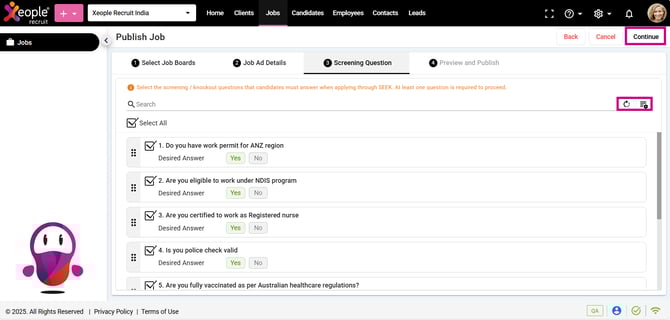
Job Ad – Screening Questions
- Review and Publish tab displays a complete summary of all entered details along with the selected screening questions. A dedicated Screening Questions section shows the total number of selected questions. Each question appears as a separate line item, with the desired response (e.g., Required: Yes or No) highlighted in green for clarity.
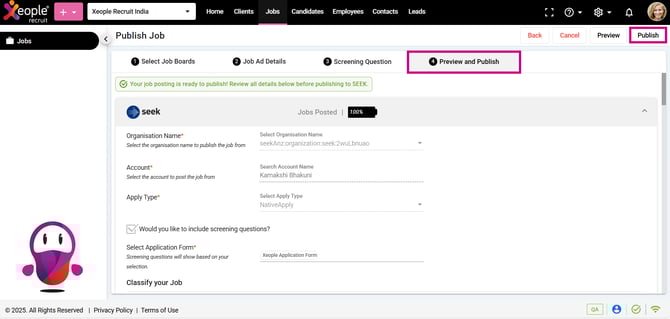
Preview & Publish - Options
- Preview: You can see how your ad appears in both desktop and mobile formats while you’re creating it and make changes to the content and layout to ensure you post a quality ad that engages relevant candidates.
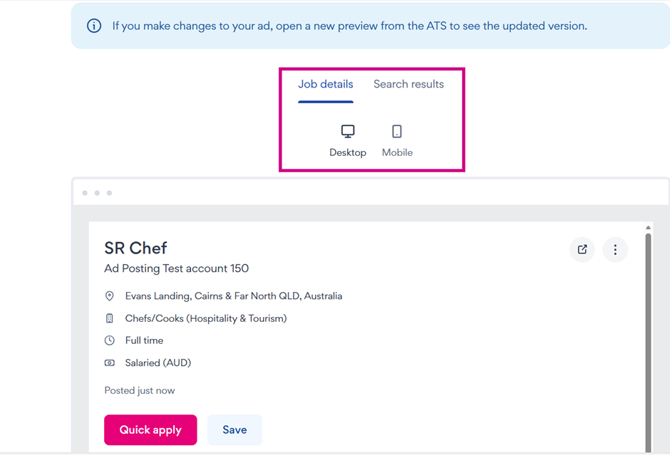
Preview - Desktop/Mobile
- Review the job as necessary, then click Publish. This action will publish the job on SEEK.
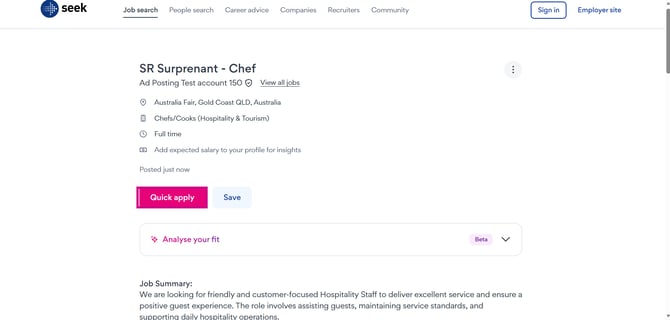
Job Posted - SEEK
Candidate Apply
- When a candidate applies using Native Apply (Quick Apply), they apply directly on Seek. In the case of Native Apply with screening questions (application form), candidates will see an additional screening questions page on SEEK. In the case of Native Apply without screening questions, candidates will apply on SEEK without any additional questions page.
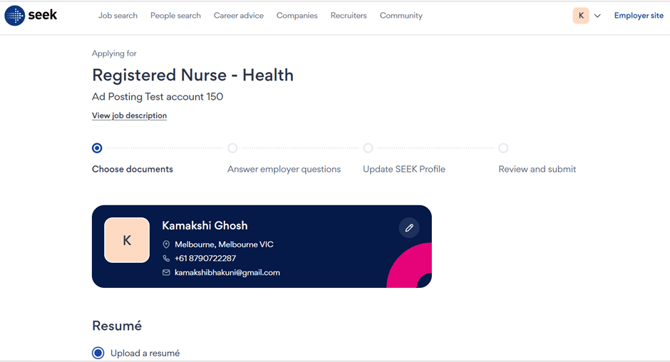
Native Apply – Apply on Seek
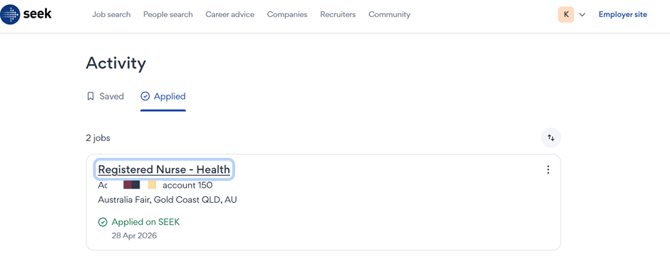
Job Applied - Seek
- When a candidate applies through SEEK, the Primary Owner and Job Owner will receive an email notification informing them that a new application has been received for the position, along with details such as the candidate’s name, date and time, and application source.
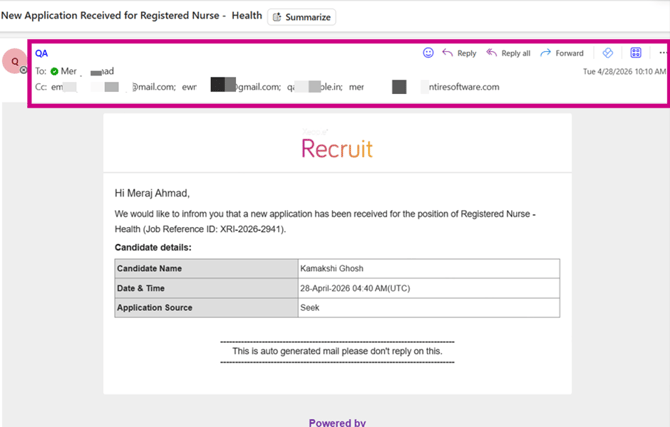
Email Sent – Primary Owner and Job Owner(s)
- Based on the desired responses configured in the application form, candidates who meet the criteria will proceed with the application and be mapped to the first stage of the job workflow (e.g., Applied).
- Candidates who do not meet the criteria will be automatically moved to the Rejected stage (mapped to a reject stage type in the job).
- Clicking the candidate's name or selecting the checkbox and then selecting Action from the action panel, opens the Split Screen (Job Action) view. Under the Applications section, you can find a PDF containing all the information the candidate submitted while applying for the job.
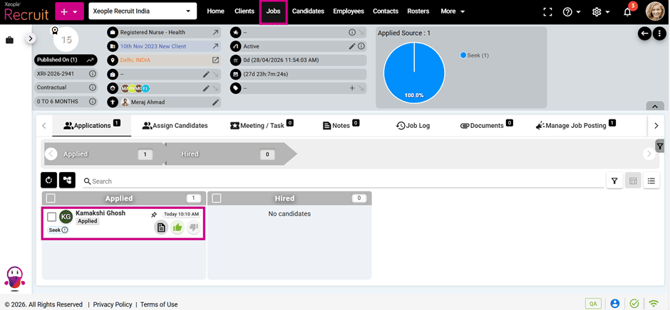
Candidate Mapped – Job – Applied Stage
SEEK Native Apply – Split Screen (Job Action) – Applications PDF
System automatically generates a consolidated PDF of all details including (skills, experience and education) submitted via SEEK -Native Apply.
You can access this PDF from different locations within the application:
- Job Summary> Grid View>Checkbox placed in front of candidate> Actions for the respective job.
- Job Summary > List View > Three-dot menu next to the candidate > View Application.
Recommend Reading: To view candidate responses captured from the application form and their answers to the screening questions, click here: Job Action. You can also view the application via Job Summary>List View> Three-dot placed in front of each candidate> View Application option.
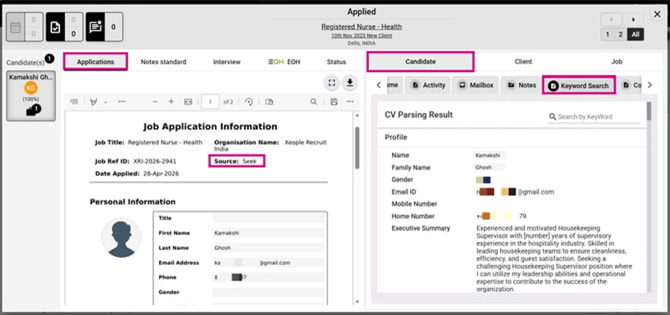
Split Screen Page (Job Action) – Candidate Application
Details Saved under Candidate Summary
- Their details will also be saved in the Candidate Profile > Summary section.
- XR retrieves the candidate’s profile information from seek and stores it under the Candidate Summary>Summary and Resume section, including:
- First Name
- Last Name
- Email ID
- Phone Number (Mobile), if provided
- Skills
- Skills Mapping from SEEK to XR: When a candidate applies through SEEK Native Apply and selects skills, the system:
- Check whether each selected skill already exists in XR.
- If the skill does not exist, create the skill and associate it with the candidate profile.
- If the skill already exists, associate the existing skill with the candidate profile using an exact match.
- Prevent duplicate skills from being created or associated with the candidate profile.
- Duplicate Prevention: The system avoids creating duplicate skills in the master data. For example:
- If the master database already contains "age care", and the candidate selects:
- "Age Care" (different capitalisation), or
- " age care " (extra spaces), the system recognises these as the same skill and link the existing "age care" skill to the candidate instead of creating a new one.
- The system also prevents duplicates when a candidate selects the same skill multiple times in SEEK Native Apply. In such cases, only one instance of the skill is associated with the candidate profile.
- This ensures that candidate profiles accurately reflect their skills, maintains data consistency, and prevents unnecessary duplicate records in XR.
- If the master database already contains "age care", and the candidate selects:
- Skills Mapping from SEEK to XR: When a candidate applies through SEEK Native Apply and selects skills, the system:
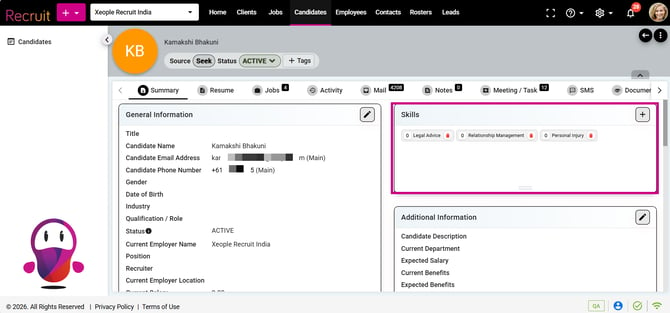
Skills - Coming from SEEK
-
-
- Employment History (Career History), if provided
-
The following information from SEEK is transferred to XR:
-
- Employment History (Career History), if provided
-
|
SEEK |
XR |
|
Job Title |
Position Name |
|
Company Name |
Employer |
|
Start Month/Year and End Month/Year |
Start Date and End Date (dd/mm/yyyy), default to first day of month. |
|
Description |
Description |
|
Still in Role |
Current Company |
-
-
-
-
- SEEK provides only month and year. XR requires a complete date.
- The system converts the date to dd/mm/yyyy format and use the first day of the month. For example, May 2024 becomes 01/05/2024.
- If "Still in Role" is selected in SEEK, the record is marked as the current company in XR.
-
-
-
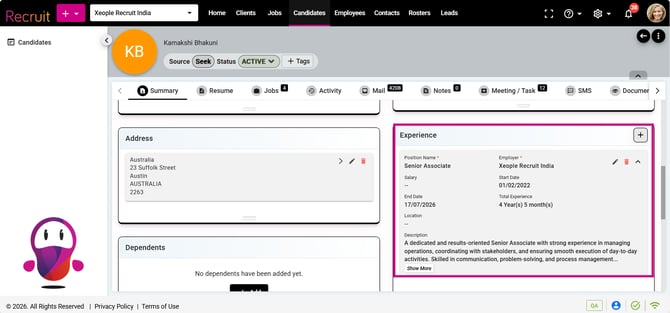
Experience - Coming from SEEK
-
-
- Education, if provided
- The following information from SEEK is transferred to XR:
- Education, if provided
-
|
SEEK |
XR |
|
Course/Qualification |
Qualification |
|
Institute |
Institute |
|
Start Month/Year and End Month/Year |
Start Date and End Date (dd/mm/yyyy), default to first day of month. |
|
Course Highlights |
Description |
|
Not available (NA) |
Location |
-
-
- SEEK provide only the year (for example, 2026), while XR requires a full date.
- In such cases, the system defaults the date to 01/01/2026 (first day of the first month).
- This value will be stored in the End Date field to ensure compatibility with XR.
- Once all the data has been transferred from SEEK to the Candidate Summary, the user can edit it as needed.
-
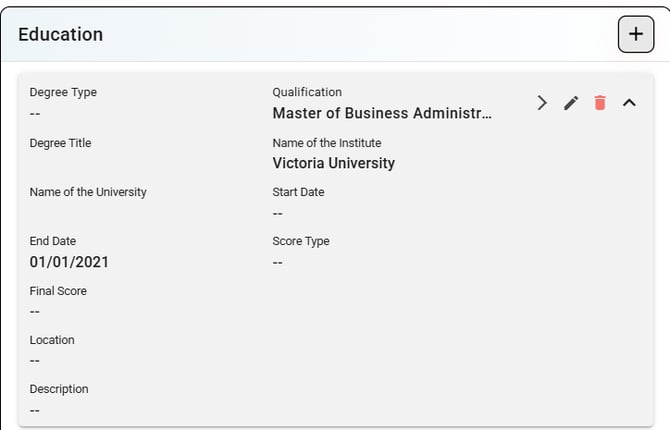
Education - Coming from SEEK
- Attachments (Resume (file)) if provided
- The resume will be automatically parsed, and you can view the extracted details under Candidate Summary > Resume > Parsed Resume.
However, the information extracted during resume parsing is not automatically populated into the Candidate Summary section.

Candidate Summary – Summary and Resume Section
- This enables quick and efficient searching of candidate information using Split Screen (Job Action) > Candidate > Keyword Search.

Split Screen Page (Job Action) – Candidate Application
Options available after Publishing the Job on Seek
- Edit and Publish Job on Seek: This option becomes available after a job is published on SEEK. You can update all fields except Organisation Name, Account, Apply Type, and the Application Form. Once saved, the updated version is published live to SEEK. The expiry date shown during republishing is limited to the remaining days within SEEK’s original 30‑day posting window, and the calendar displays only the valid dates you can select.
- To access this, go to Job>Manage Job Posting>Select the published job board> Edit and publish job on the top.
If you post a job using Native Apply without screening questions, you won’t be able to add them later by editing and publishing. You’ll need to expire the job and repost it to include them.
- Expire Job: It is the end date for your job ad — after this date, candidates can no longer apply. Immediately removes the job from SEEK. Used when the role is filled, cancelled, or no longer required.
- View Job on Seek: Opens your live job ad directly on the SEEK website.
-
- Used to:
- Confirm the ad is live.
- Review formatting and content.
- Validate salary visibility and job details.
- Used to:
- Back to Job Listings: This will navigate you to the Job Listing/Landing page.
-
- Used to:
- Manage candidates.
- Update job status.
- View job history and activity.
- Used to:

Job Posting – Seek - Actions
FAQS
Posting & Visibility
Why is my job not appearing on SEEK yet?
Once published, SEEK ads can take up to 10–15 minutes to appear live. If it has been longer than this, check that the job has been successfully published and is not in draft or pending status.
How long does it take for a job to go live on SEEK after publishing?
Most jobs go live within 10–15 minutes of successful publishing.
Why does my job say “pending” on SEEK?
This usually means SEEK is still processing or validating the advertisement. If it remains pending for more than 30 minutes, contact support.
Why can I see my job in Xeople but not on SEEK?
This usually means the job has not yet been published, failed during publishing, or is still processing with SEEK.
Can I republish an expired SEEK job?
Yes. You can edit the job and republish it to SEEK at any time.
Apply Type & Candidate Applications
What is the difference between Native Apply and Link Out?
Native Apply allows candidates to apply directly within SEEK and flow straight into Xeople.
Link Out sends candidates to your external careers page or application form.
Why don’t I have both Native Apply and Link Out options?
These options are controlled by your SEEK account setup. You must contact your SEEK Account Manager to enable or change them.
Why are candidates not flowing into Xeople from SEEK?
This is usually caused by:
-
Incorrect SEEK ID or Secret Key
-
Apply Type misconfiguration
-
A SEEK connection error
Where do SEEK applicants appear in the system?
They will appear under the relevant job in Xeople within the Candidates section.
Why is the apply button on SEEK directing candidates to the wrong page?
This indicates a Link Out configuration issue and must be updated via your SEEK Account Manager.
SEEK Account & Connection Issues
What is a SEEK ID and Secret Key?
These are secure credentials used to connect your SEEK account to the system.
How do I get my SEEK ID and Secret Key?
You must request these directly from your SEEK Account Manager.
Why is my SEEK connection failing?
This is commonly due to incorrect credentials, expired access, or a SEEK-side outage.
Can you reconnect my SEEK integration?
We can assist with reapplying the details, but your SEEK Account Manager controls access.
Do I need to contact my SEEK Account Manager or can support do this?
Any changes to SEEK permissions, billing, or apply types must be handled by your SEEK Account Manager.
Job Editing & Updates
If I update my job in Xeople, does it update automatically on SEEK?
No. After making changes, you must republish the job for the updates to sync to SEEK.
Why are my changes not reflecting on SEEK?
This usually means the job has not been republished after editing.
Can I edit a live SEEK job without republishing?
No. All updates require republishing.
Why is the salary not showing on my SEEK advert?
This is usually because the “Hide Pay Information” option has been enabled.
Salary & Pay Details
Why is the salary hidden on SEEK?
This occurs when the “Hide Pay Information” setting is switched on.
Can I post a SEEK job without a salary?
Yes, but SEEK strongly recommends including salary information for better visibility and candidate engagement.
Why does SEEK require a salary range?
Salary ranges improve job visibility and compliance under SEEK’s advertising requirements.
What happens if I only enter a pay label?
The ad can still go live, but visibility may be reduced compared to ads with numeric salary ranges.
Expiring & Closing Jobs
What does “Expire Job” mean?
It immediately removes the job from SEEK so it is no longer visible to candidates.
Can I reopen a job after expiring it?
Yes. You can edit and republish the job.
Will expiring a job remove candidates?
No. All received candidates remain linked to the job in the system.
Why did my job expire automatically?
This occurs when the job reaches its expiry date that was set during posting.
Billing & Advertising
Who gets billed for SEEK ads?
Billing is handled directly by SEEK using your connected account.
Where do I enter the SEEK billing reference?
In the “Internal Billing Reference” field during job posting.
What is the Internal Billing Reference used for?
It appears on your SEEK invoice and is used for internal tracking, such as purchase orders or cost centres.
Why did I receive a SEEK invoice but don’t see an ad live?
This usually indicates the ad was created but failed at publishing or expired shortly after going live.
Categories & Classification
Why is SEEK forcing a different job category?
SEEK automatically suggests categories based on job title and content.
Can I override SEEK’s recommended category?
Yes, you can manually select a different category before publishing.
Why does the category affect where my job appears on SEEK?
Categories control where and how your job appears in SEEK search results.
Videos & Branding
Can I add a video to my SEEK job ad?
Yes, you can add a YouTube link to the video field.
Why is my YouTube video not appearing on SEEK?
This may occur if:
-
The link is invalid
-
The video is private
-
SEEK does not support the format
Can I add my logo to SEEK ads through Xeople?
Logos are managed via your SEEK company profile, not directly inside Xeople.
Errors & Troubleshooting
Why am I getting a SEEK posting error?
This is usually caused by missing mandatory fields, invalid credentials, or a SEEK validation issue.
What does “Invalid Apply Type” mean?
Your SEEK account does not support the selected apply method.
Why does my job fail at the publishing stage?
Common causes include:
-
Missing required job fields
-
Invalid salary format
-
Account connection issues
Why does SEEK reject my job description?
Rejections commonly occur due to:
-
Missing job content
-
Disallowed contact details
-
Non-compliant wording