
Managing client relationships aims to enhance satisfaction and retention, ensure effective communication, and drive business growth by understanding and meeting clients' recruitment needs.
- Contact clients: Communicating with client companies to maintain relationships, understand hiring needs, provide updates, and ensure client satisfaction.
- Client contacts: Specific individuals within client companies. The purpose is to facilitate direct communication, manage recruitment processes, and address specific needs and requests.
Recommend Reading: How to Assign Contacts to Client or Assign Clients to Contacts, click here: Assign Client Contacts, Assign Client.
To contact clients, follow the steps below:
- Navigate to the main navigation header bar and click on Clients.
- Access the list of all clients, select client(s) you want to contact by clicking on the checkbox placed next to each client.
- Click on the three-dot on the right-hand side and select any of the two options either Send SMS or Send Mail.
-
- Send SMS
-
-
- When you click Send SMS, a new SMS screen opens, automatically populating the candidate(s) email IDs.
-
-
-
- You can insert a template from the Insert Template button, which displays your created or shared SMS templates.
- Finally, click on Send.
- On the client summary page, you’ll find both Email and SMS sections, designed to perform similar functions. Any SMS reply from a client or client contact will trigger a notification under the bell button, along with a link to navigate to the SMS section to access the SMS conversation. Similarly, an email notification will be sent informing that you have received a reply on your SMS conversation.
-
-
- Send Email
- When you click Send Mail, a new email screen opens on the right-hand side, automatically populating the candidate(s) email IDs in the To field.
- If you add or remove any, email ID, the system sends emails only to the recipients currently visible in the To field.
- When you click Send Mail, a new email screen opens on the right-hand side, automatically populating the candidate(s) email IDs in the To field.
- Send Email
-
-
-
- CC and BCC recipients receive one separate email for each person in the To field, and BCC names are hidden from everyone.
-
-
-
-
- You can insert a template from the Insert Template button, which displays your created or shared templates.
-
-
-
- You can choose to preview your email before sending it or discard it using the Email Previewor Discard button.
-
-
-
- Finally, click on Send Email.
- Similarly, scrolling to the right on the client landing page will show you the options.
- To email client contacts, first assign the contacts under the Contacts section. Then, select the desired contacts by checking the boxes next to their names, click the three-dot menu in the top-right corner, and choose Send Mail from the drop-down list.
-
Recommend Reading: To learn more about Email Integration and how email communication syncs with calendar functionality, allowing you to schedule interviews or follow-up tasks seamlessly, click here: Sync your Emails, Microsoft 365, Sync your Calendar.
Optional Reading: To read more on how to configure Email or SMS Templates, click here: Configure Email Templates, Configure SMS Templates.
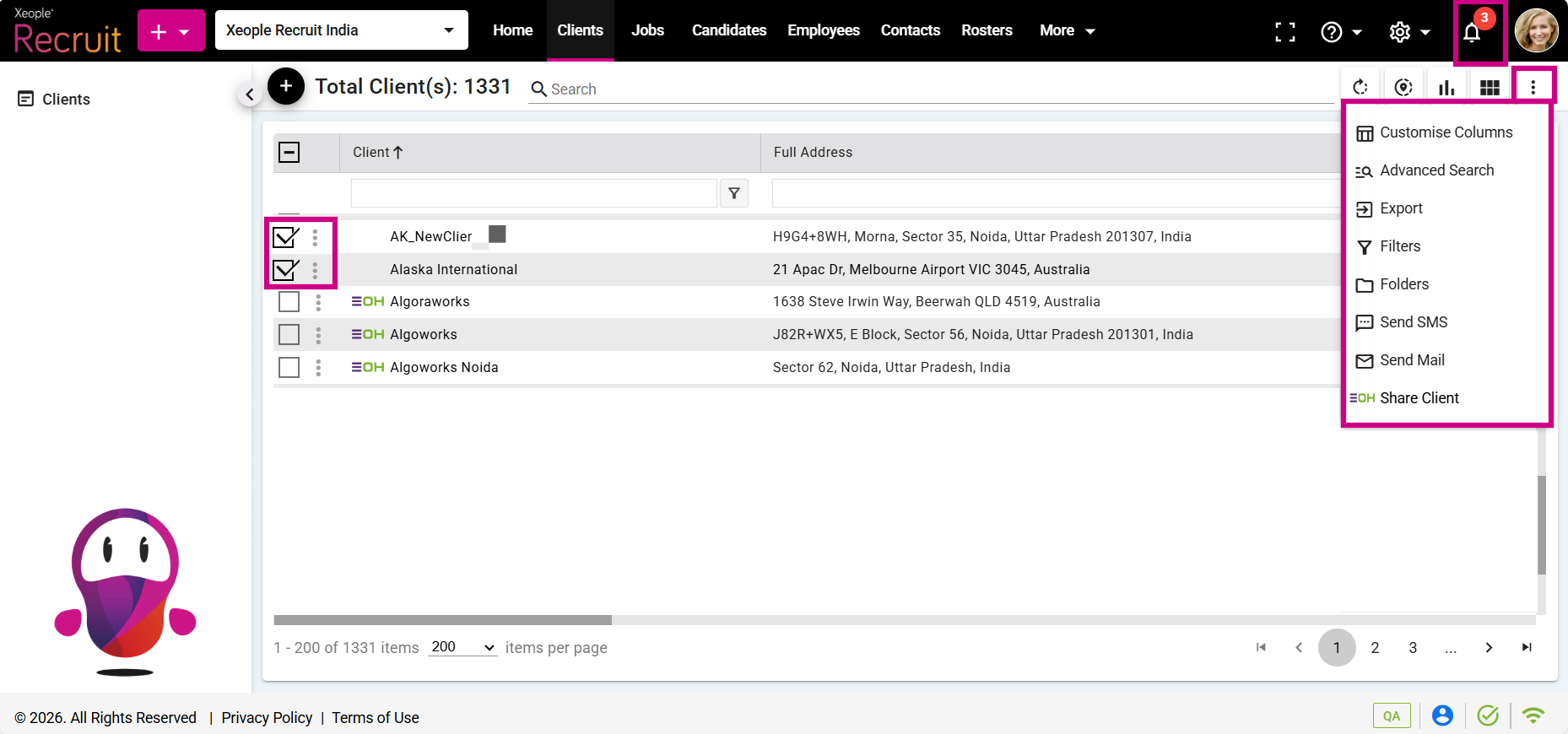
Clients - Send Mail or Send SMS
- For example, if you want to send a Mail, click on Send Mail.
- The Mail screen will appear, with auto populating the email IDs in the To field. Fill in the details in the appropriate fields.
- Upon entering the details, you will find checkboxes at the bottom labeled, All, Clients, Contacts and Primary Contacts.
Upon assigning contacts to the client(s), if you mark any contact as the Primary Contact, the Primary Contact field will be automatically selected. You can then choose any of the available options.
Selecting All will send the email to all recipients, including Clients, Contacts (all associated with the client), and the Primary Contact. Choosing Clients sends the email only to the clients, excluding Contacts and the Primary Contact. Opting for Contacts sends the email solely to the contacts of the client. Selecting Primary Contact sends the email exclusively to the contact marked as the Primary Contact.
- Select any of the option and click Send Email.
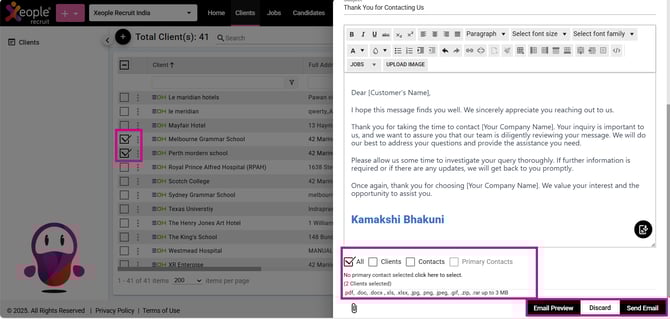
Client Landing - Send Mail
- Similarly, to send an SMS, click on Send SMS.
Recommend Reading: How to configure SMS template(s), click here: Configure SMS Templates.
To contact Client Contacts, follow the steps below:
- Access the list of all clients, then click on any client or the three-dot button and choose View Summary to navigate to the Client Summary page.
- Click on the Contacts section, select the Contact(s) by clicking on the checkboxes next to each contact and select Send Mail.
- To send an SMS to clients, go to the SMS section.
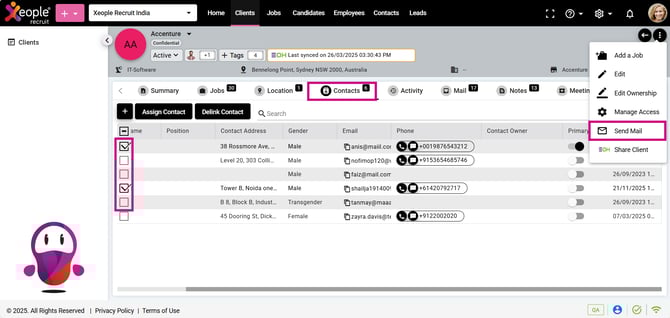
Contacts - Send Mail