
Email Integration allows you to link your Microsoft 365 or Gmail calendar, making it easier to sync your account meetings with the Xeople Recruit (XR) application. This keeps your meeting information easily accessible without leaving XR, helping you schedule and coordinate events, appointments, and interviews. It also helps you stay organised and manage recruitment activities effectively.
To sync your calendar, proceed by following the steps outlined below:
- Click your Profile picture and select My Profile from the drop-down menu.
- Click Email Integration from the left navigation panel.
- Select the Sync my Calendar check box to sync your calendar with the XR application.
- From the Days to Sync Calendar drop-down list, select the number of days for which you want XR to synchronise your calendar meetings (up to a maximum of 7 days). For example, if you select 2 days, XR synchronises meetings scheduled for today and the previous day.
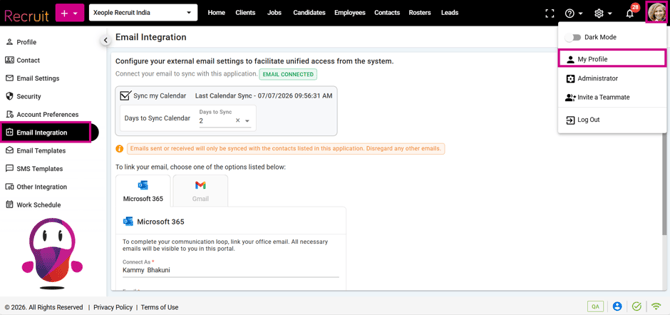
Sync Calendar – Checkbox – Select day(s) to Sync
Recommended Reading: How to integrate your Microsoft 365 or Gmail account with XR, see Sync your Emails.
- Based on your XR login, the appropriate email service provider (Microsoft 365 or Gmail) is selected automatically.
- The Connect As field is automatically populated with the username you used to register with the XR application.
- Click Connect.
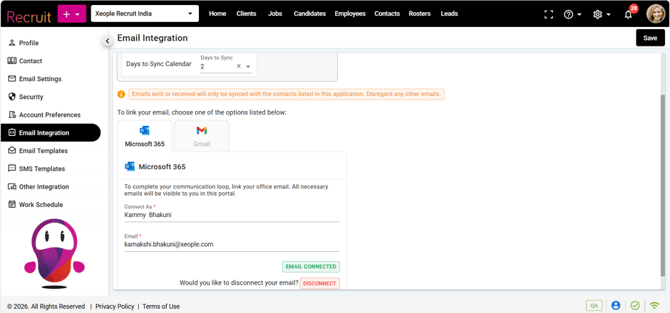
Email Connected
Note:
- Calendar synchronisation is independent of email synchronisation. The Days to Sync Calendar setting applies only to calendar meetings and does not affect email synchronisation.
- If Sync my Calendar is unticked, XR will stop synchronising your calendar meetings.
- If the email integration is disconnected and later reconnected, calendar meetings are synchronised based on the selected Days to Sync Calendar setting. However, emails received while the integration was disconnected are not automatically synchronised, even after reconnecting.
- XR synchronises only individual calendar meetings. Recurring meetings (daily, weekly, monthly, or other recurring schedules) created in Microsoft 365 or Gmail are not synchronised with the XR application.
- Only emails sent to or received from contacts available in Xeople Recruit (XR) are synchronised and displayed in the application. Emails associated with contacts that do not exist in XR are not synchronised.
Email and Calendar Sync Scenarios
| Scenario | Calendar Meetings | Emails |
|---|---|---|
| Email integration is connected and Sync my Calendar is enabled (ticked) | Calendar meetings are synced based on the selected number of days | Emails are synced for XR contacts only |
| Email integration is connected and Sync my Calendar is disabled | Calendar meetings are not synced | Emails continue to sync for XR contacts only |
| Email integration is disconnected | Calendar meetings are not synced | Emails are not synced |
| Email integration is disconnected and reconnected later (for example, after 2 hours) | Calendar meetings are synced according to the selected calendar sync days | Emails received during the disconnected period are not automatically synced |
| Email integration is reconnected with Days to Sync Calendar = 2 | Meetings for today and the previous day are synchronized | Emails received while the integration was disconnected are not synchronised |
Once connected, you'll receive an automatically generated email confirming that your account has been successfully linked with the Xeople Workforce application. The email also contains a link that you can use to disconnect the service if required.
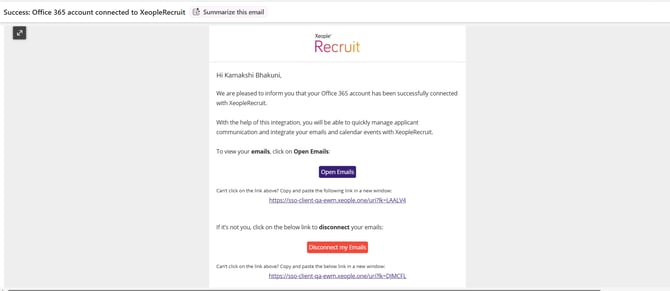
Registered Email ID – Account Connected
-
To view your synchronised calendar meetings, navigate to Home > Meeting.
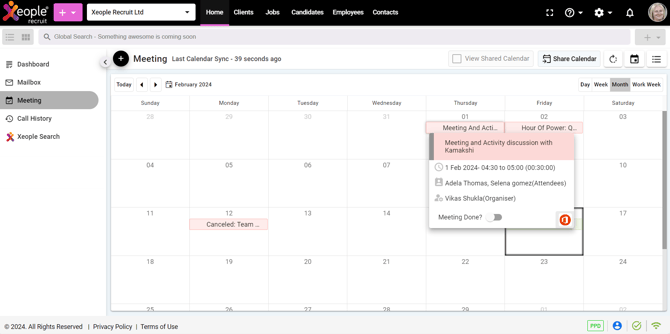
Calendar Sync
- Similarly, to disconnect your emails, click on Disconnect.
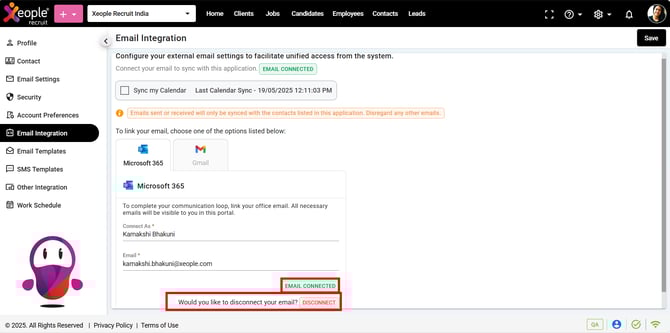
Email Integration - Disconnect