
Email Integration lets you connect your Outlook 365 or Gmail account with XeopleRecruit (XR). Once connected, your recruitment-related email communication is available within XR, making it easier to send, view, and track email conversations from one place.
This article explains how to connect Outlook 365.
Before You Begin
- Log in to XR using your Outlook 365 account.
- The email service you used to log in is selected automatically.
- Your logged-in email address is automatically displayed in the Email field.
- You can connect only one email service at a time.
- The other email service (Gmail) is disabled while Outlook 365 is selected.
To sync your emails, proceed by following the steps outlined below:
- Click on the Profile picture and select My Profile from the drop-down menu.
- Click on Email Integration from the left navigation panel.
Recommend Reading: How to sync your Microsoft 365 or Gmail calendar with the XR application, click here: My Profile - Sync your Calendar.
You can choose whether to sync your calendar by selecting or clearing the calendar sync checkbox. When selected, the calendar will sync.
Emails sent or received are synced only for contacts listed in the application. Emails associated with other contacts are ignored.
- Based on your login method, the email service provider is automatically selected as either Microsoft 365 or Gmail.
- The Connect As field is automatically populated with the username entered while registering with the XR application.
-
Click on Connect.
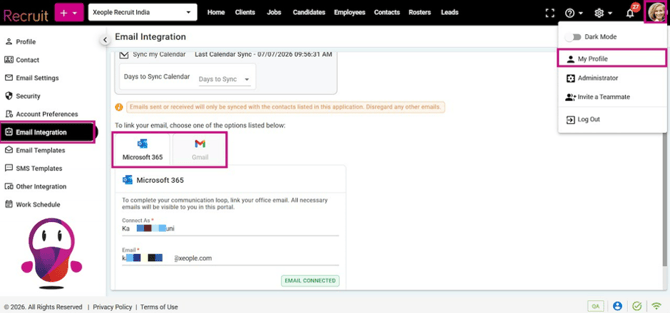
My Profile - Email Integration - Setup
After the connection is complete, your mailbox is synced with the system mailbox. You can access your emails from Home > Mailbox, which saves time by eliminating the need to open your external mailbox separately.
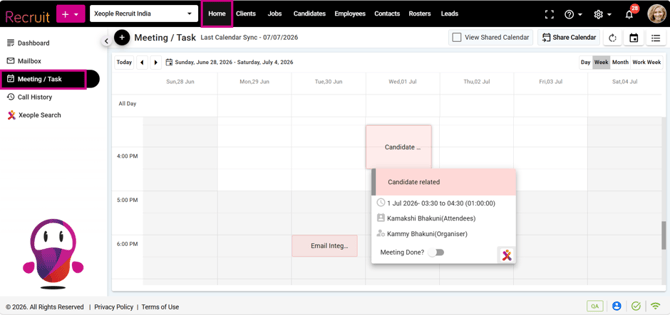
Home – Meeting/Task
Once connected, you'll receive an auto generated email confirming the successful linking of your account with the Xeople workforce. This email will contain a link to open the inbox or disconnect the service if needed.
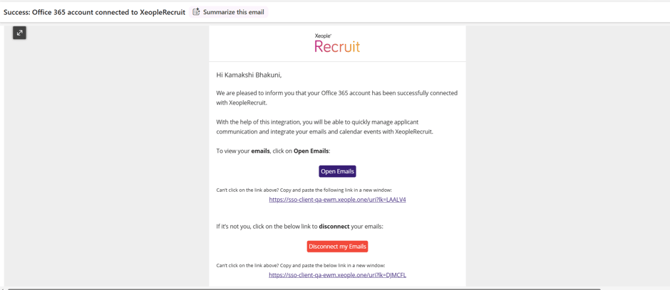
Registered Email ID - Microsoft 365 Account Connected with XR
- Similarly, to disconnect your emails, click on Disconnect.
If the email integration is disconnected, any emails received while the integration is offline will not be synced. For example, if the integration is disconnected and then reconnected after 2 hours, emails received during those 2 hours will not be automatically synced, even after the integration is restored.
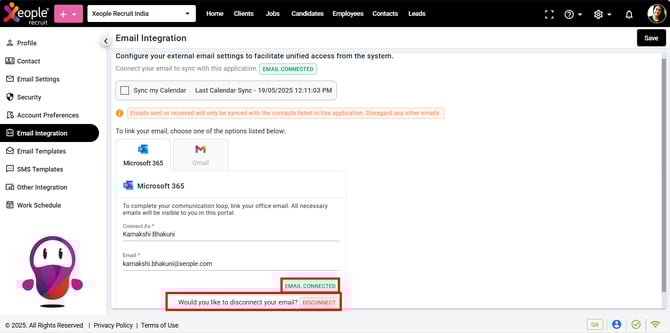
Email Integration - Disconnect
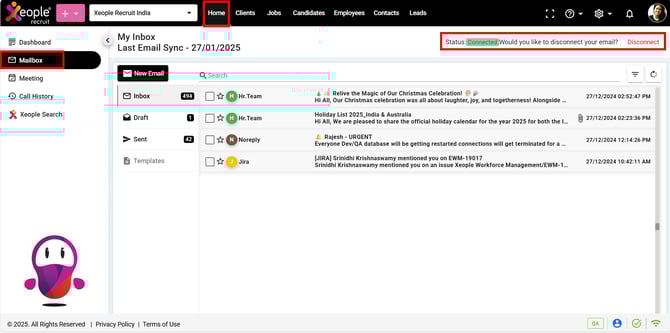
Home - Mailbox - Email Integration - Disconnect
Email Integration in Different Areas of XR
Email integration is not required in all areas of the XR application.
|
Area |
Email Integration Required? |
Description |
|
Landing Pages (Client Landing, Candidate Landing, etc.) |
No |
Uses the XR system-generated email service. Users can send single or bulk emails without connecting Microsoft 365 or Gmail. |
|
Summary Pages |
Yes |
Uses the user's connected Microsoft 365 or Gmail mailbox to send, receive, and synchronise email conversations. |
|
Home > Mailbox |
No (for sending emails) |
Users can send emails using the XR system-generated email service without connecting Microsoft 365 or Gmail. If Email Integration is enabled, the mailbox also displays synchronised emails from the connected mailbox. |
Sending Emails from Landing Pages (No Email Integration Required)
Let's check out an example of the Client landing and summary page:
- Select one or more client(s).
- Click three- dot (⋮).
- Select Send Mail.
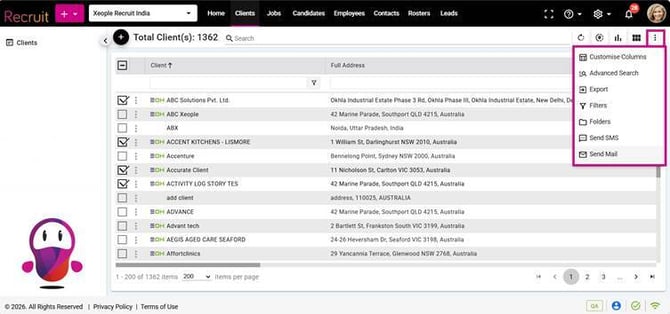
Client Landing – Select Client – Send Mail
The available recipient options at the bottom of the screen are:
|
Recipient Option |
Description |
|
All |
Sends the email to the Client, all associated Contacts, and the designated Primary Contact. |
|
Clients |
Sends the email only to the selected client(s). Contacts and the Primary Contact are excluded. |
|
Contacts |
Sends the email only to the contacts associated with the selected client(s). The email is synchronised to the Mail section of the corresponding Client Summary page. Example: John Armour is a Contact associated with ABC Pvt Ltd. If you send an email to John Armour, the email conversation is synchronised and displayed in the Mail section of the ABC Pvt Ltd Client Summary page. |
|
Primary Contact |
Sends the email only to the designated Primary Contact. Contact marked as primary contact. The email is synchronised to the Mail section of the corresponding Client Summary page. Example: John Armour is a Contact associated with ABC Pvt Ltd. If you send an email to John Armour, the email conversation is synchronised and displayed in the Mail section of the ABC Pvt Ltd Client Summary page. |
If the selected client has no associated Contact or no designated Primary Contact, the corresponding checkbox is disabled.
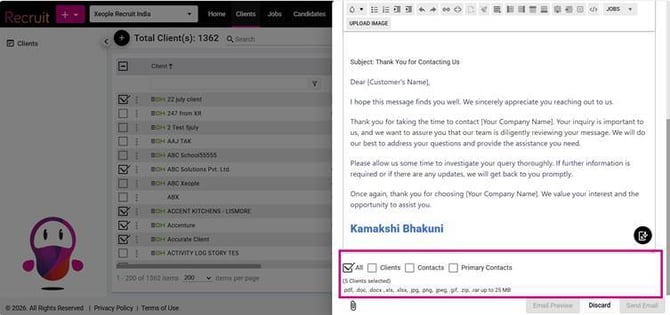
Send Email – Clients/Contacts/Primary Contact
Email Capture for Landing Page Submissions
Emails sent from a Landing page are automatically recorded against the corresponding Client Summary page.
For example, if you select four clients from the Client Landing page and choose Primary Contact as the recipient, only the clients with a designated Primary Contact receive the email. The email conversation is then recorded under the Mail section of the respective Client Summary page.
If a Primary Contact replies, XR records the reply as a separate mail entry for that client. Since the Mail section does not contain folders such as Inbox, Sent, or Drafts, all email activity is displayed as individual mail entries.
If multiple Primary Contacts are selected, each recipient (To field) receives an individual email, and XR records a separate conversation for each client.
Example 1 – Single Primary Contact
Suppose you send an email to the Primary Contact of ABC Ltd.
- XR creates one mail entry for the sent email under ABC Ltd > Mail.
- If the Primary Contact replies, XR creates a second mail entry for the reply under the same client.
As a result, the Mail section displays two separate entries:
- Sent email
- Received reply
Example 2 – Multiple Primary Contacts
Suppose you select three clients:
- ABC Ltd – Primary Contact: John
- XYZ Ltd – Primary Contact: Sarah
- PQR Ltd – Primary Contact: David
When you send the email:
- John receives an individual email.
- Sarah receives an individual email.
- David receives an individual email.
XR records a separate conversation under each client's Mail section:
- ABC Ltd > Mail – Sent email to John
- XYZ Ltd > Mail – Sent email to Sarah
- PQR Ltd > Mail – Sent email to David
If John and Sarah reply, their replies are recorded only under ABC Ltd and XYZ Ltd, respectively. No reply is recorded under PQR Ltd until David responds.
CC and BCC Behavior
XR sends emails individually to maintain separate conversation histories for each recipient.
- Each recipient in the To field receives their own email.
- Each CC and BCC recipient receives a separate email for every recipient in the To field.
- BCC recipients are hidden from all other recipients, including those in the To and CC fields.
Example 1
To: John
CC: Michael, Sophia
BCC: David, Emma
XR sends:
- 1 email to John
- 1 email to Michael (CC)
- 1 email to Sophia (CC)
- 1 email to David (BCC)
- 1 email to Emma (BCC)
A total of 5 individual emails are sent, and XR creates a separate conversation for each recipient.
Example 2
To: John, Noah
CC: Michael, Sophia
BCC: David, Emma
XR sends:
For John:
- John (To)
- Michael (CC)
- Sophia (CC)
- David (BCC)
- Emma (BCC)
For Noah:
- Noah (To)
- Michael (CC)
- Sophia (CC)
- David (BCC)
- Emma (BCC)
In total, XR sends 10 individual emails:
- John – 1
- Noah – 1
- Michael – 2 (one for John and one for Noah)
- Sophia – 2 (one for John and one for Noah)
- David – 2 (one for John and one for Noah)
- Emma – 2 (one for John and one for Noah)
XR records a separate conversation for every email sent, allowing each communication to be tracked independently.
Client Summary Page (Email Integration Required)
The Mail section on the Client Summary page requires Microsoft 365 or Gmail Email Integration.
Once your mailbox is connected, XR automatically synchronises:
- Emails sent to Client.
- Replies received from those recipients.
- Individual conversation history for every recipient.
- CC and BCC email IDs will be in each email sent to the recipient in the To field.
Home > Mailbox
Email Integration is not required to send emails from Home > Mailbox.
Users can send single or bulk emails using the XR system-generated email service.
If Microsoft 365 or Gmail Email Integration is enabled, the mailbox also displays synchronised emails from the connected mailbox, including sent emails and incoming replies.