
The primary function of candidate mail is to log all communication associated with a candidate. Its goal is to establish communication channels between you and candidates, facilitating the sending of crucial emails, interview invitations, feedback, and other relevant information directly to candidates via email.
Recommend Reading: To learn more about Email Integration and how email communication syncs with calendar functionality, allowing you to schedule interviews or follow-up tasks seamlessly, click here: Sync your Emails, Microsoft 365, Sync your Calendar.
Recommend Reading: How to configure Email Templates, click here: Configure Email Templates.
Recommend Reading: How to setup the email signature, click here: Setup Email Signature.
To navigate to the candidate mail page, follow these steps:
- Navigate to the main navigation header bar and click on Candidates.
- You will find a list of all candidates. By clicking on a candidate, you will be redirected to the Candidate Summary page. Then, navigate to the Mail section.
- Here you can find all the emails related to the candidate.
- When you click New Email, a new email screen opens on the right-hand side, automatically populating the candidate email ID(s) in the To field.
- When inserting a candidate email template created under My Profile - Email Templates, all candidate-related placeholders will be automatically replaced with their corresponding values. Placeholders from other modules or contexts will remain unchanged.
- When you click New Email, a new email screen opens on the right-hand side, automatically populating the candidate email ID(s) in the To field.
- CC and BCC recipients receive one separate email for person in the To field, and BCC names are hidden from everyone.
- For example: If John is in “To” field, Michael and Sophia in CC, and David and Emma in BCC, then John receive one email, while Michael, Sophia, David, and Emma each receive one separate emails and BCC recipients remain hidden from everyone.
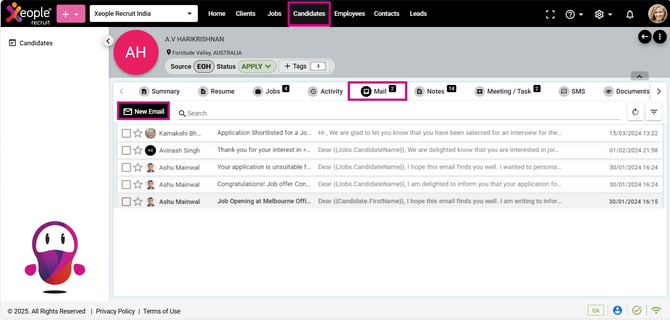
Candidate Summary Page - Mail - New Email
- Insert a template rather than writing a complete email from the insert template option.
When inserting a candidate email template created under My Profile - Email Templates, all candidate-related placeholders will be automatically replaced with their corresponding values. Placeholders from other modules or contexts will remain unchanged.
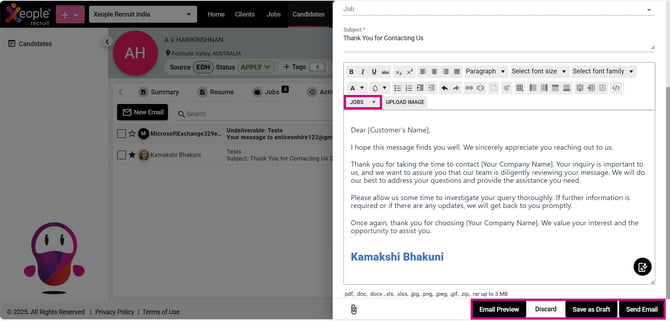
New Email - Jobs placeholders - Insert - Send Email
- Click Send Email.
Here are the actions you can perform in the Mail section of the candidate summary page:
- Search: The Search function in the mail section allows you to quickly find specific emails by entering keywords or phrases.
- Refresh: Allows you to update the list of emails to view the latest messages.
- More: Consist of two options:
- Mark as Read: This signifies that you've opened and read the email. To mark multiple emails as read, simply select the checkboxes next to each email, then navigate to More and choose Mark as Read to streamline the process and eliminate manual effort.
- Mark as Unread: This option highlights emails that you haven't opened yet. Similarly, to mark multiple emails as unread, select the checkboxes next to each email, then go to More and choose Mark as Unread to streamline the process and eliminate manual effort.
- Filter - Show Only Favorites: Filters emails to display only those marked with a star, indicating they are favorites.
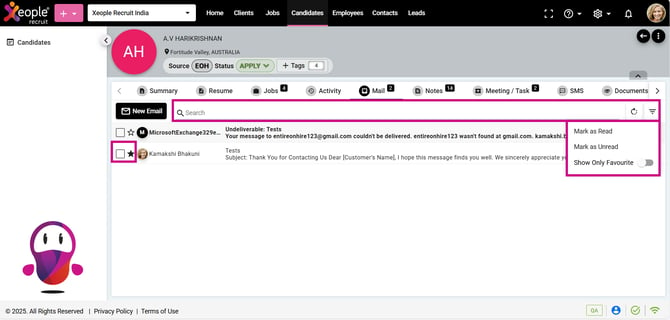
Candidate Summary Page - Actions