
The XR → EOH Auto Push feature enables seamless integration between XR and EOH by automatically creating an applicant record in EOH whenever a candidate applies for a job in XR and is successfully mapped to the corresponding job requisition.
This functionality helps maintain synchronisation between XR and EOH by ensuring that eligible candidates are automatically available in EOH without requiring manual intervention.
Before creating an applicant, the integration performs a duplicate check in EOH. If a matching applicant already exists, no new applicant record is created, preventing duplicate entries while preserving data consistency across both systems.
Integration Configuration
EOH & XR Marketplace Integration
For candidates to be automatically pushed to EOH, both of the following conditions must be met:
- EOH Application Integration Flag is enabled (managed by the Xeople team).
- XR Marketplace Integration – EOH must be enabled.
- XR Auto Push enabled on you tenant by the XR team.
|
Status |
Behaviour |
|
Candidates are automatically pushed to the EOH Application Inbox as Applicants with the selected EOH Office, EOH Industry, and EOH Qualification values, along with the candidate information provided in XR. The minimum required fields are First Name, Family Name, Email, and Resume. If additional information such as Title, Date of Birth, Phone Number, or Address is provided by the candidate(s), all of this information is also passed to the EOH application. The EOH Office, EOH Industry and EOH Qualification fields become mandatory when creating a job. This ensures that the required EOH values are selected and that, when a candidate applies for the job, the candidate is automatically pushed to EOH as an Applicant with the corresponding values. Recommend Reading: How the create job field works, click here, Create a job. |
|
EOH Office, Industry and Qualification are optional because XR Auto Push is disabled. Candidates are not automatically pushed to EOH and need to be pushed manually. Once XR Auto Push is enabled, new candidates who apply for jobs after Auto Push is enabled will be automatically pushed to the EOH Inbox as Applicants. Candidates who applied while Auto Push was disabled will not be automatically pushed and must be pushed manually. |
|
The EOH Office, Industry and Qualification fields will not be displayed in the Create Job form because the XR–EOH Marketplace Integration is disabled. Candidates are not automatically pushed to EOH and need to be pushed manually. Once the XR–EOH Marketplace Integration is enabled, candidates who apply for jobs after the integration is enabled will be automatically pushed to the EOH Inbox as Applicants. Candidates who applied before the integration was enabled will not be automatically pushed and must be pushed manually. |
|
EOH Office, Industry and Qualification will not be displayed. No automatic push to the EOH application occurs. Candidates need to be pushed manually to EOH, if required. |
Recommend Reading: For configuration details on the XR integration, refer to Marketplace Configuration - Entire OnHire (EOH).
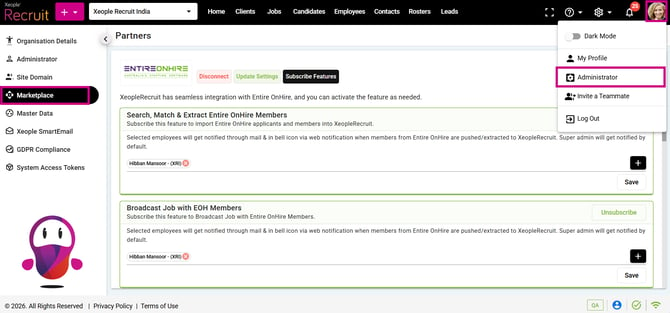
Administrator – Marketplace – EOH - Enabled
Candidate Sources Supported for Automatic Push to EOH
Note: Candidates from any source are automatically pushed to EOH with the mandatory information — First Name, Family Name, Email, Resume, EOH Industry, EOH Qualification, and EOH Office along with any optional information provided while applying, such as Title, Gender, Phone Number, Date of Birth, and Address. Missing optional information will not prevent the candidate from being pushed to EOH.
When a candidate applies for a job and is created and mapped to that job in XR (Applied Stage mapped to applied Stage Type), the candidate is automatically pushed to EOH, provided the minimum required fields (First Name, Last Name, Email Address, Resume, EOH Industry, EOH Qualification and EOH Office) are available.
This applies regardless of how the candidate was mapped to a job in XR, including:
- Manual assignment to a job
Optional Reading: How candidates are manually assigned to a Job, click here: Assign Candidate Manually.
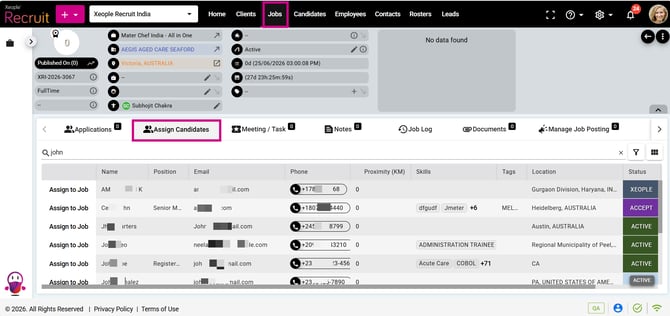
Assign Candidates – Manually to Job
- Share Job Apply Page Links (Application Forms)
Optional Reading: How share job apply page feature works in detail, click here: Share Job Apply Page Link.
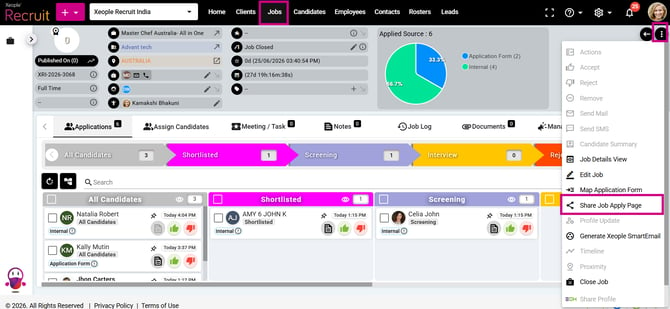
Share Job Apply Page Link to Candidates
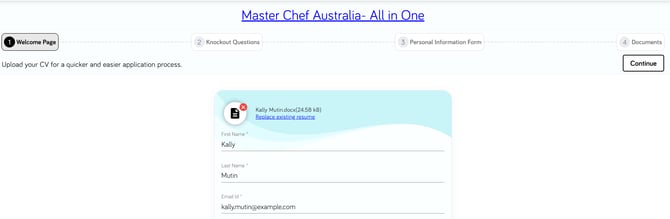
Candidate Applying via Application Form
- Generate Job-Specific Xeople SmartEmail
Optional Reading: How Job-specific Xeople SmartEmail feature works in detail, click here: Generate Job-specific Xeople SmartEmail.
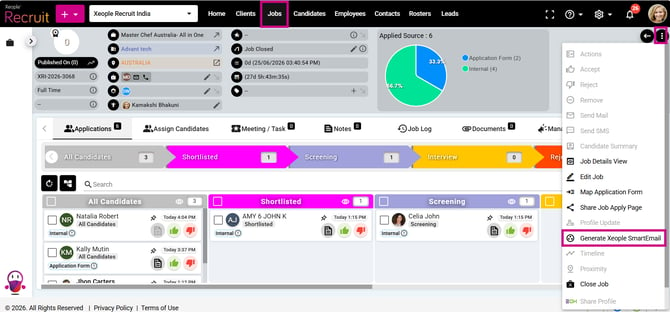
Generate Job-Specific Xeople SmartEmail – Create and Map Candidates to Job
- SEEK/Broadbean Native Apply (with or without Application Form)
Optional Reading: How job posting – native apply feature works in detail, click here: Posting Jobs via SEEK, Posting Jobs via Broadbean.
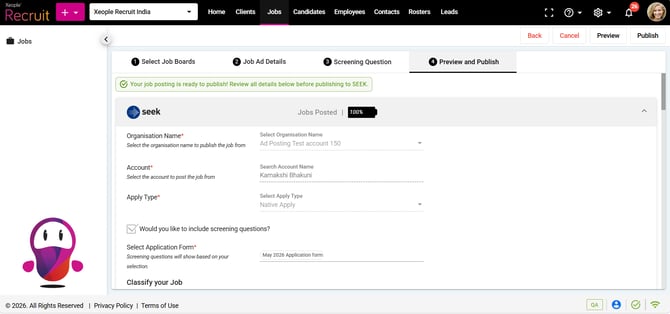
Seek – Native Apply – Publish
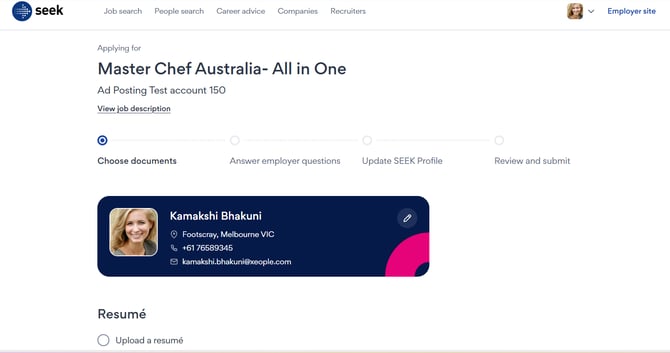
Candidate Apply on Seek
- SEEK/Broadbean Link Out (with Application Form)
Optional Reading: How job posting – link out feature works in detail, click here: Job Posting - Link Out.
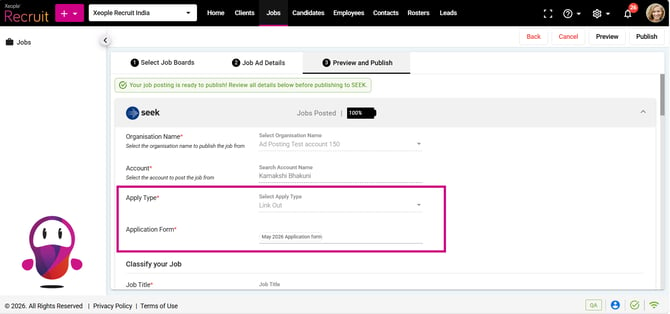
Seek – Job Ad – Apply Type – Link Out
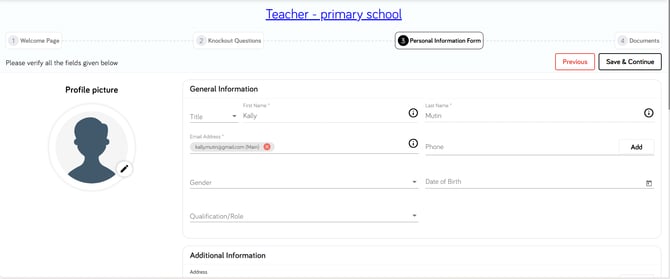
Candidate applying via Application Form
- Xeople Search
Optional Reading: How Xeople Search feature works in detail, click here: Xeople Search.
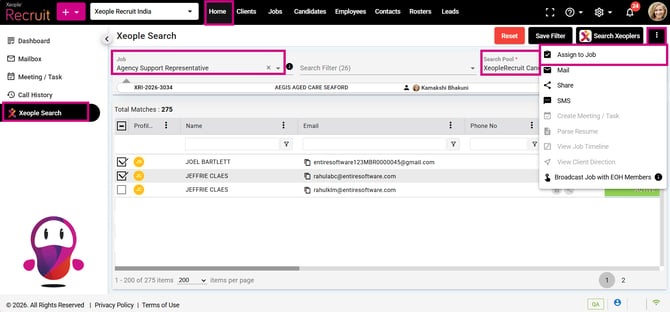
Xeople Search – XR Candidate Pool – Select Candidate(s) – Assign to Job
Auto Push Process
Auto Push Process
|
Step |
Description |
|
1 |
XR validates that the XR–EOH integration and Auto Push is enabled. |
|
2 |
To support the XR–EOH integration, three new fields have been added to the Create Job page in XR: EOH Office, EOH Industry, and EOH Qualification. These fields specify the Office, Industry, and Qualification in the Entire OnHire (EOH) application where candidates are automatically pushed as Applicants when the XR–EOH Marketplace Integration is enabled, and the EOH Application flag is turned On. The values for these fields are retrieved from the EOH application through APIs and displayed in the Create Job form in XR. |
|
3 |
Candidate applies to a job via application form or direct on job boards. |
|
4 |
Minimum mandatory candidate information is validated like First and Family name, Email and Resume. |
|
5 |
A duplicate check (email ID or Phone No exists) is performed in EOH. |
|
6 |
If no matching applicant exists, a new applicant is automatically created in EOH Inbox. |
|
6 |
If a matching applicant already exists (based on Email ID or Phone Number), a new applicant record will not be created, and the applicant creation process will be skipped. |
After Candidate Application – Auto Push Candidate Details and Sync Information
- For example, once a candidate applies to a job via any means, they are automatically created and mapped to the respective Job to the First Stage (Applied stage mapped to an applied stage type).
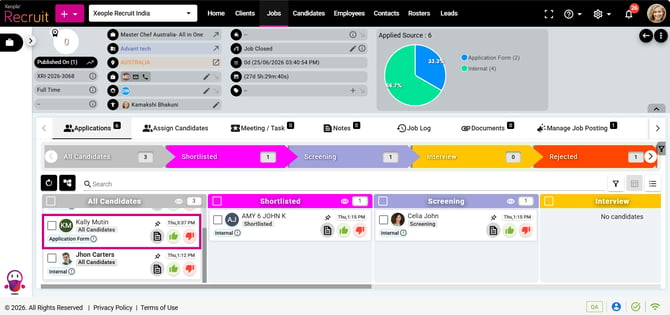
Candidate Mapped to Job
- Clicking on the candidate's name will open the Job Action page. Navigate to the EOH tab, where you can verify that the candidate has been automatically pushed to EOH.
- In the Candidate Activity tab, you can view the activity log for the candidate, including details of the auto-push.
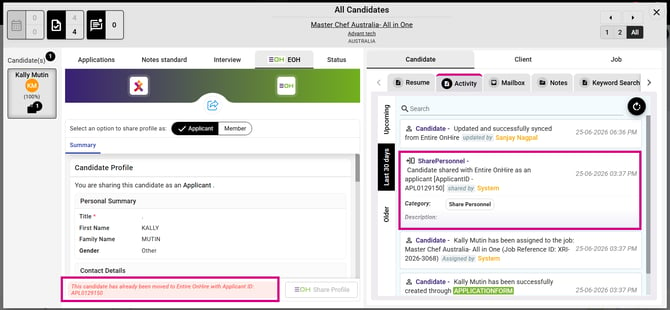
Candidate Automatically Pushed to EOH
- Similarly, clicking on the candidate’s name on the left panel card will navigate you to the candidate summary page where you can see the synced information.
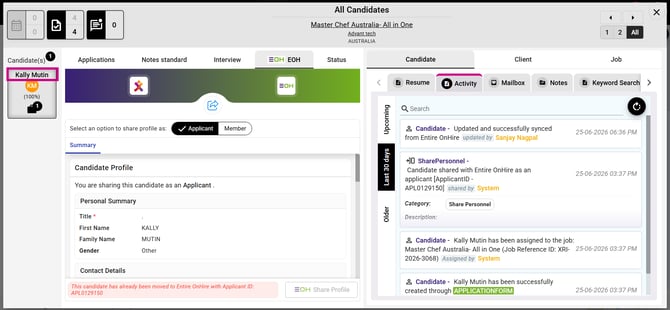
Split Screen (Job Action) – Candidate(s) – Kally Mutin
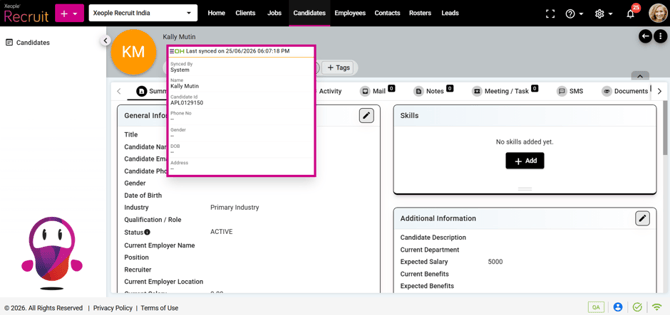
Candidate Summary – Synced to EOH
Auto Push Candidate Field Mapping (XR to EOH)
|
Field Name |
Data Source / Behaviour |
Mandatory Rule |
|
Title |
If a Title value is provided by the candidate, it will be passed to the EOH application when the candidate is automatically pushed. If no Title is provided, the candidate will still be pushed to EOH without the Title information. |
Optional for auto-push. |
|
First Name |
Given name. This field is prefilled. If no value exists, the candidate will not be automatically pushed to EOH. |
Mandatory for auto-push. |
|
Family Name |
Surname. Prefilled. If no value exists, the candidate will not be automatically pushed to EOH. |
Mandatory for auto-push. |
|
Gender |
If a Gender value is provided by the candidate, it will be passed to the EOH application when the candidate is automatically pushed. If no Gender is provided, the candidate will still be automatically pushed to EOH without the Gender information. |
Optional for auto-push. |
|
DOB |
If a Date of Birth is provided by the candidate, it will be passed to the EOH application when the candidate is automatically pushed. If no Date of Birth is provided, the candidate will still be automatically pushed to EOH without the Date of Birth information. |
Optional for auto-push. |
|
|
Candidate’s active email address. Prefilled. Unique identifier. If no value exists, the candidate will not be automatically pushed to EOH. |
Mandatory for auto-push. |
|
Phone Number |
If a Phone Number is provided by the candidate, it will be passed to the EOH application when the candidate is automatically pushed. If no Phone Number is provided, the candidate will still be automatically pushed to EOH without the Phone Number information. |
Optional for auto-push. |
|
Industry |
The EOH Industry field in the XR Create Job form retrieves values from the Industry Master in the EOH application. The default Industry configured in EOH application is automatically selected and displayed in the Job form. You can update the Industry as required. The selected Industry is used when a candidate applies for the job and is automatically pushed to EOH as an Applicant, ensuring that the candidate is assigned the same Industry value in EOH. Navigation: EOH → Client Master → Industry → Default |
Mandatory when XR- EOH Integration from marketplace and Auto Push is enabled (by the XR team). |
|
Qualification/Role |
The Qualification/Role dropdown in the XR Create Job form retrieves values from the Qualification/Classification Master in the EOH application, based on the Industry selected. The user can select a Qualification/Role from the values available for the selected Industry. The selected Qualification/Role is passed to the EOH application when the candidate is automatically pushed as an Applicant. Navigation: EOH Application → Member Master → Qualification/Classification |
Mandatory when XR- EOH Integration from marketplace and Auto Push is enabled (by the XR team). |
|
Address |
If an Address is provided by the candidate, it will be passed to the EOH application when the candidate is automatically pushed. If no Address is provided, the candidate will still be automatically pushed to EOH without the Address information. |
Optional for auto-push. |
|
Office Applying For |
The EOH Office field in the XR Create Job form retrieves values from the Office Master in the EOH application. The default Office configured in EOH is automatically selected and displayed in the form. You can update the Office as required. The Office selected for the job is used when a candidate applies for the job and is automatically pushed to EOH as an Applicant, ensuring that the candidate is assigned to the same Office in EOH Inbox. The default Head Office configured in EOH will be used. Navigation: EOH Application → Reporting Office |
Mandatory when XR- EOH Integration from marketplace and Auto Push is enabled (by the XR team). |
|
Upload Resume |
Prefilled. If no resume exists, the candidate will not be automatically pushed to EOH. CV parsed data will be pushed to EOH and displayed within EOH Talent Search. |
Mandatory for auto-push. |
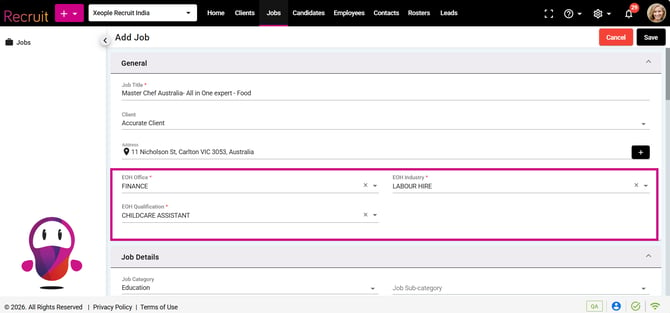
Create Job Form – EOH Driven Fields
Notes
- For automatic candidate push from XR to EOH, only the following fields are required:
- First Name
- Family Name
- Resume
- EOH Industry
- EOH Qualification
- EOH Office
- If a candidate is manually assigned to a job without a resume attached, the candidate will not be automatically pushed to EOH. To resolve this, navigate to the Candidate Summary page and attach the candidate's resume. Once the resume has been uploaded, the candidate will be automatically pushed to EOH.
Bulk Job Assignment Scenario
- XR allows users to assign (candidate) an applicant to multiple jobs from different areas of the application, such as Xeople Search and Candidate Summary > Jobs.
- Consider an applicant named John Carter. John Carter is assigned to three jobs in a single action. Each job has different values configured for the new fields.
|
Job |
Office |
Qualification |
Industry |
|
Job 1 |
Adelaide |
A |
IT |
|
Job 2 |
Brisbane |
B |
Healthcare |
|
Job 3 |
Sydney |
C |
Education |
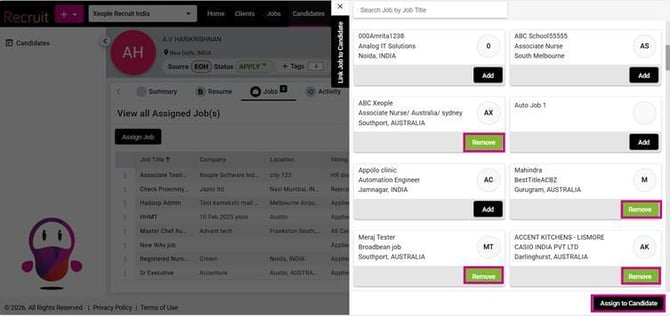
Candidate Summary – Jobs – Assign Job
- In this scenario, John Carter is associated with multiple jobs, each having different values for Office, Qualification, and Industry. During the Auto Push process, it is unclear which job's field values should be used when creating the Applicant record in the Entire OnHire (EOH) application.
- When an applicant is assigned to multiple jobs in a single action, the Auto Push uses the default Office, Qualification, and Industry configured in the Entire OnHire (EOH) application. This ensures consistent behaviour and avoids ambiguity when multiple jobs have different field values.
Single Job Application
- When an applicant applies for a single job (for example, through SEEK, the application form, or any other source), the Auto Push process should use the Office, Qualification, and Industry values configured for that specific job. These values should be passed to the Entire OnHire (EOH) application when the applicant is automatically pushed.
Other Fields - Impact
-
All other fields, such as Title, Gender, Phone Number, Date of Birth (DOB), and Address, will be pushed to the EOH application if provided by the candidate while applying for the job. These fields are optional for the automatic push, meaning that if no values are provided, the candidate will still be automatically pushed to EOH. Mandatory fields such as Industry, Qualification/Role, and Office are automatically populated from EOH. Therefore, missing values in optional fields will not prevent the candidate from being automatically pushed to EOH.
- Industry will be derived from the default Industry configured in EOH.
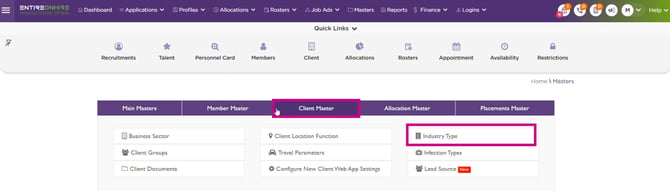
EOH – Default Industry
If a candidate is not automatically pushed from XR to EOH, please contact the Xeople Support team at xeople.support.com. Our team will investigate the issue and provide you with the reason for the failure, along with any required next steps.
Knock-Out / Rejected Candidates
Candidates automatically rejected through screening or knock-out questions are not automatically pushed to EOH.
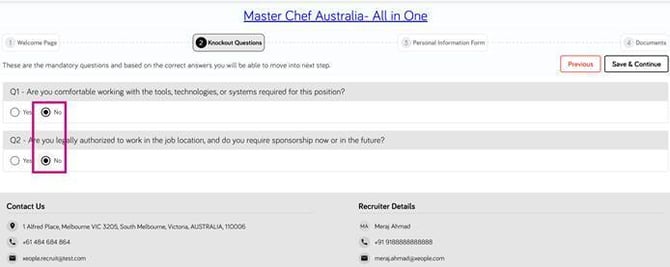
Knockout Questions – Answers do not Match
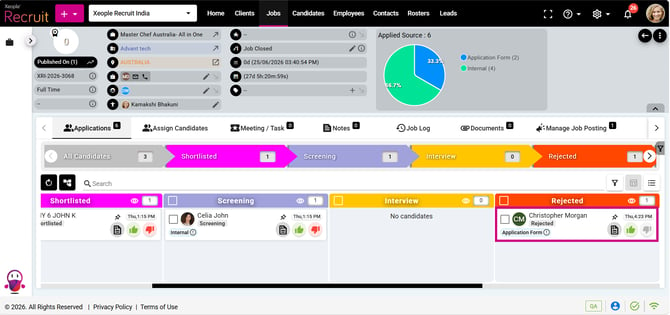
Candidate Mapped to Rejected Stage
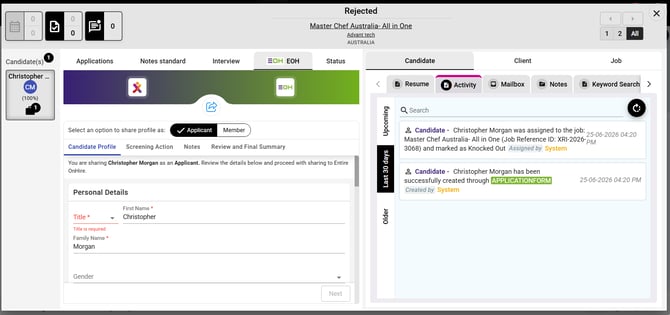
Candidate not Auto Pushed to EOH
Recommend Reading: When candidates apply and answer the screening questions, the End application if the candidate is knocked out toggle functionality is applied accordingly. For more details, click here: Knockout Questions.
These candidates can be pushed manually if required.
EOH Record Creation
For this integration:
- Applicant records are created in the EOH Inbox.
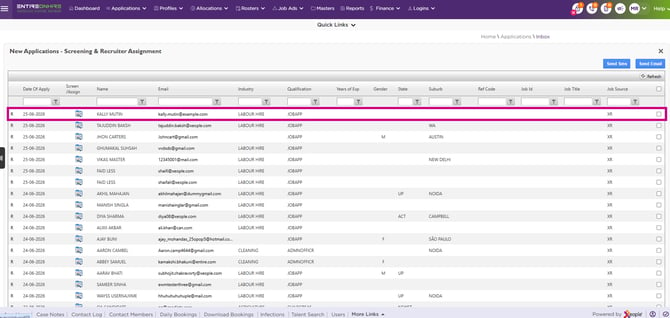
EOH – Onboarding – Inbox
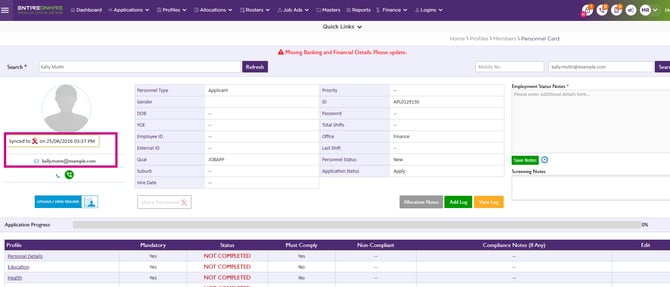
Candidate Created in EOH
- Member records are not created as part of the auto-push process.
- Applicant Portal logins are not automatically generated.
Audit Log
The system records each automatic candidate push from XR to EOH in the audit log, providing a traceable history of the integration activity.
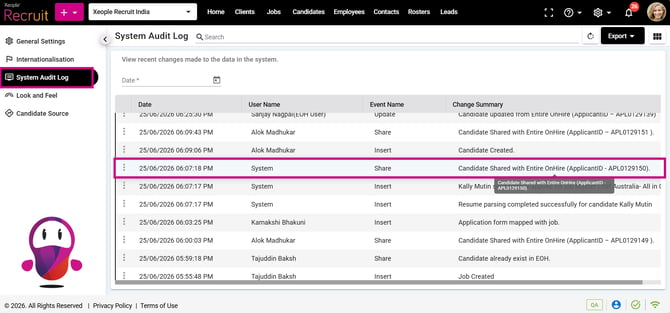
System Settings – Audit Log
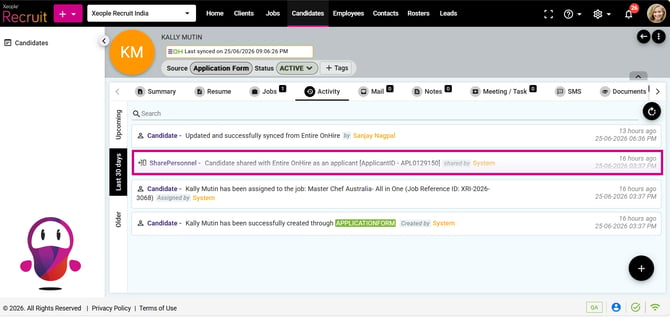
Candidate Summary – Auto Push – Log