
The purpose of adding a team is to group users with similar roles or responsibilities, enabling streamlined management of permissions, access, and collaboration within the system. This ensures that tasks, workflows, and data are organised and accessible according to the specific needs of each team, enhancing efficiency and coordination across the organisation.
Optional Reading: How to Create an Employee, click here: Create Employee.
Recommend Reading: How to Invite Employees, click here: Invite Employees.
Recommend Reading: How Application Roles and Authorisations work, click here: Application Roles and Authorisation.
Recommend Reading: How User Access Request works, click here: User Access Requests.
To navigate to the Teams feature, follow the steps:
- Navigate to the main header bar, click on the Settings drop-down menu, and select User Management.
Team owners and members can access their teams if they have the required permissions under User Management.
- Click Team and then click on the (+) add button to add a team.
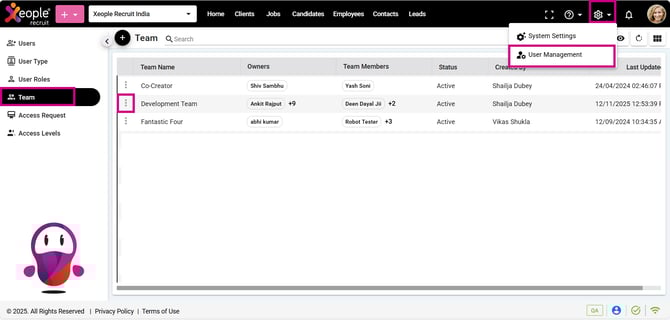
User Management – Team – Add a Team
- Fill in the details and click Save.
The creator is auto-assigned as the owner but can reassign ownership to another user; once reassigned, the original creator loses edit/delete rights. Team dropdowns also display member email addresses alongside names, making it easier to identify the right user.
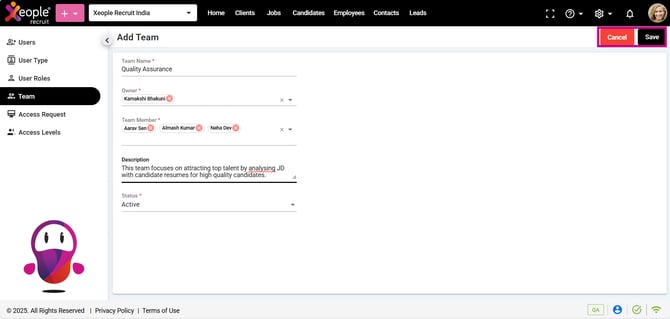
Add Team – Save
- To view, edit or delete a team, click on the three-dot button and choose as per your requirements.
Team owners can manage their teams, and Admins and Super Admins can edit or delete any team based on their rights.