
An employee is an individual who is officially hired by an organisation to perform specific tasks or roles within the company. The purpose of creating an employee record is to document and manage information about individuals who have been successfully hired by the organisation.
Create an Employee
- Navigate to the main navigation header bar and click on Employees.
- Click on the (+) button.
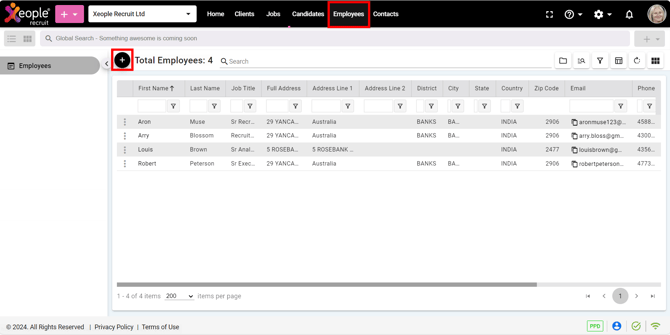
Employees - Add Employee
- The add employee screen appears. Fill in the required details and then click Save.
Fields when adding an employee:
|
Field |
Description |
|
Organisation* |
Represents the associated company/entity. Auto-selected based on last login; selectable if multiple organisations are available (you have access to). |
|
Title* |
Employee’s title (mandatory). XR system - defined values. |
|
First Name* |
Employee’s first name (mandatory). |
|
Last Name* |
Employee’s last name (mandatory). |
|
Job Title |
Employee’s current or assigned job title. |
|
Employee Address |
Employee’s address details. |
|
Employee Email Address* |
Employee’s email (mandatory). Must be unique to avoid duplicate records. |
|
Employee Phone No |
Employee’s contac number. Country code defaults to +61 (Australia). As set under the System Settings → Internationalisation . |
|
Type |
Indicates the record type (default: Employee). |
|
Status* |
Employee status (e.g., Active) (mandatory). Values coming from the status master. |
|
Reason |
Status-related reason (e.g., reason for inactive). |
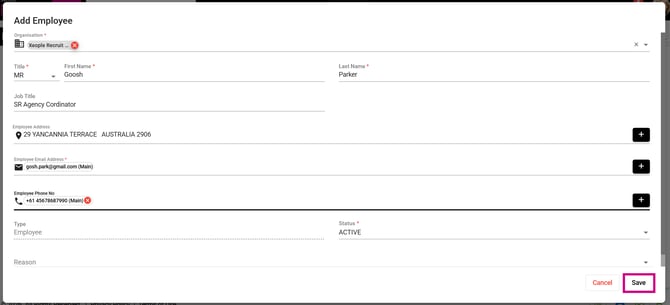
Add Employee - Fill Details - Save
Similarly, to add an employee from the Quick add Employee panel, follow these steps:
- Navigate to the main navigation header bar and click on the Quick add Employee (+) on the top left side.
- Select Employee and follow the steps outlined above to create a new employee.
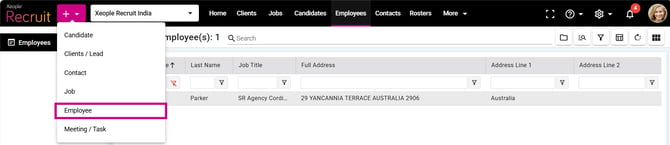
Quick add Employee - Add Employee