
The Related To Module Master defines the modules (Job, Candidate, Client/Lead, Employee) that provide the context for Meetings and Tasks—such as whether an activity is related to a specific job, candidate, employee, or client/lead. It enables users to accurately link activities to the appropriate business entity, ensuring better organisation, traceability, and effective tracking and management.
How It Works (Functional Explanation)
In the Meeting/Task screen, the Meeting Related To field allows users to select the module context. Based on the selected module, the Related To field is populated with relevant values in the drop-down, enabling users to select a specific record.
Example:
- If Related To = Employee → You can select a specific Employee. This
- If Related To = Job → You can select a specific Job.
- If Related To = Candidate → You can select a specific Candidate.
- If Related To = Client/Lead → You can select a specific Client or Lead.
This ensures that every meeting or task is correctly mapped to the relevant entity.
Benefits
- Enables accurate linking of meetings and tasks to relevant modules.
- Improves visibility and traceability of activities.
- Supports structured data management across modules.
- Enhances reporting and tracking of module-specific interactions.
- Provides a consistent and standardised activity classification.
To navigation to Related To Module Master, follow the steps below:
- Click on the Profile picture and select Administrator from the drop-down menu.
- Click on Master Data from the left navigation panel and select Related To Module under General.
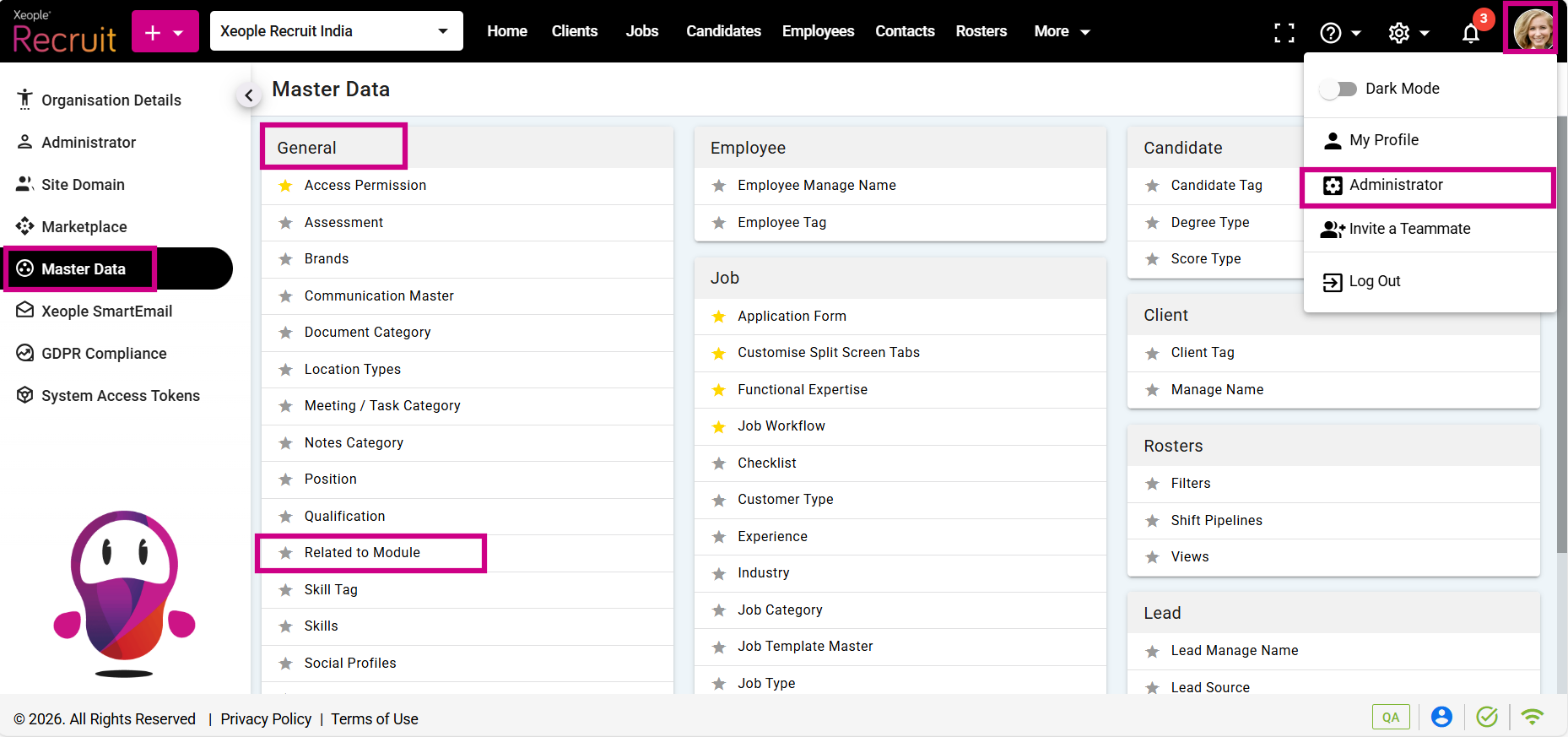
Profile Picture – Administrator – Master Data – Related To Module
- Click on the (+) add button on the top left.
- Enter the required fields and click Save.
- Click on the three-dot button placed in front of each Related To Module to edit or delete it.
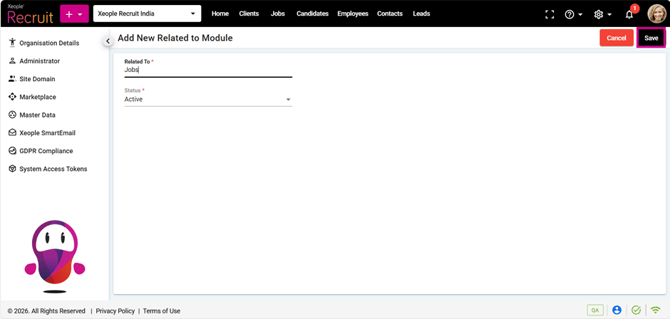
Add Related To Module – Save
- You can select the newly created Related To Module from the Meeting Related To drop-down while scheduling a meeting. By default, the logged‑in user is selected in the Related To field, and the Meeting Related To field is set to Employee.
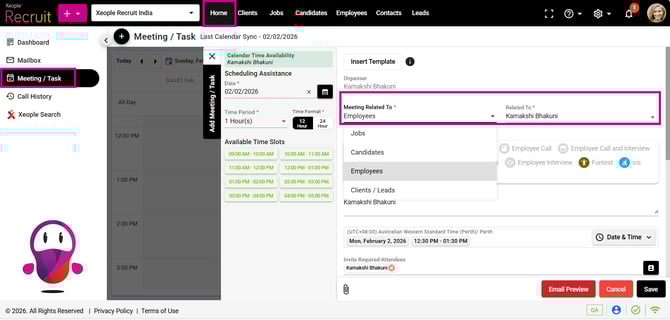
Meeting/Task – Create – Meeting Related To
- Once the meeting is scheduled, it is saved under the Meeting/Task section of the selected module. For example, if the meeting is related to an employee and John is selected in the Related To field, the meeting is recorded under Employees > John > Employee Summary > Meeting/Task.
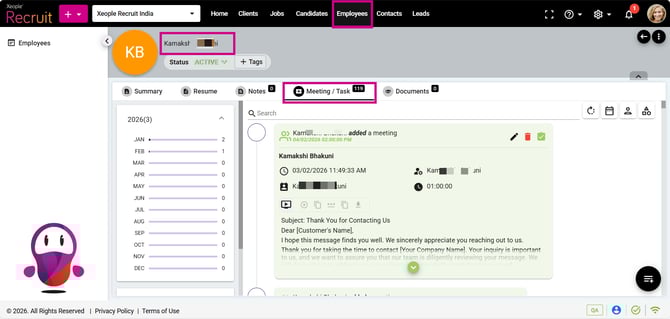
Employee Summary – Meeting Task – Saved