
An Application Form is a standardised document or online form that job seekers use to apply for job openings. It typically includes fields for personal information such as name, contact details, education, work experience and skills.
To create/add a candidate via Application Form, follow these steps:
Optional Reading: To discover the two ways to access the option for creating a candidate, click here: Create Candidate - Meaning & Purpose. This article helps in guiding you to reach to the Application Form page.
- Select Application Form from the given options.
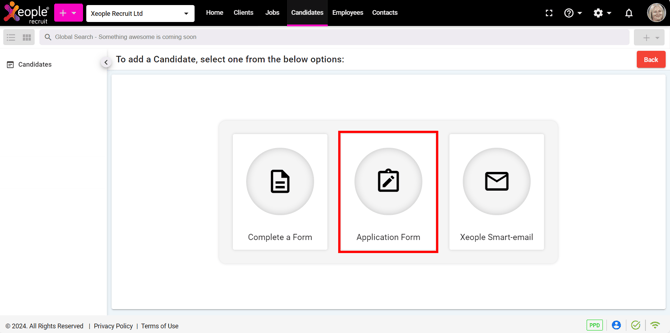
Create Candidate - Application Form
-
You can use the search bar to find the most appropriate application form.
- To preview an application form, click on Preview.
- Alternatively, copy the application form link, paste it into your web browser, and choose the option that meets your needs. You will see two options: Autofill with Resume and Apply Manually.

Job Details - Apply Options
-
If you have selected Autofill with Resume, upload the resume and click Continue.
Application Form Fields are as follows:
1. General Information:
|
Field Name |
Description |
Data Source / Behaviour |
Mandatory Rule |
|
Resume |
Candidate’s resume document containing professional details. Used for parsing candidate data automatically. |
Upload manually. |
Mandatory if toggle is enabled (Yes). |
|
Title |
Newly added. Candidate’s title (e.g., Mr, Mrs, Miss, Ms, Dr, Prof). |
XR system-defined dropdown. Select manually. |
Optional, visible if checkbox ticked and mandatory if Required toggle is ON; no EOH dependency. |
|
First Name |
Candidate’s given name. |
Extracted via the resume. |
Mandatory by default; cannot be disabled. |
|
Last Name |
Candidate’s family/surname |
Extracted via the resume. |
Mandatory by default; cannot be disabled. |
|
Email ID |
Candidate’s unique email address used for identification and avoiding duplicates |
Extracted via the resume. |
Mandatory by default; cannot be disabled. |
|
Code |
Stores the country/region dialing code associated with the candidate’s phone number (for example, +61 ) |
Country code defaults to +61 (Australia). As set under the System Settings → Internationalisation . |
Mandatory if adding a phone number. |
|
Mobile Number |
Candidate’s contact number for communication |
Add manually. |
Optional, visible if checkbox ticked and mandatory if Required toggle is ON. |
|
Gender |
Newly added. Candidate’s gender (e.g., Male, Female). |
XR system-defined dropdown. Select manually. |
Optional, visible if checkbox ticked and mandatory if Required toggle is ON. |
|
DOB (Date of birth) |
Newly added. Candidate’s date of birth (as per official records) |
Functions like a calendar; future dates are not allowed. Select manually. |
Optional, appears only if enabled via check box and mandatory via Required toggle. |
|
Qualification/Role |
Newly added. Displays all active global qualifications |
Shows all active Global qualifications (not tied to any industry) Select manually. Populated list sorting: Primary sort: Display Sequence in ascending order. Secondary sort: Alphabetical order (A–Z) for items sharing the same Display Sequence value. |
Optional; appears only if enabled via the checkbox and becomes mandatory when the Required toggle is on. |
|
Profile Picture |
Candidate’s photograph for identification |
Manually uploaded |
Optional; appears only if enabled via check box and mandatory via Required toggle |
2. Additional Information:
If the checkbox is selected, the section and the fields within it (for which the checkbox is selected, and toggle is enabled) are displayed and marked as mandatory.
|
Field Name |
Description |
Data Source / Behaviour |
Mandatory Rule |
|
Address |
Detailed address of the candidate |
Manually entered |
Optional, visible if checkbox ticked and mandatory if Required toggle is ON. |
|
Skills |
Candidate’s skills relevant to the job role |
Dropdown populated from XR Skill Master. Select manually. |
Optional, visible if checkbox ticked and mandatory if Required toggle is ON. |
|
Expected Salary |
Candidate’s expected compensation for the role |
Manually entered |
Optional, visible if checkbox ticked and mandatory if Required toggle is ON. |
|
Notice Period |
Duration the candidate needs before joining (e.g., 30 days) |
Manually entered |
Optional, visible if checkbox ticked and mandatory if Required toggle is ON. |
3. Experience:
If the checkbox is selected and the Required toggle is enabled, the section and the fields within it (for which the toggle is enabled) are displayed and marked as mandatory.
|
Field Name |
Description |
Data Source / Behaviour |
Mandatory Rule |
|
Position Name |
Candidate’s role/designation in the company |
Manual text entry |
Mandatory by default; cannot be disabled. |
|
Employer |
Name of the company where the candidate worked |
Manual text entry |
Mandatory by default; cannot be disabled. |
|
Currency |
Currency in which salary is defined (e.g., AUD) |
Select manually. |
Mandatory if enabled via toggle. |
|
Salary |
Candidate’s salary amount |
Numeric input. Manual entry |
Optional unless configured mandatory via Required toggle. |
|
Salary Unit |
Salary frequency (e.g., annually, monthly) |
XR system-defined dropdown. Select manually. |
Optional unless configured mandatory. |
|
Start Date |
Employment start date |
Calendar selection (future dates restricted). Select manually. |
Mandatory by default; cannot be disabled. |
|
End Date |
Employment end date |
Calendar selection. Select manually. |
Mandatory if enabled via Required toggle. |
|
Location |
Location of employment |
Manual entry. |
Mandatory if enabled via Required toggle. |
|
Description |
Brief summary of job responsibilities and role |
Manual entry. |
Mandatory if enabled via Required toggle. |
4. Education
If the checkbox is selected and the Required toggle is enabled, the section and the fields within it (for which the toggle is enabled) are displayed and marked as mandatory.
|
Field Name |
Description |
Data Source / Behaviour |
Mandatory Rule |
|
Degree Type |
Type of qualification (e.g., Bachelor’s, Master’s) |
Dropdown from degree type master. Select manually. |
Optional, mandatory if enabled via Required toggle. |
|
Degree Title |
Name/title of the degree obtained |
Manual text entry |
Optional, mandatory if enabled via Required toggle. |
|
Name of Institute |
Name of the college/institution attended |
Manual text entry |
Optional, mandatory if enabled via Required toggle. |
|
Name of University |
University affiliated with the degree |
Manual text entry |
Optional, mandatory if enabled via Required toggle. |
|
Start Date |
Start date of the education program |
Calendar selection. Select manually. |
Optional, mandatory if enabled via Required toggle. |
|
End Date |
Completion date of the education program |
Calendar selection. Select manually. |
Optional, mandatory if enabled via Required toggle. |
|
Score Type |
Type of grading (e.g., GPA, Percentage) |
Dropdown from candidate master. Select manually. |
Optional, mandatory if enabled via Required toggle. |
|
Final Score |
Final marks/grade achieved |
Manual text entry. Select manually. |
Optional, mandatory if enabled via Required toggle. |
|
Qualification / Role |
Displays all active global qualifications. |
Show all active Global qualifications (not tied to any industry). Select manually. |
Mandatory by default; cannot be disabled. |
|
Location |
Location where education was completed |
Manual entry |
Optional, mandatory if enabled via Required toggle. |
|
Description |
Additional details about the education (e.g., specialisation) |
Manual entry |
Optional, mandatory if enabled via Required toggle. |
Recommend Reading: How to configure qualification/role, click here: Qualification/Role.
5. Application Submission Behaviour
|
Scenario |
Description |
|
Auto-fill via Resume |
Candidates can review, edit, and submit the information. All extracted details will appear on the Candidate Summary page under Summary, and the resume will be available under Resume. |
|
Manual Application |
Fill out the application form manually. The entered details will be reflected on the Candidate Summary page under Summary, and if the resume is uploaded it will be parsed and available under Resume>Parse Resume. |
|
Mandatory Fields |
All fields marked as mandatory must be completed before submission. |
|
Input Flexibility |
Fields may allow typing or selecting values depending on configuration. |
|
Resume Parsing |
In cases where a candidate is created through any source, the resume will be parsed automatically. If the resume is updated at any point, it will be re-parsed automatically as well. |

Apply Option - Autofill with Resume
- After clicking continue, you will be asked some questions. Provide all the answers and click Submit.
- Candidate will be created and same will be reflected on the Candidate Landing page.

Candidate Landing Page - Candidate Created
What happens Next:
- You can see the candidate created on the Candidate Landing page.
- Click on the Candidate or the three-dot button, then select View Summary to view or add more details for this particular candidate.
- All the details extracted will be saved under the Candidate Summary>Summary and Resume section.
- The resume will be automatically parsed, and you can view the extracted details under Candidate Summary > Resume > Parsed Resume.

Candidate Summary – Summary and Resume