
Employee Tags allow agencies to categorise and label employees based on their roles, skills, availability, assignments, and performance. These tags help agencies organise workforce data efficiently and quickly identify suitable employees for projects, clients, or jobs.
Configuring employee tags offers several benefits:
- Tags enable you to segment employees into different groups, supporting better organisation and targeted workforce management.
- Employee tags can be customised to align with organisational needs, providing flexibility and adaptability.
- Tags allow you to categorise employees based on skills, roles, departments, performance, or preferences, helping managers make informed decisions more efficiently.
- Tags simplify filtering, tracking, and reporting of employee information across the system.
Examples of Employee Tags
|
Tag Category |
Tag Name |
Description |
|
Employment Type |
Permanent |
Permanent employees of the agency |
|
Employment Type |
Contract |
Contract-based employees |
|
Employment Type |
Temporary |
Temporary staff deployed for short-term roles |
|
Availability |
On Assignment |
Employees currently working on a job |
|
Skill |
Nurse |
Employees with nursing skills |
|
Industry |
Healthcare |
Employees working in healthcare roles |
|
Industry |
Hospitality |
Employees working in hospitality roles |
|
Client Mapping |
Key Client |
Employees assigned to priority clients |
|
Performance |
Top Performer |
High-performing employees |
|
Compliance |
Certified |
Employees with required certifications |
To configure employee tag(s), follow the steps below:
- Click on the Profile picture and select Administrator from the drop-down menu.
- Click on Master Data from the left navigation panel and select Employee Tag under Employee.
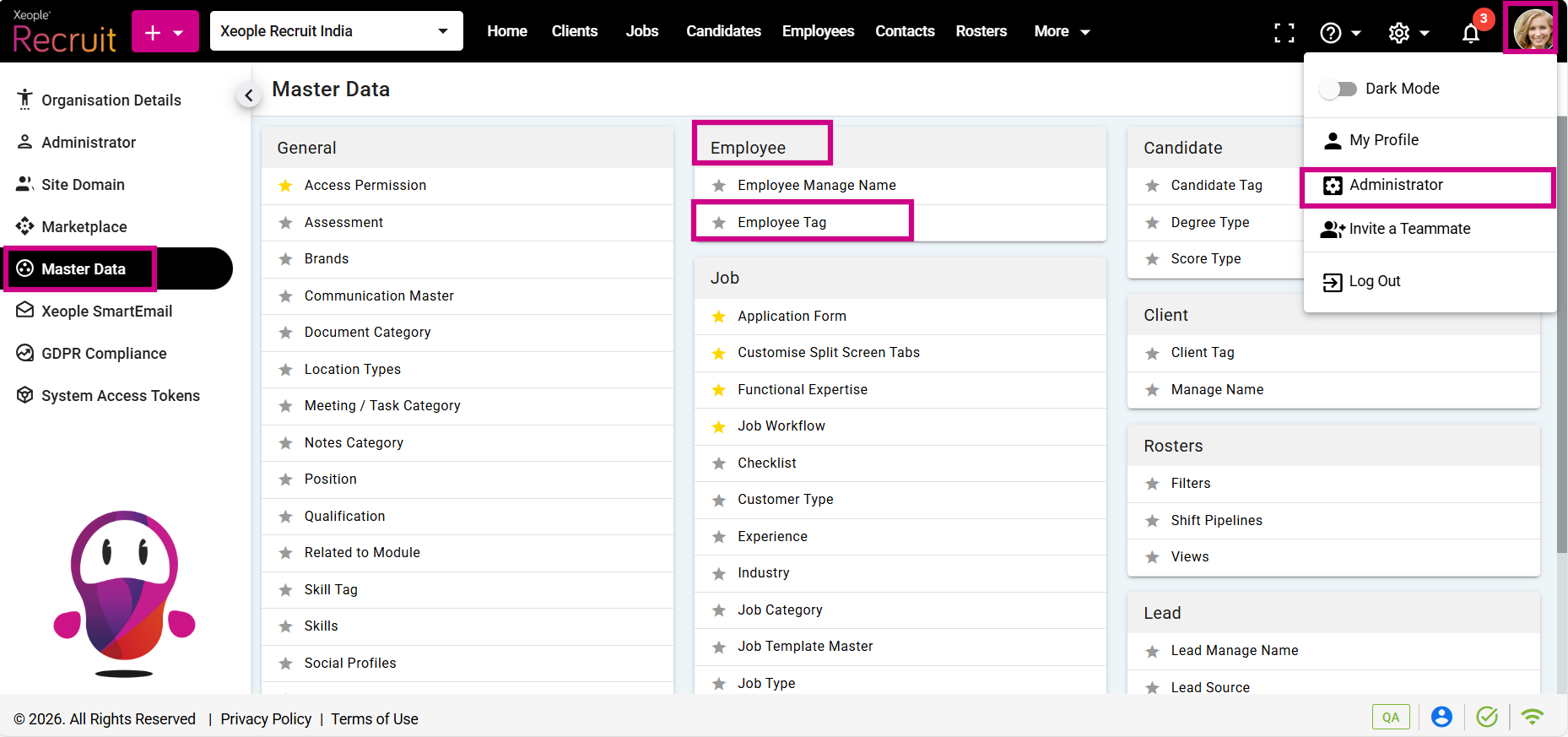
Profile Picture – Administrator – Master Data – Employee Tag
- Click on the (+) add button on the top left.
- Enter the required fields and click Save.
Field Description
|
Field Name |
Type / Control |
Description |
|
Display Sequence |
Number |
Defines the order in which employee tags are displayed in the system. |
|
Employee Tag Code |
Text |
Unique code used to identify the employee tag. |
|
Short Description |
Text |
Brief summary of the employee tag for quick reference. |
|
Description |
Text (Long) |
Detailed explanation of the employee tag and its purpose. |
|
Keyword |
Text |
Keywords associated with the tag to support search and filtering. |
|
Select Colour |
Colour Picker |
Assigns a colour to visually distinguish the employee tag in the system. |
|
Status |
Dropdown (Active/Inactive) |
Specifies whether the employee tag is active or inactive in the system. |
- Click on the three-dot button placed in front of each employee tag to view, edit or delete it.
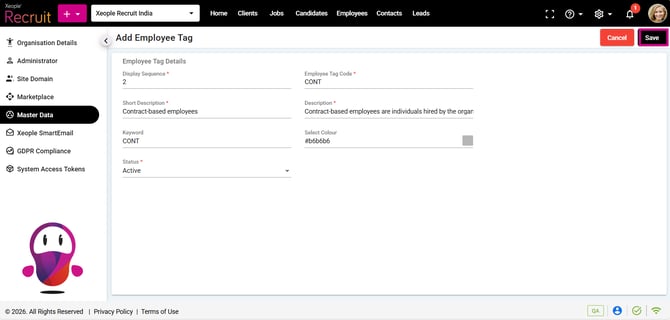
Add Employee Tag – Save
- To assign an employee to a specific tag, navigate to the employee summary page where you can view and toggle on the tags created in the Employee Master. On the employee landing page, you can also use filters to quickly search, and sort employees based on their tags.
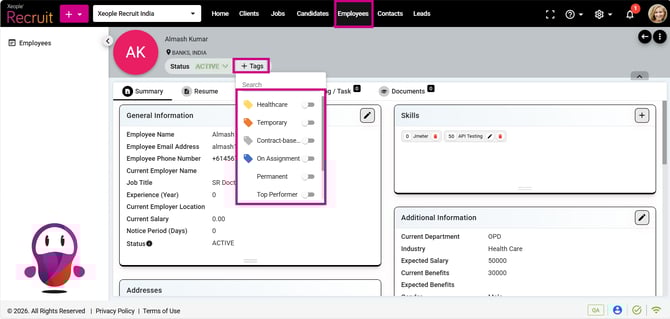
Employee Summary – Tags - Add