
Employee Status Master helps track an employee’s current status after joining the organisation, such as active, on leave, resigned, or terminated. It makes easy to manage employee records and their employment status.
To configure Employee Status Master, proceed by following the steps outlined below:
- Click on the Profile picture and select Administrator from the drop-down menu.
- Click on Master Data from the left navigation panel.
- Under the General Master Data, select Status.
- Now, you will see Groups, click on People three-dot button and select View from the drop-down.
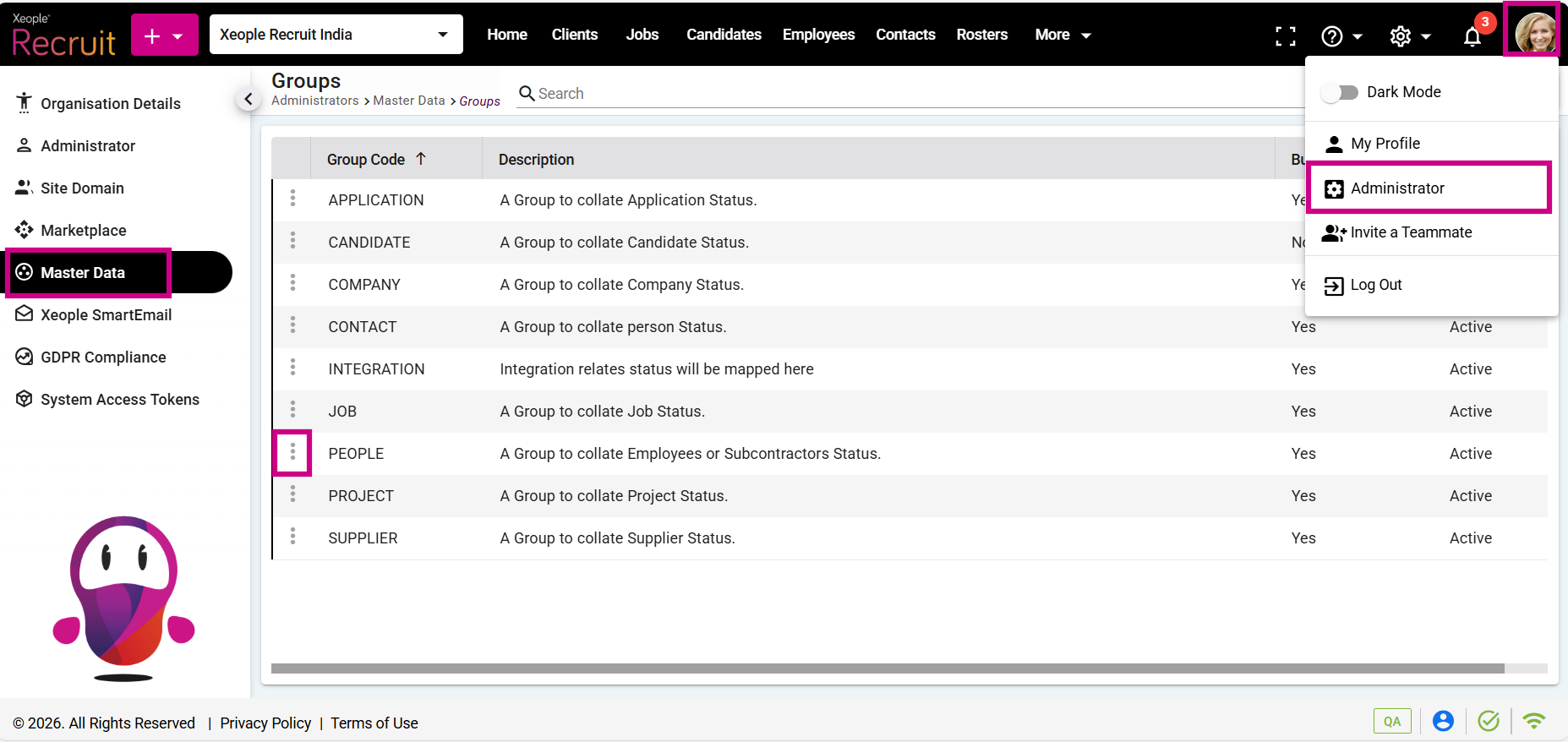
Administrator – Master Data – Status – Groups – Employee
- Click the (+) button to add new status.
- Enter the details and click Save.
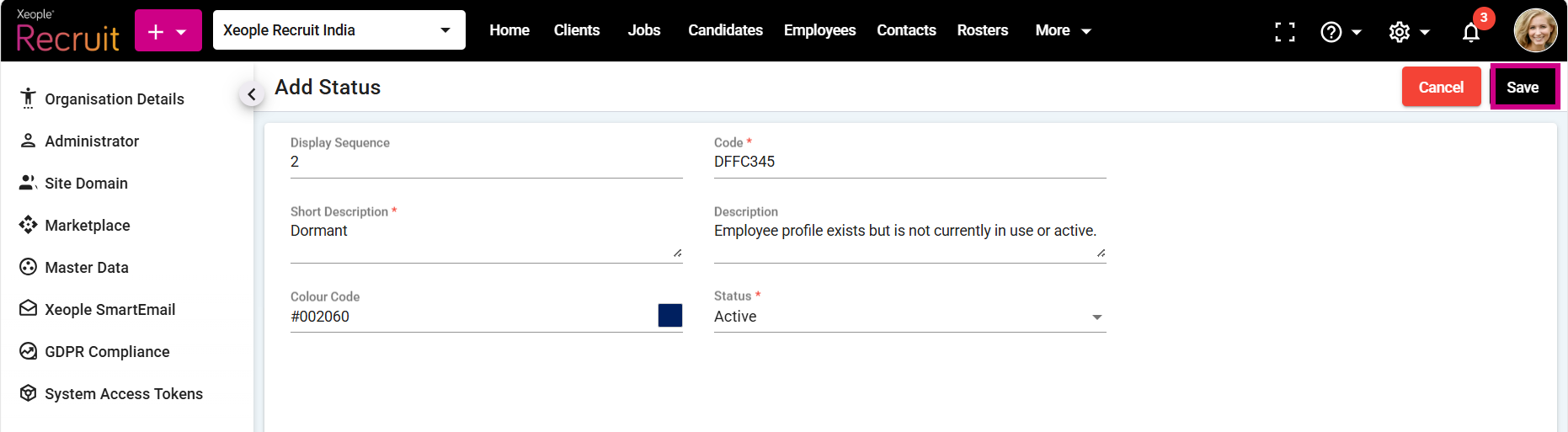
Master Data – Status – Groups – Add Status – Save
The employee status you create here will appear in the employee creation process under the status drop‑down menu. This status shows the employee’s current state, such as active, on leave, resigned, or terminated, helping to easily track and manage employees.
- If you wish to view, modify or remove the added status, click the three-dot button and select View or Edit, or Delete from the drop-down menu, as required.
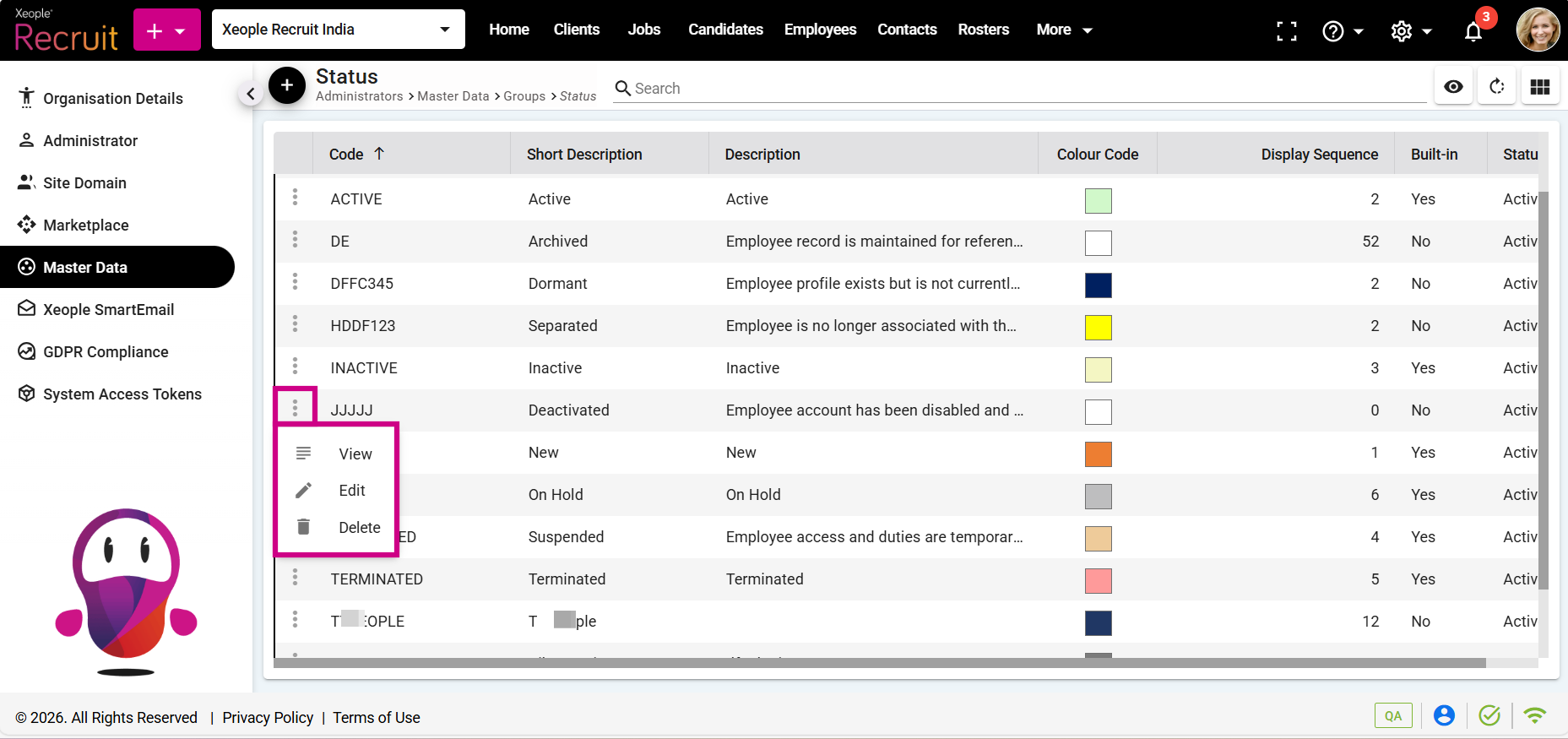
Master Data – Status – View, Edit or Delete
- You can change the employee’s status from the status drop‑down on the employee summary page.
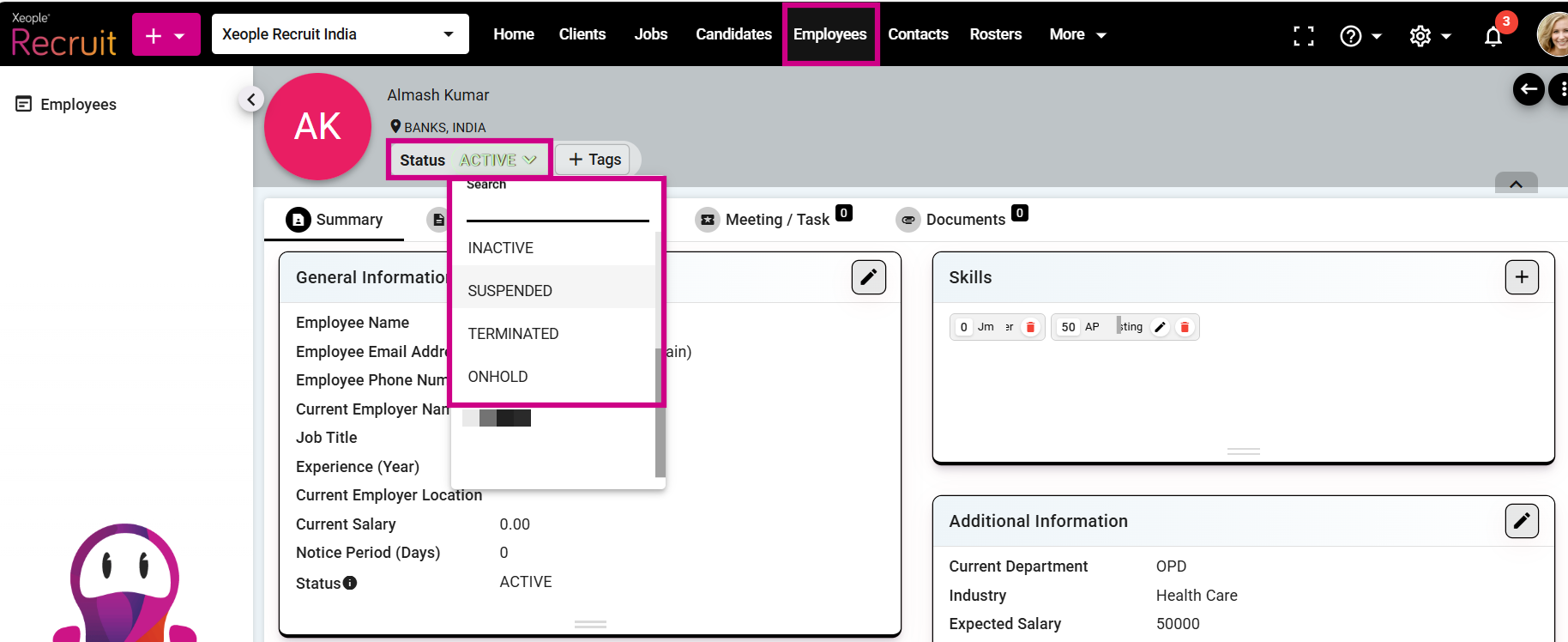
Employee Summary Page - Status