
Managing and tracking client contacts is crucial for ensuring effective communication and fostering strong relationships. A contact typically refers to a client representative with whom you can engage in communication or interaction within the platform to discuss the requirements or needs of the client.
To create a Contact, follow these steps:
- Navigate to the main navigation header bar and click on Contacts.
- Click on the (+) Add Contact button.
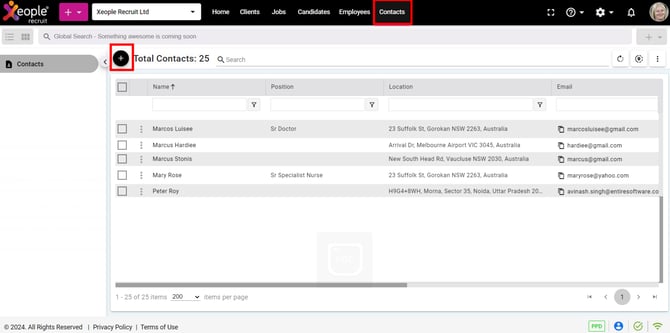
Contacts - Add Contacts
- Enter the details and click Save.
A contact owner typically refers to an internal staff member who holds full authority over client contacts, overseeing all interactions and engagements within the platform.
Fields when adding a contact:
|
Field |
Description |
|
Organisation* |
Represents the associated company/entity. Auto-selected based on last login; selectable if multiple organisations are available (you have access to). |
|
Title* |
Select the contact’s title (mandatory). XR System- defined values. |
|
First Name* |
Enter the contact’s first name (mandatory). |
|
Last Name |
Enter the contact’s last name. |
|
Position |
Enter the contact’s job position/designation. |
|
Gender |
Select the contact’s gender. XR System- defined values. |
|
Contact Address |
Enter the contact’s address details. |
|
|
Enter the contact’s email address. Must be unique; used to avoid duplicates. |
|
Phone |
Enter the contact’s phone number. Country code defaults to +61 (Australia). As set under the System Settings → Internationalisation . |
|
Contact Owner |
Employee responsible for managing the contact and handling all interactions. |
|
Contact Related To |
Defines whether the contact is related to a Client or a Lead. |
|
Status* |
Indicates the current status of the contact (e.g., Active) (mandatory). Values coming from the Status Master. |
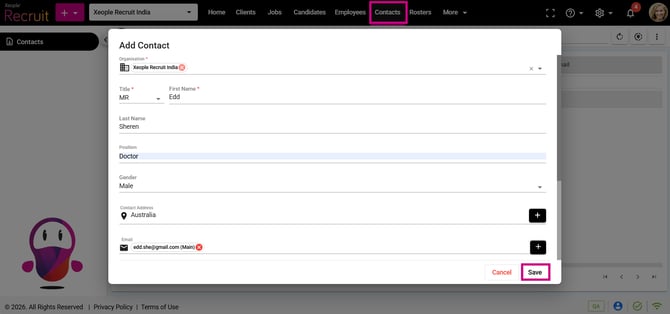
Contacts - Add Contacts
- The created Contact will appear in the list.

Contact - Added
Similarly, to add a contact from the Quick add Contact panel, follow these steps:
- Navigate to the main navigation header bar and click on the Quick add Contact (+) on the top left side.
- Select Contact and follow the steps outlined above to create a new contact.
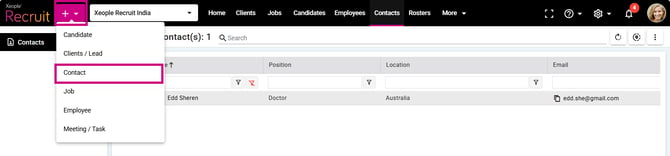
Quick add Contact - Add Contact
-
Similarly, you can even create contacts from the Client Summary page>Contacts> Create Contact (+).