
Apply with SEEK allows candidates to apply for jobs using their SEEK profile information instead of manually entering details in some fields of the application form.
Recommend Reading: How to enable the Seek/Broadbean integration, click here: Marketplace Integration – Seek, Marketplace Integration – Broadbean.
When "Apply with SEEK" Option is Visible
The “Apply with SEEK” option will be enabled only in the following two cases:
- Case 1: You have enabled the SEEK integration via XR Marketplace for job posting and application processing, or,
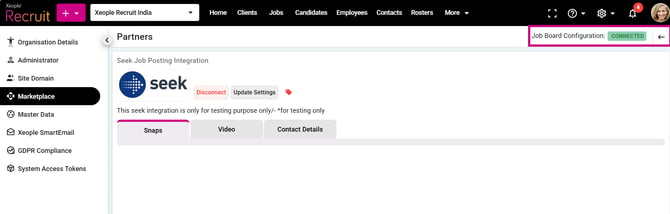
SEEK – Connected in XR Marketplace
- Case 2: The client has enabled the Broadbean integration within XR and has configured an active SEEK job board/account through Broadbean (not through the SEEK integration available via the XR Marketplace), and jobs are posted using the “Application Form” (Link Out) plan type.
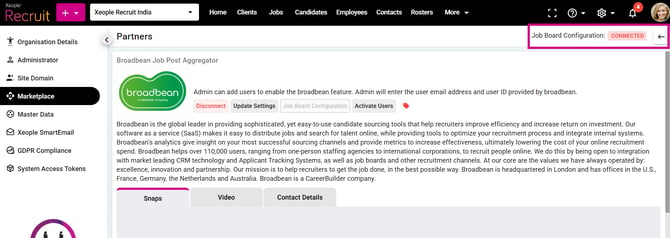
Broadbean - Connected in XR Market place
When “Apply with SEEK” Option is not Visible
The Apply with SEEK option will not be visible in the following case:
- Case 1: The client has not enabled the SEEK integration via Marketplace, or
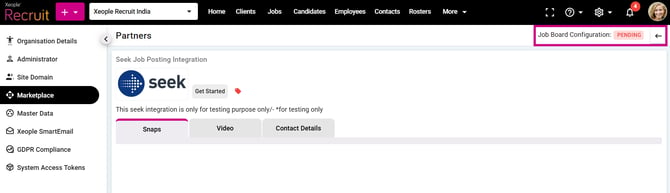
SEEK Disconnected in XR MarketPlace
- Case 2: You have not enabled the Broadbean integration within XR, or the SEEK job board/account is not configured through Broadbean for posting jobs and managing applications.
- Case 3: You have enabled the Broadbean integration within XR, however the SEEK job board has not been selected or configured under the Broadbean integration settings for job posting and application management.
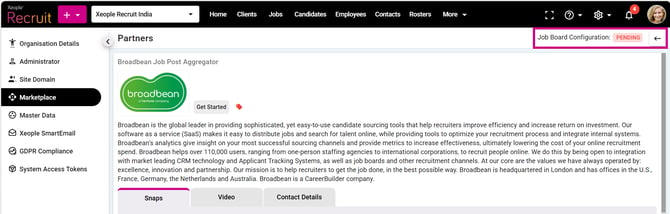
Broadbean Integration in XR Marketplace
Supported Job Apply Flows
Candidates will see the Apply with SEEK option while applying through:
- Share Job Apply Page Link
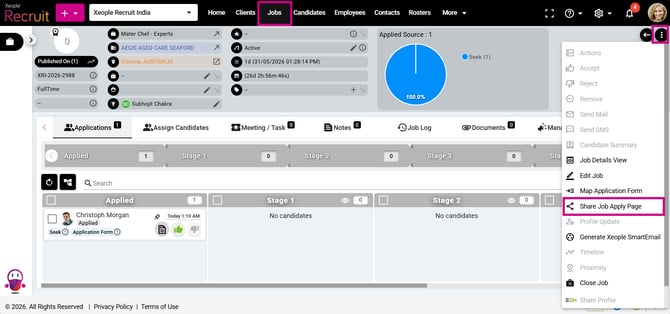
Share Job Application Page Link with Candidates
- SEEK – Link Out (Apply Type) job postings
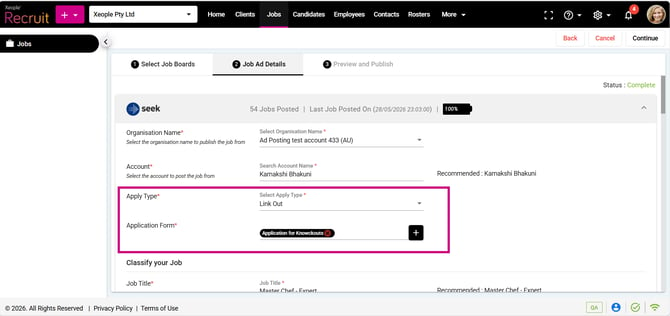
Posting Job Advertisements on SEEK
- Broadbean - Application Form (Plan Type) job postings
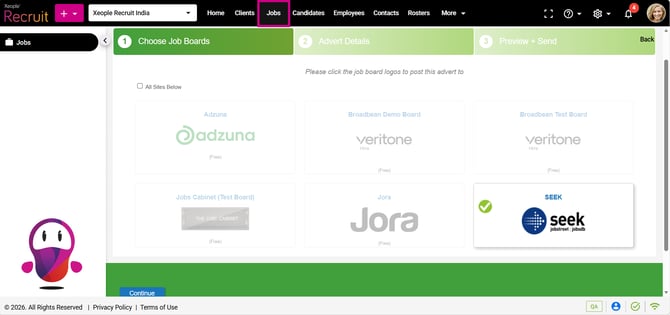
Posting Job Advertisements on SEEK Via Broadbean
Sharing Application Form with Candidates
Share Job Apply Page Link
-
Share the Job Application page link with the candidate via email.
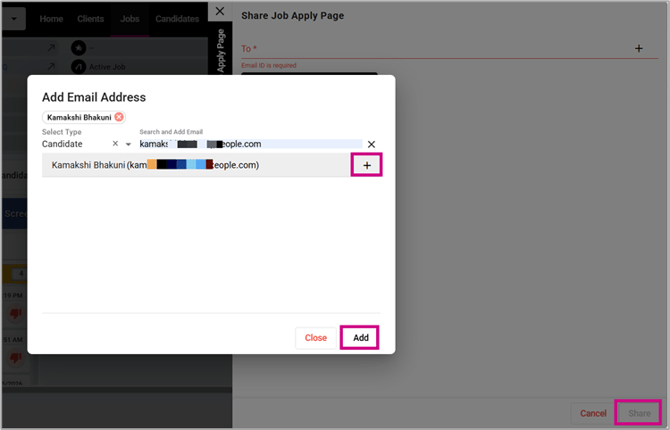
Add Candidate Email Address to Share the Job Application Page
- An email is sent to the provided email address and clicking Apply Now redirects the candidate to the job application form.
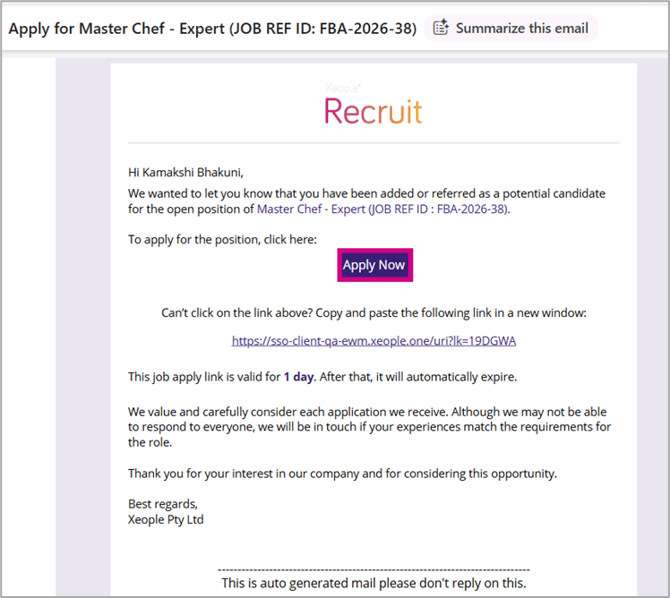
Email Received by the Candidate
- The application form page opens. Upon clicking the “Apply” button, the candidate will be navigated to the application page, where they will be presented with three options to apply for the job.

Landing page of Application Form
- They will see the Apply with Seek option.
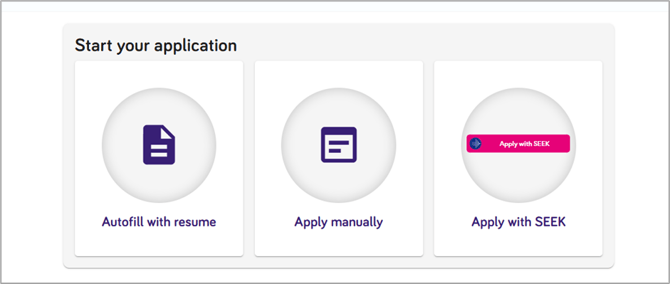
Apply with SEEK
SEEK – Link Out (Apply Type)
- Once the job is published on SEEK, candidates will be able to view the “Apply” option on the job listing, as shown in the screenshot below.
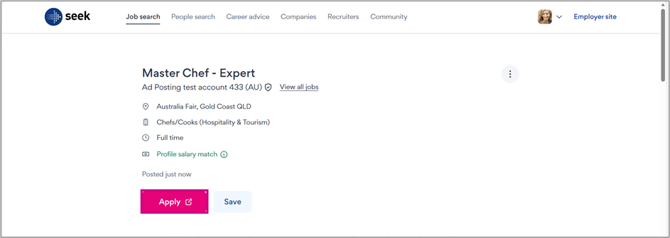
Live Job Advertisements Published on SEEK
- Candidates applying through the live SEEK job advertisement will be redirected to the Application Form page, where they will be provided with the “Apply with SEEK” option.
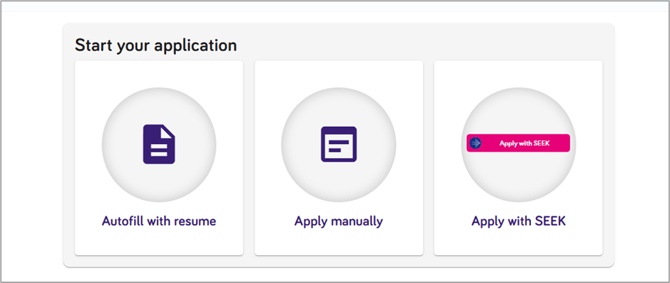
Apply with SEEK” Option Available on the Job Application Page
Broadbean – Application Form (Link Out)
-
When the job is published on SEEK via Broadbean, candidates will see an Apply option on the job listing.
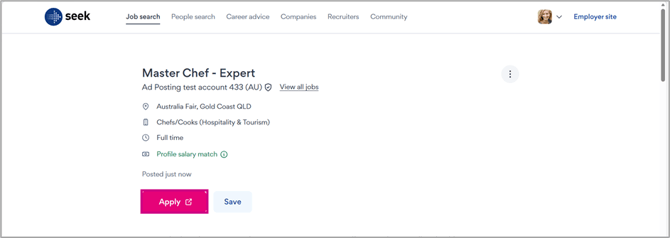
Job Posted on SEEK via Broadbean
-
The same process will apply for candidates applying through the live SEEK job advertisement posted via Broadbean. They will be redirected to the Application Form page, where the “Apply with SEEK” option will be available.
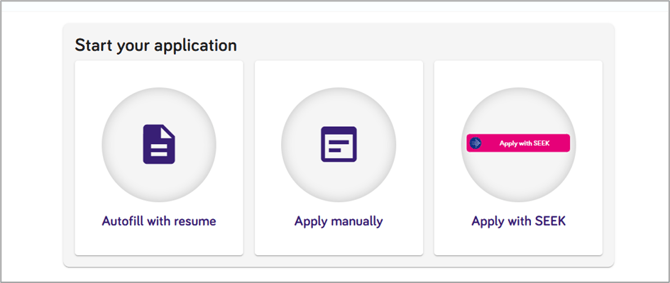
Candidates applying for jobs through the “Apply with SEEK”
Candidate Apply Process
- Clicking Apply with SEEK will prompt candidates to log in to their Seek profile if they are not already signed in. Once logged in, or if they are already authenticated, candidates will be directly redirected to the Allow Access to XR screen.
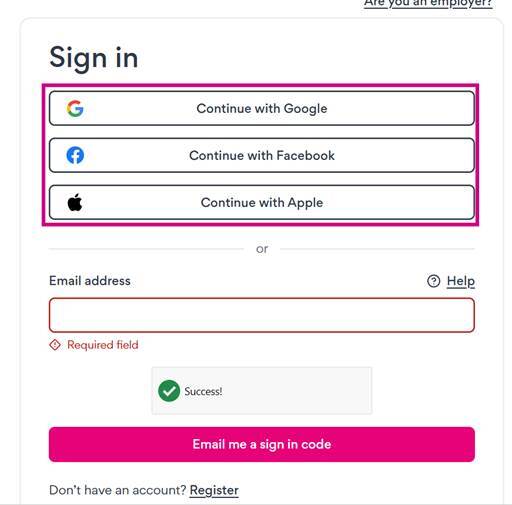
Seek - Login
-
Upon sign in, candidates will see a pop-up requesting consent to allow XR to access information from their SEEK profile.
- XR has an existing integration with SEEK; however, candidate data is only accessed after explicit permission is granted. Based on the candidate’s selection—Allow access or Not Now—SEEK redirects them back to XR.
-
If the candidate selects Allow Access, XR retrieves their profile details and pre-fills the application form. If Not Now is selected, the candidate is redirected to the application form without any prefilled information.
Note: Logging in to SEEK alone does not share any data with XR. The candidate must explicitly grant permission for their profile information to be accessed.
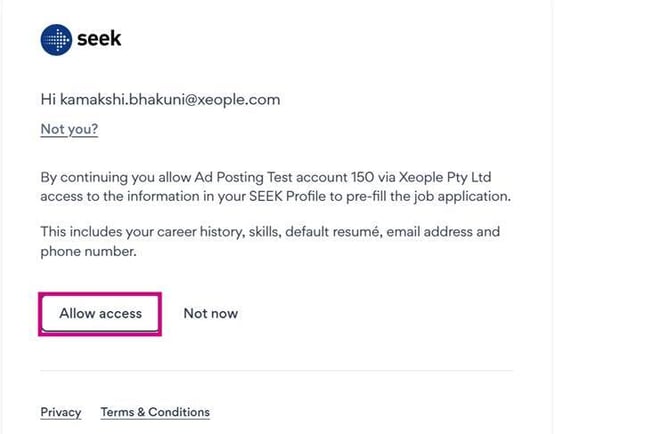
Allow Access – XR - Seek Profile
-
This action allows candidate details from the SEEK profile to sync with the application form. The following information is automatically populated from the SEEK profile, if available: Resume, First Name, Last Name, Email Address and Mobile Number.
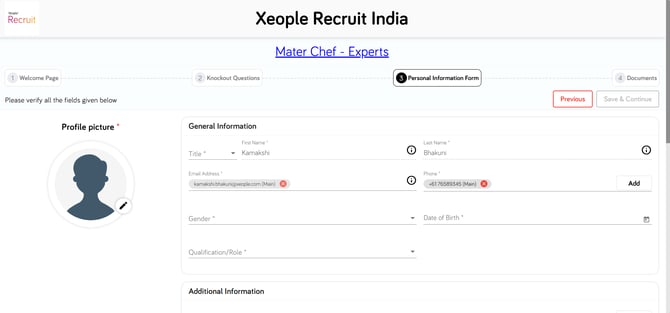
XR Application Form - Apply with SEEK
- They can verify and edit the information and click Submit.
Recommend Reading: To learn how Share Job Apply Page Link, SEEK – Link Out, and Broadbean – Application Form work, understand Application Form Fields for the Apply with SEEK option, and see how candidate information is extracted into the candidate summary, click here: Share Job Apply Page Link, SEEK – Link Out, and Broadbean – Application Form.
FAQs
1. When will candidates see the Apply with SEEK option?
Candidates will see the Apply with SEEK option only when the Seek Integration is enabled from Marketplace. It is supported for:
- Share Job Apply Page Link
- SEEK Link-Out job postings
For Broadbean Application Forms, candidates will see the option only when:
- Broadbean Integration is enabled, and
- An active SEEK account/integration is configured through Broadbean (not seek integrated via XR Marketplace).
2. Does logging in to SEEK automatically share candidate data with XR or submit the application form?
No. Logging in to Seek alone does not share any candidate information with XR or automatically submit the application form. Candidates must explicitly select Allow Access before XR can retrieve and pre-fill profile information into the application form.
3. What candidate details are pre-filled from SEEK?
After candidates grant access, XR automatically pre-fills the following details from the candidate’s Seek profile into the application form: Resume, First Name, Last Name, Email Address and Mobile Number.
4. What happens if the candidate selects “Not Now” on the SEEK consent screen?
If the candidate selects Not Now, they are redirected back to the application form without any pre-filled SEEK information and can continue applying manually.
5. Can candidates edit SEEK-imported information before submitting?
Yes. Candidates can review, verify, and edit the imported information before submitting the application form.
6. Can I (as a recruiter) apply on behalf of a candidate using Apply with SEEK?
No. Apply with SEEK can only be used by the candidate, as it requires the candidate to log in to their own Seek account and provide consent to share their profile information with XR.
7. What happens if mandatory application fields are missing from the SEEK profile?
If mandatory fields are not available in the SEEK profile, candidates will receive an alert and must manually complete the missing information before submitting the application.
8. Will candidates still need to upload a resume when using Apply with SEEK?
No. If a resume is available in the candidate’s SEEK profile and access is granted, the resume is automatically imported into the application form.
9. What happens if the SEEK session expires during application?
If the candidate’s SEEK session expires, they may be prompted to log in again before continuing the Apply with SEEK process.
10. Does Apply with SEEK automatically submit the application?
No. Apply with SEEK only pre-fills the application form using SEEK profile information. Candidates must still review the details and click Submit to complete the application.
11. Can I disable Apply with SEEK without affecting other application methods?
Yes. Disabling the Seek Integration removes only the Apply with SEEK option. Other application methods, such as Autofill with Resume and Apply Manually, will remain available based on the application form configuration while sharing the job apply page link.
12. Will Apply with SEEK work if the candidate does not have a SEEK account?
No. Candidates must have an active Seek account to use Apply with SEEK. When candidates select this option, they are redirected to the SEEK login page to sign in or create an account before continuing with the application.
13. Can candidates switch to manual application after selecting Apply with SEEK?
Yes. Candidates can return to the application form and manually update or complete information before submitting.