
Overview
This article outlines the standardised workflow where candidates are screened in Xeople Recruit (XR), pushed to the Applicant Portal first, and then fully onboarded and interviewed within Entire OnHire (EOH).
Process Flow:
XR Screening → Push to Applicant Portal → Portal Completion → Interview in EOH → Activate Member
.png?width=670&height=948&name=XR%20to%20EOH%20Casual%20Recruitment%20Workflow%20(2).png)
Step 1 – Build the XR → EOH Casual Workflow
To ensure seamless movement from application to onboarding, start by creating an XR Casual Workflow that feeds into the standard EOH Recruitment Stages.
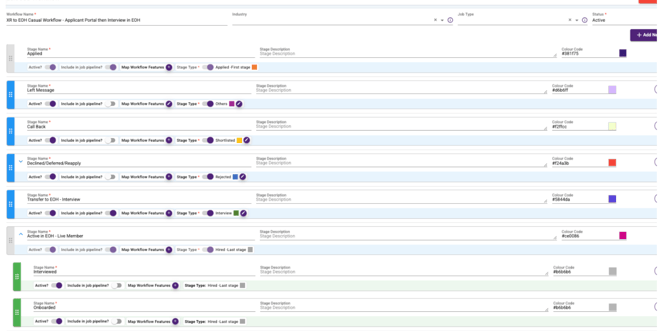
1. Applied
Stage Name: Applied
Define Stage Type: Applied
Include in Job Pipeline: Yes
Short Summary:
Entry stage for all new applicants.
2. Left Message (Optional)
Stage Name: Left Message
Define Stage Type: Others
Include in Job Pipeline: Yes
Short Summary:
Used when candidate does not answer initial contact.
3. Call Back (Optional)
Stage Name: Call Back
Define Stage Type: Others
Include in Job Pipeline: Yes
Short Summary:
Candidate has responded and is engaged for screening.
4. Screening (Primary Review Stage)
Stage Name: Screening (or Shortlisted)
Define Stage Type: Screening
Include in Job Pipeline: Yes
Short Summary:
Main screening and suitability assessment stage before portal push.
⚠️ Only ONE stage should be mapped to Screening.
5. Declined / Deferred / Reapply
Stage Name: Declined / Deferred / Reapply
Define Stage Type: Rejected
Include in Job Pipeline: Yes
Short Summary:
Candidate not progressing but retained for future opportunities.
6. Push in EOH – Applicant Begin (Portal Trigger Stage)
Stage Name: Push in EOH – Applicant Begin Applicant Portal
Define Stage Type: Onboarding
Include in Job Pipeline: Yes
Short Summary:
Candidate is pushed to Applicant Portal and migrated to EOH.
This is the key transition from XR to onboarding.
7. Pending Portal Completion (Optional Visibility Stage)
Stage Name: Pending Portal Completion
Define Stage Type: Others
Include in Job Pipeline: Yes
Short Summary:
Candidate is completing onboarding documents in EOH.
8. Interview (Conducted in EOH)
Stage Name: Interview (EOH)
Define Stage Type: Others
Include in Job Pipeline: Yes
Short Summary:
Interview occurs in EOH, not XR (tracking only if needed).
Best Practice:
You can hide or skip this stage if interview is fully managed in EOH.
9. Hired (FINAL STAGE – Mandatory)
Stage Name: Hired
Define Stage Type: Employment Verification
(Use Onboarding if Employment Verification is unavailable)
Include in Job Pipeline: Yes
Short Summary:
Candidate has:
-
Completed Applicant Portal
-
Completed Interview in EOH
-
Been Activated as a Member in EOH
XR is updated to Hired to match final onboarding outcome and track conversion/drop-off.
Final Visual Pipeline Flow (Correct Order)
Applied → Left Message → Call Back → Screening → Declined (if not suitable) →
Push in EOH – Applicant Begin → Pending Portal Completion → Interview (EOH) → Hired
Critical Setup Rules (So It Saves Without Errors)
-
Only ONE stage = Applied
-
Only ONE stage = Screening
-
Only ONE stage = Onboarding (Portal Push stage)
-
All communication stages = Others
-
Final Hired stage ≠ Applied or Screening
-
Do NOT map multiple stages to the same lifecycle type
This setup gives you:
-
Clean dashboards
-
Accurate Application → Hired reporting
-
Clear drop-off visibility between Screening, Portal, and Activation
-
Fully standardised XR → EOH workflow configuration across clients.
Whole Process Step Through
Step 1 – Candidate Enters Applied Stage
All candidates will first appear in the Applied stage after submitting an application.
What to do:
-
Open the job in XR
-
Locate the candidate in the Applied stage
-
Open the candidate profile for review
Image: TBD – Applied stage and candidate profile
Step 2 – Screening (Accept or Decline)
Review the candidate and complete initial screening in XR.
Screening Actions:
-
Accept and progress if suitable
-
Decline if not suitable
-
Add screening notes in the Notes tab
-
Record call outcomes and suitability comments
This ensures basic audit tracking before onboarding begins.
Image: TBD – Screening notes and candidate profile
Step 3 – Use “Left Message” and “Call Back” (If Required)
These stages are used for communication tracking only.
When to use:
-
Left Message: Candidate did not answer call or message
-
Call Back: Candidate responded and is engaged
These stages are optional and do not block the portal push process.
Image: TBD – Workflow stages (Left Message / Call Back)
Step 4 – Push to Applicant Login (Portal First)
Once the candidate passes screening, they can be pushed directly to the Applicant Portal without completing the interview in XR.
What to do:
-
Open the candidate profile
-
Click Push to Applicant Login
-
Enter basic candidate details if required
-
Select the correct office
-
Click Next
Important:
Using the Applicant Login option will migrate the candidate record into Entire OnHire and trigger the onboarding portal.
Image: TBD – Push to Applicant Login screen
Step 5 – Select Applicant Login Email Template
This step is critical as the template triggers the portal access.
What to do:
-
Tick Send email to applicant
-
Select the Applicant Login email template
-
Confirm template mapping is correct
-
Click Next
Only the Applicant Login template should be used in this workflow to ensure correct portal access.
Image: TBD – Template selection and email trigger screen
Step 6 – Confirm and Share Profile to EOH
What to do:
-
Review the summary screen
-
Click Share Profile
-
Wait for the success confirmation message
Once completed:
-
Candidate account is migrated to Entire OnHire
-
Applicant Portal login is automatically sent
-
Onboarding process begins
Image: TBD – Share Profile confirmation screen
Step 7 – Complete Onboarding in Entire OnHire (EOH)
After being pushed to EOH, the onboarding process continues fully within Entire OnHire.
Candidate Actions:
-
Log into the Applicant Portal
-
Upload onboarding documents
-
Complete required forms and compliance items
-
Finalise personal and employment details
Image: TBD – Applicant Portal dashboard in EOH
Step 8 – Book and Conduct Interview in EOH
Once the applicant portal is completed:
What to do in EOH:
-
Review completed documents and compliance
-
Book the interview within Entire OnHire
-
Conduct the interview
-
Record interview notes in the member profile
-
Follow standard onboarding procedures
This ensures interview and compliance are captured within the onboarding lifecycle.
Image: TBD – Interview booking in EOH
Final Stage – Activate Member in EOH
After onboarding and interview completion:
What to do:
-
Verify all documents and compliance items
-
Confirm onboarding is complete
-
Activate the member in Entire OnHire
The candidate is now:
-
Fully onboarded
-
Active in EOH
-
Ready for placement, rostering, and payroll
Image: TBD – Activated member status in EOH
Final Step – Update Candidate to “Hired” in XR Pipeline
Once the candidate has completed the Applicant Portal, finished the interview, and has been activated as a member in Entire OnHire (EOH), the final step is to update their status in the XR pipeline.
What to do:
-
Return to the XR job pipeline
-
Locate the candidate record
-
Move the candidate to the Hired stage (final stage)
-
Save the stage update
This ensures the XR pipeline accurately reflects that recruitment and onboarding have been fully completed in EOH.
Image: TBD – Candidate moved to Hired stage in XR pipeline
Why This Step Is Important
Updating the candidate to Hired after portal completion, interview, and activation in EOH ensures:
-
Accurate Application → Hired conversion reporting
-
Clear visibility of onboarding completion
-
Proper tracking of drop-off between portal, interview, and activation
-
Clean pipeline management with no candidates left in active recruitment stages
This step should only be completed once the candidate is fully onboarded and active in Entire OnHire.
Standard Workflow Stage Summary (Option 2)
-
Applied
-
Left Message (optional)
-
Call Back (optional)
-
Screening Accepted or Declined
-
Push to Applicant Login
-
Applicant Portal Completion (EOH)
-
Interview Conducted in EOH
-
Activated Member in EOH
- Update to Hired in XR
Key Standardised Rules
-
Screening must be completed in XR before portal push
-
Use Applicant Login template only for this workflow
-
This process pushes and migrates the account into EOH
-
Interview is booked and conducted after portal completion in EOH
-
Left Message and Call Back are optional tracking stages
-
Member activation only occurs after full portal and document completion
This is the standardised Option 2 workflow for fast-tracked onboarding from XR to Entire OnHire.