
This article provides a suggested workflow design, including application mapping, job posting strategy, and recommended structural setup inside XR.
XR → EOH Recruitment Workflow
.png?width=670&height=948&name=XR%20to%20EOH%20Casual%20Recruitment%20Workflow%20(1).png)
XR: Screening and completion of interview, then push to EOH for onboarding portal for document
- XR - Screening (Accept to second stage or decline)
- Left Message and Call back
- XR - Book in interview and complete interview and store notes ,
- Push to interview + applicant portal (use interview template to send portal)
- Template in EOH - Need to be created an mapped in XR
- Title - XR → EOH | Interview Completed & Applicant Portal Access Granted
Subject - Next Step: Access Applicant Portal and Complete Onboarding Documents
Email from
Audience: Applicants
Stage: Interview
Status: Active
Example
Hi $applicantsname$
Congratulations on successfully completing your recruitment interview with $CompanyName$. We are pleased to progress you to the next stage of the process.The next step is to access our Applicant Portal, where you will be required to upload your onboarding documents and complete the relevant onboarding tasks. This will allow us to move forward with your application efficiently and ensure all necessary information is captured.
Below are your login details and instructions on how to access the portal. Please ensure you review and complete all required sections at your earliest convenience.
Url - $ApplicantPortal$
User Name - $loginid$
Password - $password$If you experience any difficulties accessing the portal or have any questions, please do not hesitate to contact our team.
We look forward to continuing the onboarding process with you.

- Complete process in EOH
- They complete their applicant portal and upload all documents
- They complete their applicant portal and upload all documents
- Activate member
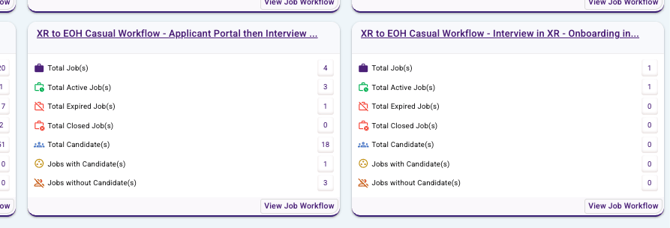
Step 1 – Build the XR → EOH Casual Workflow
To ensure seamless movement from application to onboarding, start by creating an XR Casual Workflow that feeds into the standard EOH Recruitment Stages.

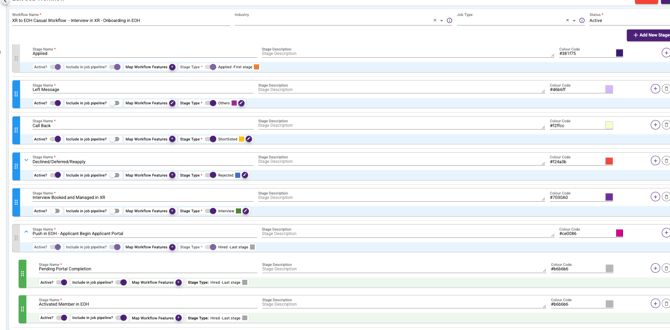
1. Applied
Candidate has submitted an application and entered the pipeline. This is the starting stage for all applicants.
2. Left Message
Initial contact attempt has been made (call, SMS, or email) and you are waiting for the candidate to respond.
3. Call Back
Candidate has responded or is engaged. Usually used for screening or shortlisting before interview.
4. Declined / Deferred / Reapply
Candidate is not progressing at this time but may be suitable in the future. Acts as a soft rejection/talent pool stage.
5. Interview Booked and Managed in XR
Interview is scheduled and managed within Xeople Recruit. Candidate is actively progressing.
6. Push in EOH – Applicant Begin Applicant Portal
Candidate is pushed from XR to Entire OnHire and onboarding begins via the applicant portal if successful in interview.
7. Pending Portal Completion
Candidate has started onboarding but has not yet completed required forms, documents, or compliance steps.
8. Activated Member in EOH
Onboarding is fully complete and the candidate is now an active member ready for placement, rostering, and payroll.
Whole Process Step Through
Step 1 – Candidate Enters Applied Stage
All candidates will first appear in the Applied stage after submitting an application.
What to do:
-
Open the job in XR
-
Locate the candidate in the Applied stage
-
Open the candidate profile to begin review
Image: TBD – Applied stage and candidate profile
Step 2 – Screening (Accept, Decline, or Progress)
Review and screen the candidate based on suitability.
Screening Actions:
-
Accept and move to next stage if suitable
-
Decline if not suitable
-
Continue engagement if further contact is required
You should also:
-
Add screening notes in the Notes tab
-
Record call outcomes and suitability comments
Image: TBD – Notes tab and screening notes entry
Step 3 – Use “Left Message” and “Call Back” (If Required)
These stages are used during initial contact attempts.
When to use:
-
Left Message: Candidate did not answer call, voicemail or message left
-
Call Back: Candidate has responded and is engaged for screening
These stages are optional and used for tracking communication before interview.
Image: TBD – Workflow stages (Left Message / Call Back)
Step 4 – Book and Complete Interview in XR
Once the candidate is suitable, the interview must be booked and completed in XR before pushing to EOH.
What to do:
-
Open the candidate profile
-
Navigate to Meetings / Tasks
-
Click Add Meeting
-
Set interview date and time in the future
-
Complete the interview
-
Store all interview notes in the profile
Important:
The interview record supports compliance, documentation, and correct onboarding flow.
Image: TBD – Meeting booking and interview record
Step 5 – Push to EOH
After a successful interview, the candidate can be pushed to Entire OnHire.
What to do:
-
Open the candidate profile
-
Click Push in EOH – Applicant Begin Applicant Portal
-
Enter basic candidate details (if required)
-
Select the correct office
-
Click Next
Basic details do not need to be fully completed, as the applicant will finalise their information in the portal.
Image: TBD – Push to EOH screen
Step 6 – Select Interview and Send Applicant Portal Template
This step triggers the Applicant Portal login.
What to do:
-
Tick the completed interview record
-
Select the interview-based applicant login option
-
Tick Send email to applicant
-
Choose the template:
XR → EOH | Interview Completed & Applicant Portal Access Granted -
Click Next
Image: TBD – Template selection and portal trigger settings
Applicant Portal Email Template Configuration (EOH)
The following template must be created in EOH and mapped within XR:
-
Title: XR → EOH | Interview Completed & Applicant Portal Access Granted
-
Subject: Next Step: Access Applicant Portal and Complete Onboarding Documents
-
Audience: Applicants
-
Stage: Interview
-
Status: Active
Example Email Content:
Hi $applicantsname$

Congratulations on successfully completing your recruitment interview with $CompanyName$. We are pleased to progress you to the next stage of the process.

The next step is to access our Applicant Portal, where you will be required to upload your onboarding documents and complete the relevant onboarding tasks.

Url - $ApplicantPortal$
User Name - $loginid$
Password - $password$
Image: TBD – EOH email template configuration screen
Step 7 – Confirm and Share Profile
What to do:
-
Review the summary screen
-
Click Share Profile
-
Wait for the success confirmation message
Once completed:
-
Candidate is synced into Entire OnHire
-
Applicant Portal access is sent automatically
-
Onboarding process begins
Image: TBD – Share Profile confirmation screen
Step 8 – Complete Onboarding in EOH
After being pushed to EOH:
Process in Entire OnHire:
-
Candidate logs into Applicant Portal
-
Uploads onboarding documents
-
Completes required forms and compliance items
-
Profile is reviewed by onboarding team
Image: TBD – Applicant Portal status in EOH
Final Stage – Activate Member
Once all portal tasks and documents are completed:
What to do in EOH:
-
Review compliance and onboarding documents
-
Finalise profile details
-
Activate the member
The candidate is now:
-
Fully onboarded
-
Active in EOH
-
Ready for placement, rostering, and payroll
Image: TBD – Activated member status in EOH
You can now update Sub-Status to actived if you would like but this is manual.
Standard Workflow Stage Summary
-
Applied
-
Left Message (optional)
-
Call Back (optional)
-
Declined / Deferred / Reapply
-
Interview Booked and Managed in XR
-
Push in EOH – Applicant Begin Applicant Portal
-
Pending Portal Completion
-
Activated Member in EOH
Key Standardised Rules
-
Screening must be completed in XR before pushing
-
Interview must be booked and completed in XR
-
Applicant Portal is triggered using the interview template
-
Left Message and Call Back are optional tracking stages
-
Basic details can be finalised by the candidate in the portal
-
Member activation only occurs after full portal and document completion
This is the standardised and recommended XR to EOH recruitment workflow for structured onboarding and compliance tracking.