
The Look and Feel section allows administrators to customise the visual branding of the system for all users.
This includes logos, browser icons, and colour themes.
What This Section Controls
These settings change how the system appears but do not affect data or functionality.
You can customise:
-
System Logo
-
Browser Favicon
-
Navigation bar colours
-
Button highlight colours
-
Text colours
Logo
The Logo is displayed within the system interface and represents your organisation.
How to update:
-
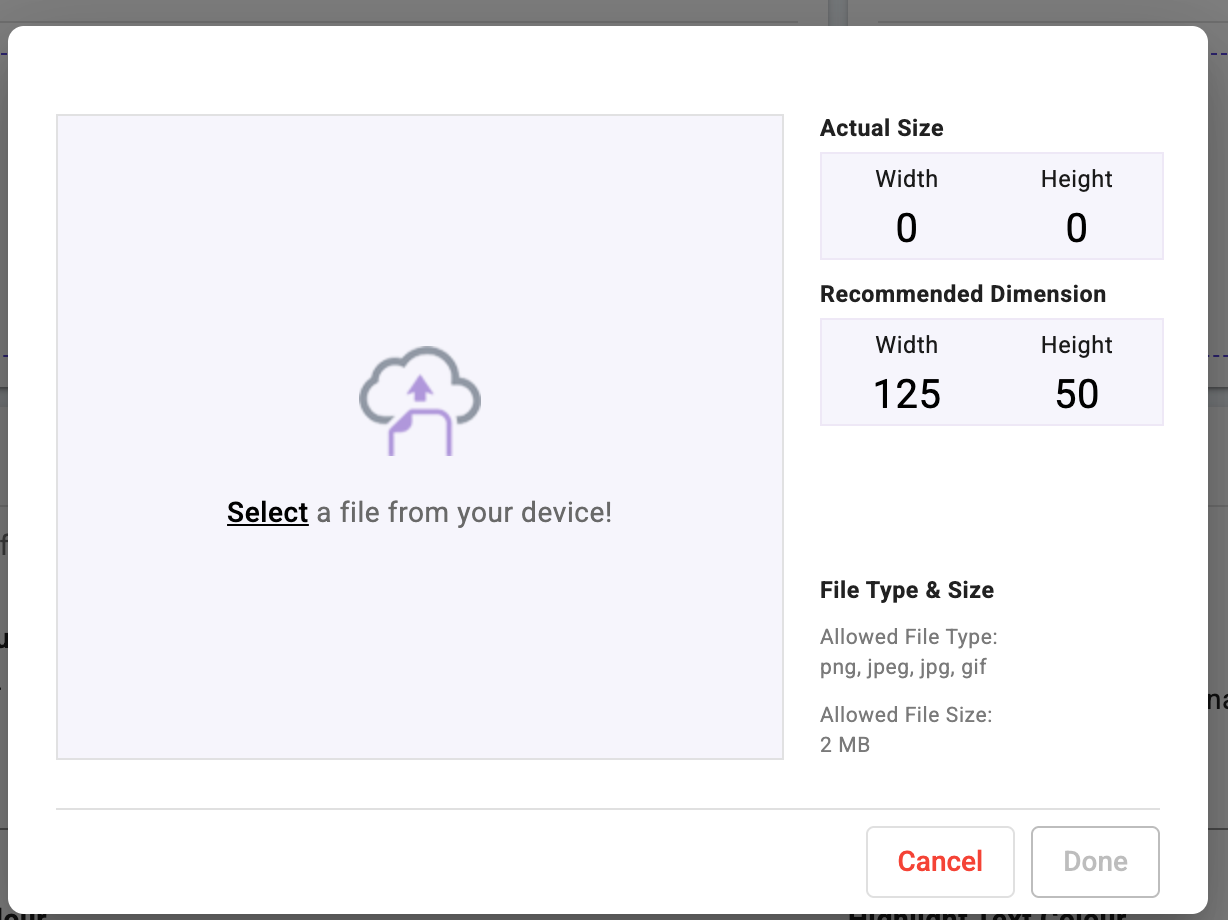
Click the edit (pencil) icon on the Logo section
-
Upload your logo file (125W and 50H)
-
Save changes
Use a clear, high-resolution image with a transparent background where possible.
Favicon
The Favicon is the small icon shown in the browser tab.
How to update:
-
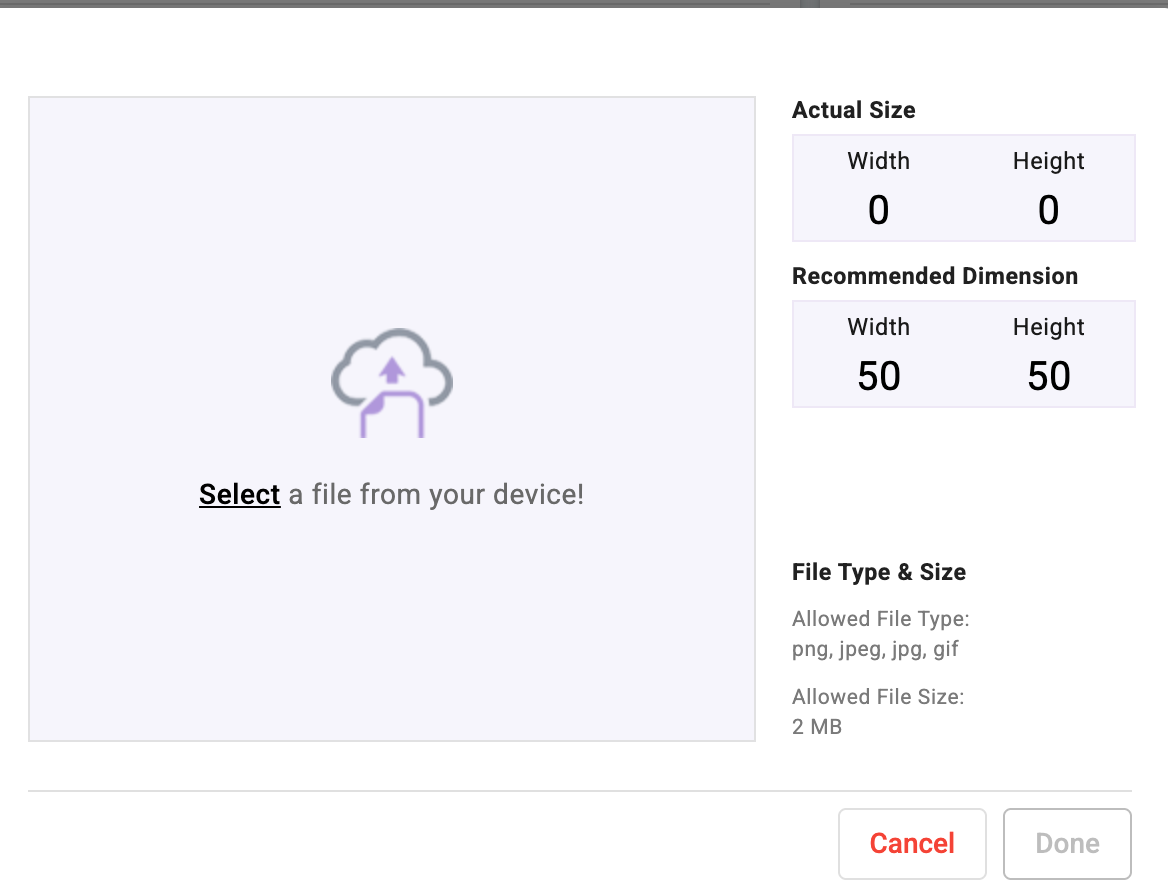
Click the edit (pencil) icon in the Favicon section
-
Upload a square version of your logo or brand icon (50W x 50H)
-
Save changes
Favicons should be simple and recognisable at small sizes.
Navigation Colours
This section controls the colours used in the system’s main navigation bar and buttons.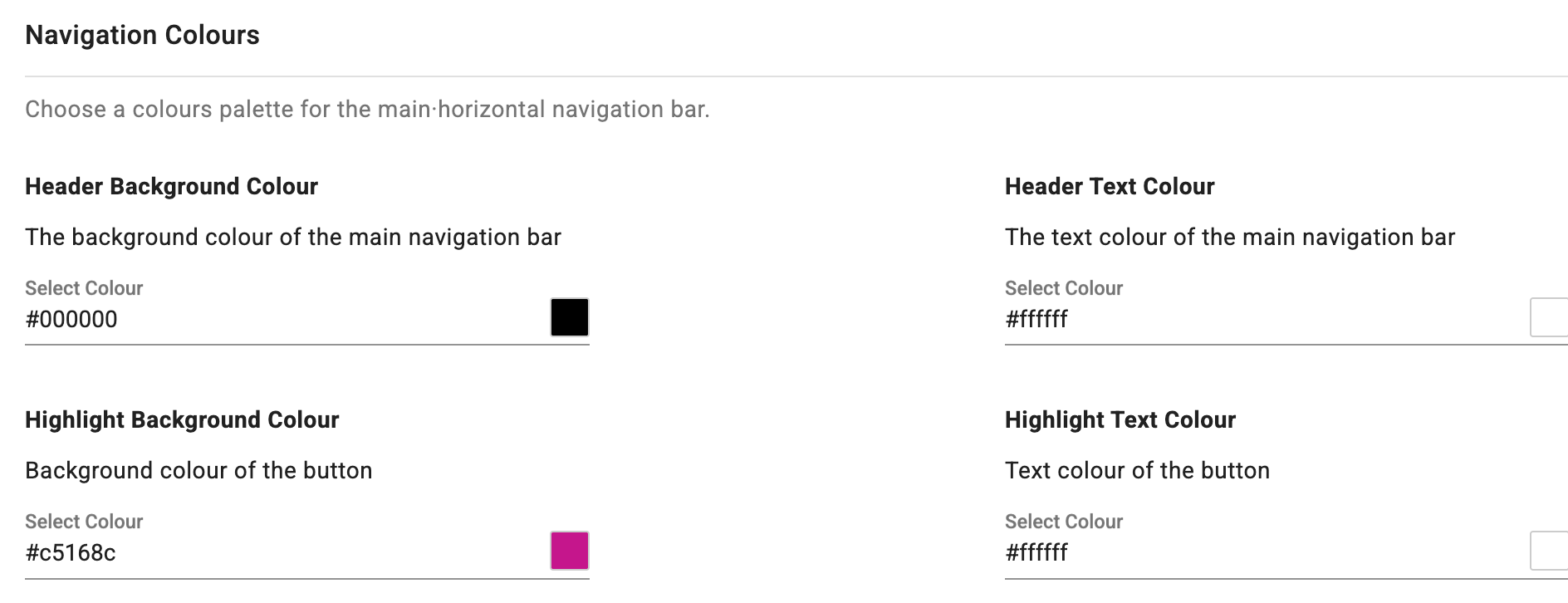
Header Background Colour
The background colour of the main navigation bar.
Example shown:
Black (#000000)
Header Text Colour
The colour of text in the navigation bar.
Example shown:
White (#FFFFFF)
Highlight Background Colour
The background colour of buttons and highlighted elements.
Example shown:
Brand highlight colour (#C5168C)
Highlight Text Colour
The text colour used on highlighted buttons.
Example shown:
White (#FFFFFF)
How to Change Colours
-
Click into the Select Colour field
-
Choose a colour or enter a HEX code
-
Review changes using Preview
-
Click Save
Restore Defaults
Click Restore Defaults to return to the original system colour settings.
Important Notes
-
Changes apply to all users.
-
Ensure colour contrast remains readable.
-
Use brand colours consistently.
-
Only administrators should update these settings.
Date/Time Formats
This section defines how time and dates appear in the system, reports, timesheets, and logs.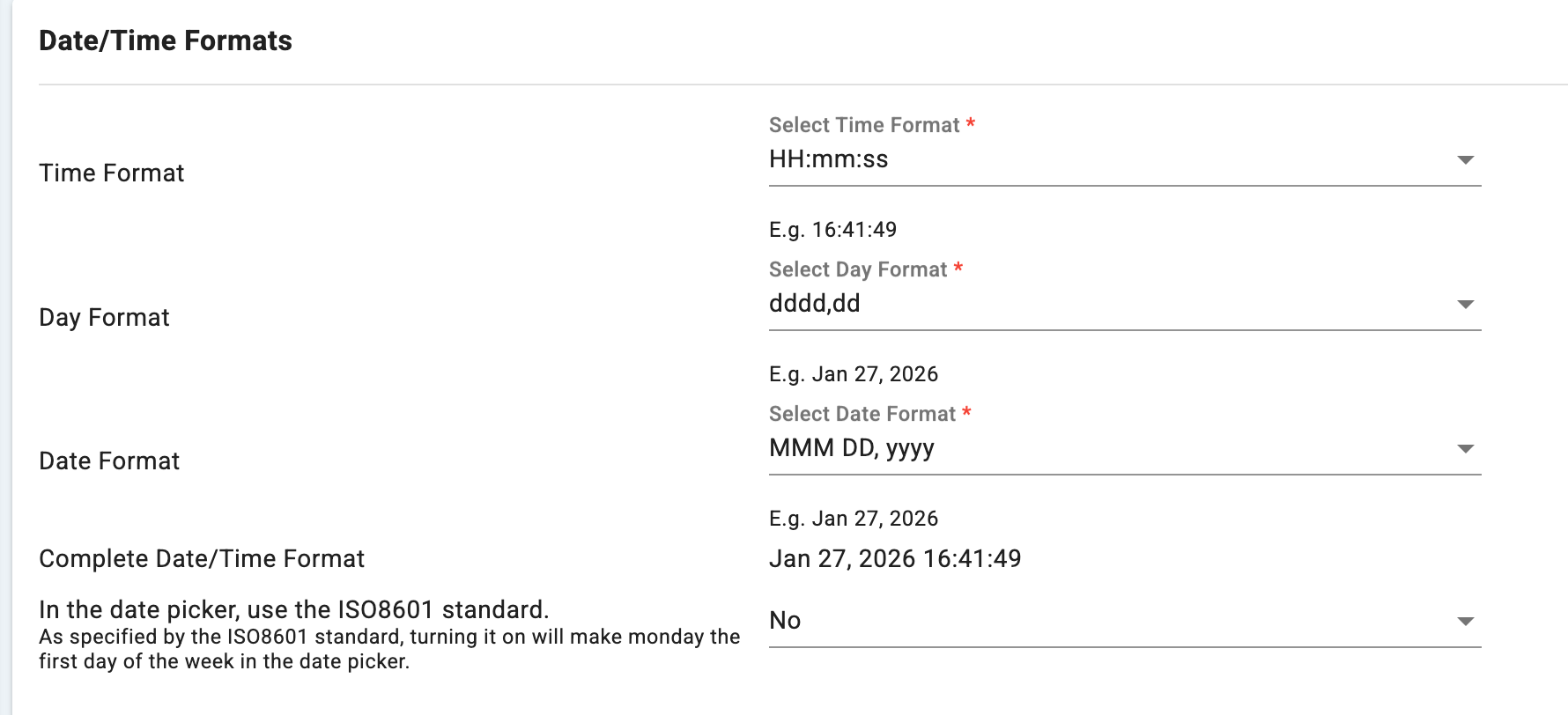
Time Format
Determines how time is displayed.
Example shown:HH:mm:ss → 24-hour format (e.g., 16:41:49)
Why this matters:
-
Impacts timesheets and shift records
-
Affects reports and audit logs
-
Ensures consistency in scheduling
Day Format
Controls how the day appears when shown with dates.
Example shown:dddd, dd
Displays the full day name and date.
Date Format
Determines the date structure used system-wide.
Example shown:MMM DD, yyyy → Jan 27, 2026
Used in:
-
Reports
-
Calendars
-
Shift screens
-
Logs
Complete Date/Time Format
Shows how the system combines date and time together.
Example:
Jan 27, 2026 16:41:49
This format appears in:
-
Activity logs
-
Audit tracking
-
System history
ISO8601 Date Picker Setting
Option shown: No
If enabled:
-
The date picker uses ISO8601 standards
-
Monday becomes the first day of the week
When to enable:
-
Organisations using international standards
-
When aligning with global reporting practices
Proximity Settings
These settings control how distance is calculated and displayed in the system.
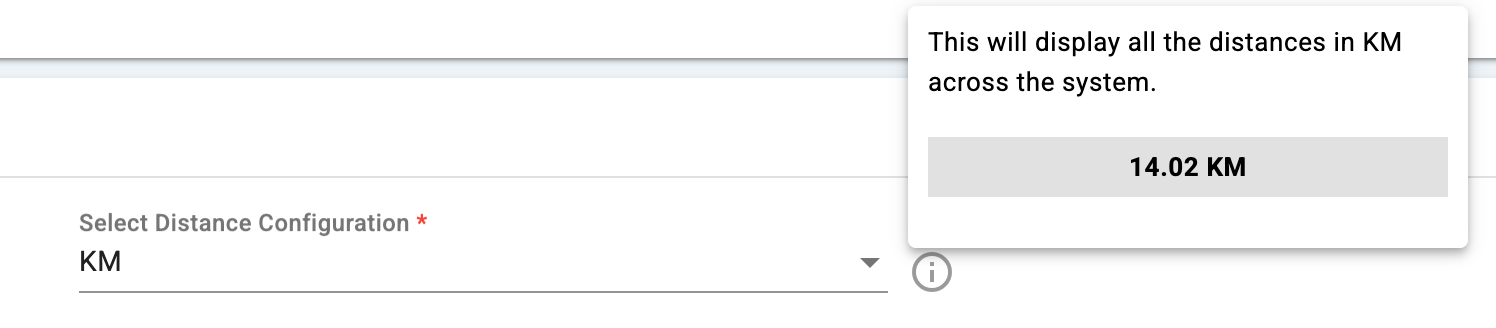
Distance Configuration
Determines the unit of measurement used for distance-based features.
Example shown:
KM (Kilometres) or MIles
Affects:
-
Travel calculations
-
Location-based services
-
Mapping features
-
Compliance distance tracking
How to Update These Settings
-
Navigate to System Settings / Account Preferences
-
Locate the Date/Time Formats and Proximity sections
-
Use dropdowns to select the correct formats
-
Click Save
Important Notes
-
Changes apply system-wide
-
Impacts reporting, scheduling, and logs
-
Only administrators should update
-
Ensure alignment with regional requirements before changing