
Internationalisation Settings
The Internationalisation section controls how dates, times, currency, and regional formats are displayed to all users in the system.
These settings ensure the system matches your organisation’s location and reporting requirements.
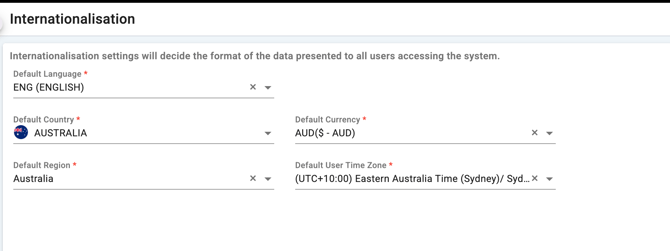
What Each Setting Means
Default Language
Defines the system language used for labels, menus, and interface text.
Example shown:
ENG (English)
Default Country
Sets the country context for the system. This can affect:
-
Regional defaults
-
Compliance-related settings
-
Country-based configurations
Example shown:
Australia
Default Currency
Controls the currency format displayed across the system, including:
-
Invoices
-
Reports
-
Financial data
Example shown:
AUD ($ - AUD)
Default Region
Determines how regional data formats are applied, such as:
-
Date formats
-
Number formatting
Example shown:
Australia
Default User Time Zone
Defines the system time zone used for:
-
Logs
-
Notifications
-
Reports
Example shown:
(UTC+10:00) Eastern Australia Time (Sydney)
How to Update Internationalisation Settings
Step 1 — Open Account Preferences
Navigate to the Account Preferences or system settings area where Internationalisation is located.
Step 2 — Select the Field to Change
Click into the field you want to update:
-
Language
-
Country
-
Currency
-
Region
-
Time Zone
Use the dropdown list to select the correct value.
Step 3 — Save Changes
After updating the required settings, click Save.
Important Notes
-
These settings affect all users in the system.
-
Changes may impact reporting formats and timestamps.
-
Only administrators should update these settings.
When Should These Be Updated?
-
Setting up a new organisation
-
Expanding into another country
-
Correcting system-wide display formats
-
Aligning reporting with regional requirements