
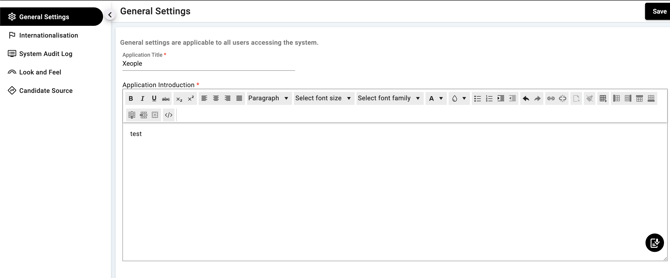
The General Settings area controls system-wide display information that applies to all users accessing the platform.
These settings help define how your organisation and system appear to users.
What This Section Controls
General Settings allow administrators to configure:
-
The Application Title (system name shown to users)
-
The Application Introduction (welcome or informational message displayed within the system)
These settings impact the user experience across the entire platform.
Application Title
This is the name of the system as it appears to users.
Example shown:
Xeople
When to update this
-
Rebranding
-
Changing business or system name
-
White-labelling for different organisations
Application Introduction
This section allows you to display a message to users. It can include:
-
Welcome messages
-
Company information
-
Usage instructions
-
Internal announcements
-
Support guidance
The text editor allows formatting such as:
-
Bold, italic, underline
-
Paragraph styling
-
Font size and family
-
Lists and alignment
-
Links
-
Tables
How to Update General Settings
Step 1 — Open General Settings
Navigate to the General Settings section within system administration.
Step 2 — Update Application Title
Edit the Application Title field to reflect the correct system or organisation name.
Step 3 — Update Application Introduction
Use the text editor to enter or update the message.
You can format the content using the toolbar for clarity and structure.
Step 4 — Save Changes
Click Save in the top right corner to apply updates.
Changes will apply to all users immediately.
Important Notes
-
These settings affect all users in the system.
-
Keep messaging professional and relevant.
-
Avoid adding sensitive or temporary information unless required.
-
Only administrators should make changes.