
If you would like MFA enabled please first enter your email
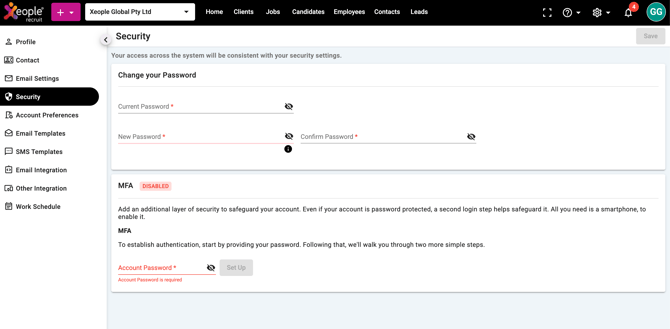
First, enter your current password and select "Set Up"
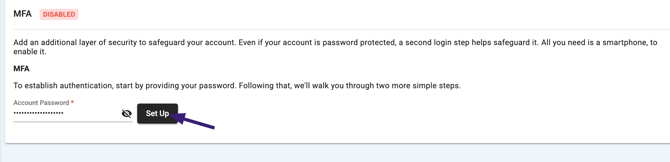
How Multi-Factor Authentication (MFA) Setup Works
Overview
This process guides a user through enabling Multi-Factor Authentication (MFA), adding an extra layer of security to their account. Once enabled, users must verify their identity using a second method when logging in.
Step 2: Download Authenticator App & Scan QR Code
- Download an authenticator app (e.g. Google Authenticator, Microsoft Authenticator)
- Scan the QR Code displayed on screen
(or manually enter the key if needed)
👉 This links your account to your mobile device, which will generate secure login codes.
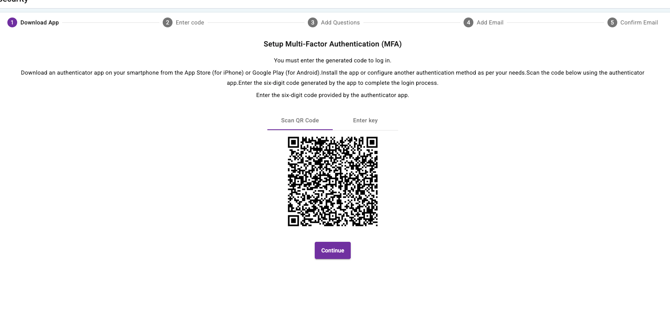
Step 3: Enter Verification Code
- Open your authenticator app
- Enter the 6-digit code generated
👉 This confirms the app has been successfully linked to your account.
⚠️ If the code is incorrect:
- You will see an error (e.g. “PIN is not correct”)
- Re-enter the latest code from the app
- Click Continue
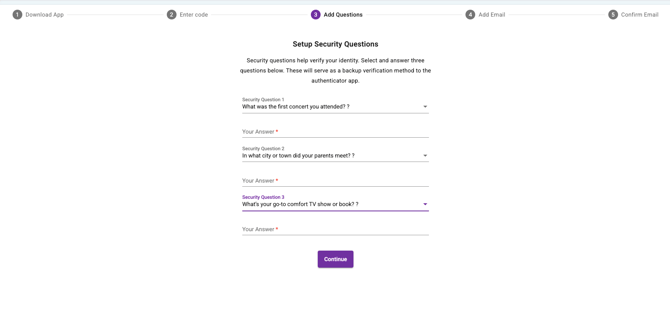
Step 4: Set Up Security Questions (The build to use as back up will be delivered before end of 2026)
- Select and answer 3 security questions
👉 These act as a backup authentication method if you cannot access your authenticator app.
- Click Continue
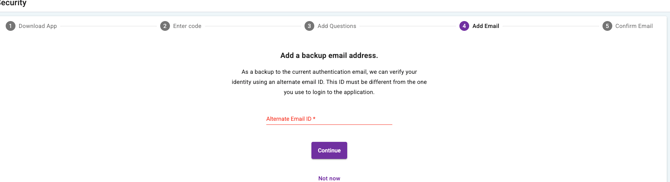
Step 5: Add Backup Email Address
- Enter an alternate email address
(must be different from your login email)
👉 This provides another recovery method for account access.
- Click Continue
(or “Not now” if optional)
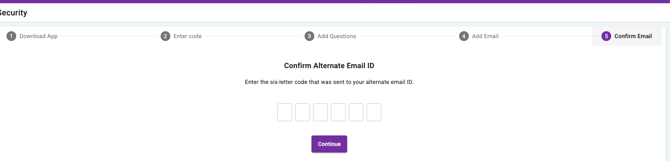
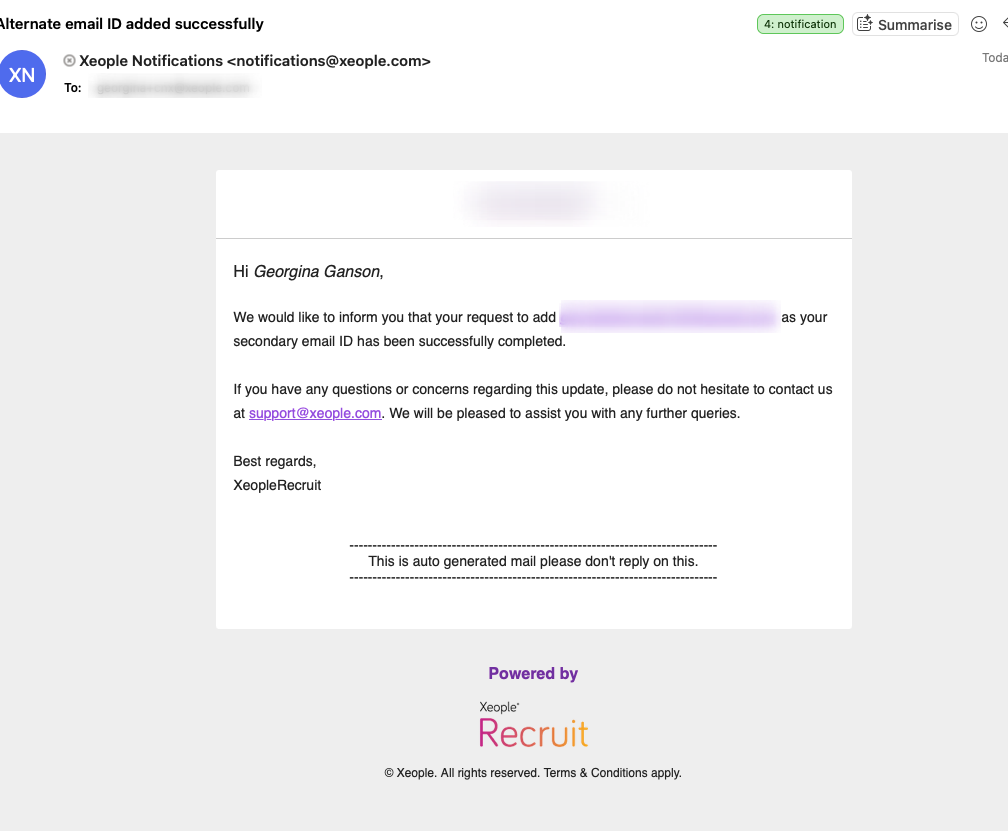
Step 6: Confirm Backup Email
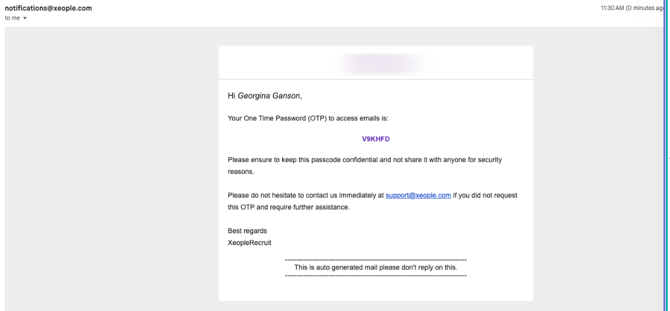
- Check your email inbox
- You will receive a One-Time Password (OTP)
- Enter the 6-digit code into the system
👉 This verifies ownership of the backup email address.
- Click Continue
Step 7: MFA Setup Complete
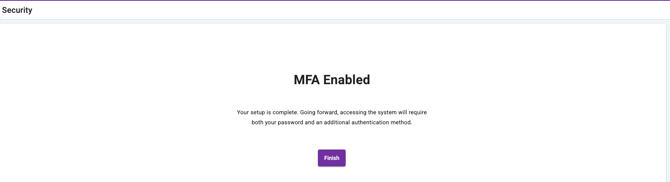
- You will see “MFA Enabled”
👉 Going forward:
- Login will require:
- Your password
- A code from your authenticator app (or backup method)
- Click Finish
What This Means for Users
- Your account is now more secure
- Even if your password is compromised, access is protected
- You must have access to your authenticator app (or backup method) to log in
Common Issues
Incorrect Code
- Ensure you are using the latest code from the authenticator app
- Codes refresh every ~30 seconds
No Access to Authenticator App
- Use security questions or backup email
- Contact support if all methods are unavailable
Step 8: Logging In with MFA Enabled (Ongoing Use)
Once Multi-Factor Authentication (MFA) has been successfully set up, the login process will change.
What is happening
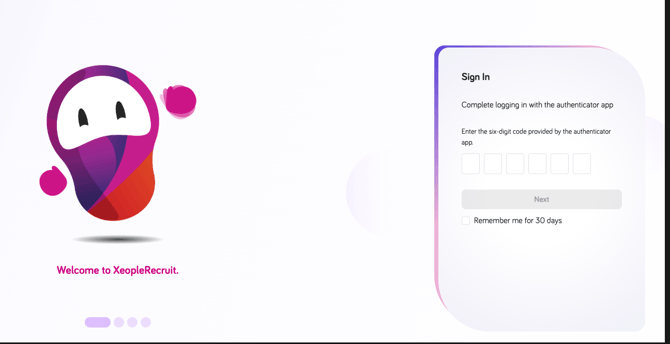
- After entering your username and password, you will be prompted with an additional screen
- This screen requires you to enter a 6-digit code from your authenticator app
What you need to do
- Open your authenticator app on your mobile device
- Locate the code linked to your account
- Enter the 6-digit code into the login screen
- Click Next to proceed
Optional Setting
- You can select “Remember me for 30 days”
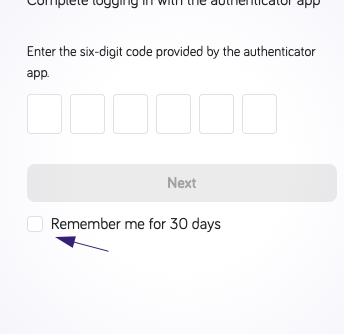
👉 This will:
- Reduce how often you are prompted for MFA on that device
- Only apply to the device/browser you are using
Outcome
- Once the correct code is entered, you will be logged into the system
- This step will be required each time you log in (unless “Remember me” is enabled)
Important Notes
- The code refreshes every ~30 seconds
- Always use the most recent code shown in your authenticator app
- If the code is incorrect, you will need to re-enter the latest one