
Salary Band defines a named minimum-to-maximum pay rate range for a role, set in a chosen currency. It lets recruiters apply a consistent, pre-agreed rate range to a job instead of entering rates manually each time — for example AIN Rates (43–98), Chef Rates (45–96), or RN Rates (52–157).
Why Salary Band Matters
- Keep pay rates consistent across similar roles and clients.
- Ensure offers stay within agreed or award-aligned rate ranges.
- Speed up job creation by selecting a band instead of typing rates.
- Reduce errors and out-of-range pay rates.
- Generate cleaner rate benchmarking and reporting.
Understanding the Salary Band Fields
- Currency Code – The currency the band applies to (e.g. AUD).
- Salary Band Name – A clear, recognisable label for the band (e.g. RN Rates).
- Salary Range – The minimum and maximum rate for the band (e.g. 52–157).
- Status – Whether the band is Active (available to use) or Inactive.
To navigate to the Salary Band Master, follow the steps below:
- Click on the Profile picture and select Administrator from the drop-down menu.
- Click on Master Data from the left navigation panel and select Salary Band under Job.
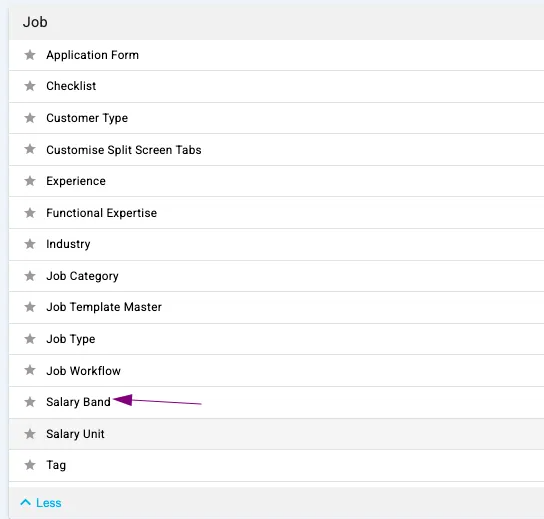
Profile Picture – Administrator – Master Data – Salary Band
- Click on the (+) add button on the top left.
- Enter the required fields — Currency Code, Salary Band Name, Salary Range, and Status — and click Save.
- Click on the three-dot button placed in front of each salary band to edit or delete it.
- Use the Search bar at the top to quickly find an existing salary band.

Salary Band Master – Currency Code, Salary Band Name, Salary Range, Status
- You can select the newly created Salary Band from the Salary Band drop-down when creating a job.
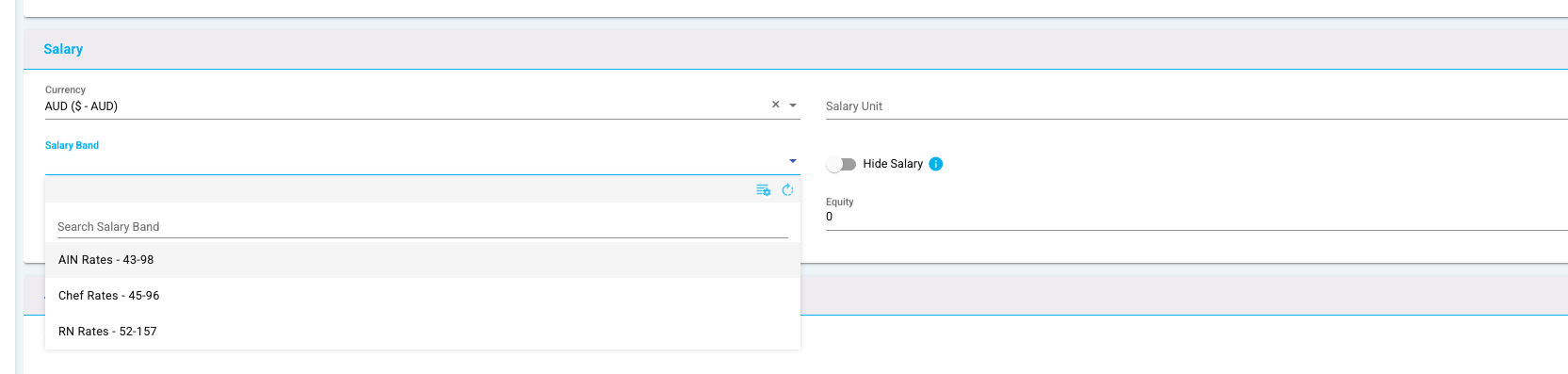
Add a Job – Salary Band