
Create a filter before setting up a view. This ensures you can attach the filter and its conditions to the view during configuration. Filter conditions themselves are not displayed in the view.
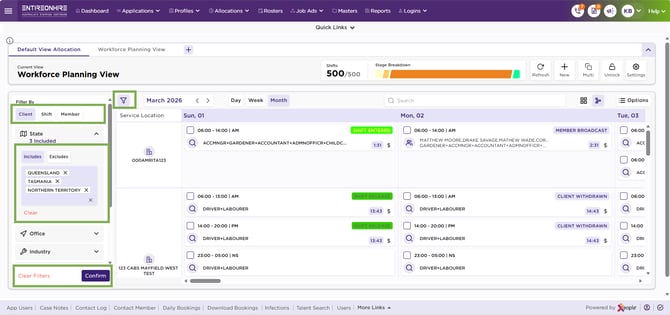
Calendar – Filters
Filters help refine and control the data displayed under each View(s). Each View can have advanced filters configured from the Filter Master. Once configured, filters can be applied to the Calendar for quick application and removal.
The behaviour (conditions) of filters (while adding one) is determined by the Source parameters, not by the specific View displayed on screen.
Master Data – Filter screen shows all filter(s) you created or those configured by the admin, based on your permissions. You can edit or delete only the filter(s) you created. Super Admin and Admin can edit or delete any user-created filter(s), depending on access. By default, admin-created filter appears if no other filter(s) exist.
Filter Components:
|
Element |
Description |
|
Name |
Enter a unique name for the filter. |
|
Status |
Choose Active or Inactive. Default – Active. |
|
Description |
Add a short note about the filter’s purpose. |
|
Source |
Single-valued and all fields, operators and values are dependent upon the source |
|
Filter Line Items |
Add multiple filter rules using Field, Operator, and Value(s) (coming from the source). |
A filter consists of three components — Field (the data point to filter on), Operator (the condition applied to that field), and Value(s) is the specific criteria to filter by.
Client-Based Filters
|
Field |
Operator |
Selection Type |
Description |
|
State |
Includes / Excludes |
Multi-select |
Filter by Australian states or territories. |
|
Office |
Includes / Excludes |
Multi-select |
Filter by reporting offices (dynamic list). |
|
Industry |
Includes / Excludes |
Multi-select |
Filter by client industries (dynamic list). |
|
Client Group |
Includes / Excludes |
Multi-select |
Filter by client groups (dynamic list). |
|
Admin Location |
Includes / Excludes |
Multi-select |
Filter by admin locations (dynamic list). |
|
Service Location |
Includes / Excludes |
Multi-select |
Filter by service locations (dynamic list). |
|
Delivery Location |
Includes / Excludes |
Multi-select |
Filter by delivery locations (dynamic list). |
|
Client Priority |
>, >=, ==, <=, <, Between |
Numeric |
Filter by client priority values. |
- Admin Location: Represents the main site or head office for a client with multiple branches, allowing individual Service Locations to be added beneath it; for single-site clients, select Admin and Service.
- Service Location: The main client site where services are delivered, such as a Frankston hospital.
Delivery Location: A specific area within the Service Location, such as a ward or department (e.g., maternity ward in a hospital).
Shift-Based Filters
|
Field |
Operator |
Selection Type |
Description |
|
Shift Type |
Includes / Excludes |
Multi-select |
Filter by shift types (e.g., AM, PM, NS). |
|
Shift Start Time |
Before, At, After |
Single-select |
Filter by shift start time. |
|
Shift End Time |
Before, At, After |
Single-select |
Filter by shift end time. |
|
Requested Qualification |
Includes / Excludes |
Multi-select |
Filter by required qualifications (dynamic list). |
|
Requested Expertise |
Includes / Excludes |
Multi-select |
Filter by required expertise (dynamic list). |
|
Shift Status |
Includes / Excludes |
Multi-select |
Filter by shift statuses (fixed list). |
|
Shift Source |
Includes / Excludes |
Multi-select |
Filter by shift source (e.g., Staff Portal, ShiftMatch, StaffCentral, Emprevo). |
|
Order Type |
Three-way |
- |
Filter by order type. |
Qualification: Refers to formal certification (e.g., Registered Nurse, Certified Teacher), while expertise refers to hands-on skills or experience (e.g., ICU nursing, special education).
Shift Source: Shift Source: Identifies where the shift originated (e.g., EOH), helping you filter and manage shifts by their source system.
Order Type: Refers to either using a purchase order number or a rate product code (such as a NDIS Line Item) for a shift or invoice.
Member-Based Filters
|
Field |
Operator |
Selection Type |
Description |
|
Member |
Includes / Excludes |
Multi-select |
Filter by members defined in Entire OnHire (dynamic list). |
Filter Actions:
Create Filter
- Click on the Profile picture and selectAdministrator.
- Click on Master Data and select Filters under Roasters.
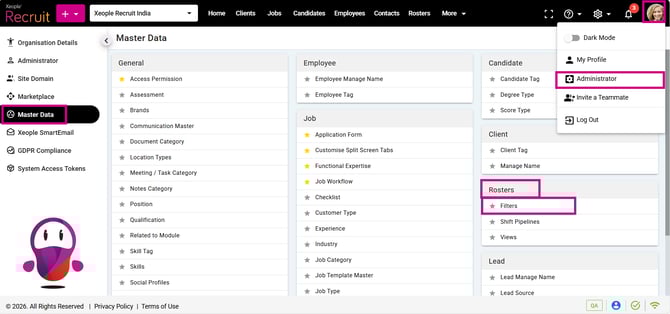
Profile Picture – Administrator – Master Data – Rosters - Filters
- Click on (+) add button to add a filter. Enter the information in the respective fields.
Once the source is selected, filter conditions (Client, Shift, or Member-based) appear.
- Add line items using Operator and Selection(s).
- Click Save.
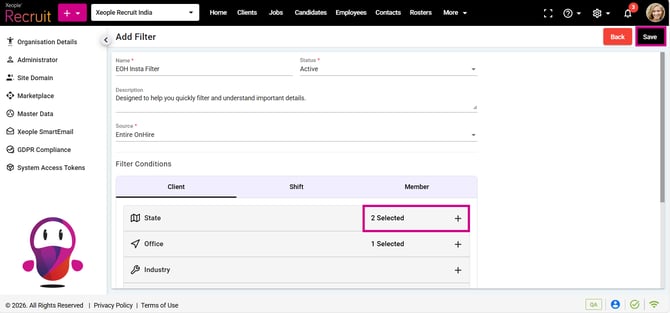
Add Filter – Save
Actions to perform on the Filter landing page:
- Add a Filter (+).
- Search: Allows you to swiftly locate specific filter(s) by entering keywords or search terms, facilitating efficient retrieval of the relevant filter(s).
- Audit Log: Opens the audit log page, filtered to display only Filter-related audit trails.
- Refresh Button: Allows you to refresh the page and update the filter listings in real-time.
- Grid View: Presents filter details in a card-style format, offering you a quick and intuitive way to scan through essential information.
Options available under the three-dot against each filter in the masters:
- View: Opens filter details in a read-only mode displaying all filter fields.
- Update/Edit View: Launches the filter in edit mode, allowing modifications to fields (except Source).
- Delete View: Opens a confirmation prompting deletion of the selected filter; on confirmation, deletes the filter and records a Delete entry in the Audit Log.
The system checks if the filter is linked to any View — if in use, the delete option is hidden; if not, a confirmation pop-up appears.
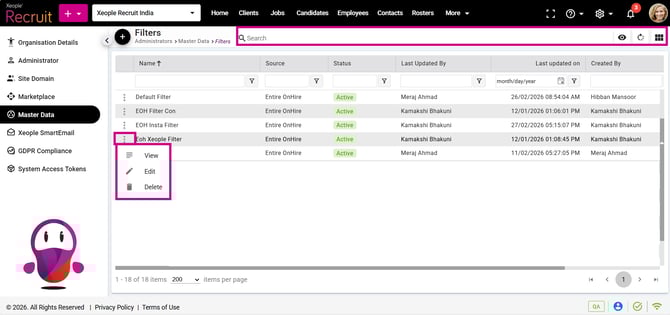
Filters Landing Page – Options
How filter appears while adding a view:
While adding a view, it is mandatory to select a filter from the filter drop-down. The list shows all configured or shared filters. Choose one to ensure the sourced data displays according to the filter conditions set for that view.
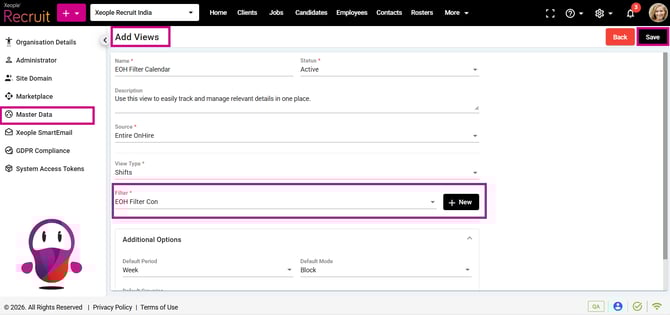
Master Data – View – Filter
How filters appear on the calendar:
Once you configure filters in Master Data – Filter, they appear on the calendar screen with a counter showing how many filters are applied. You can apply or remove filters directly from here, and the count updates automatically.
Calendar - Filters