
Dark Mode changes the system’s colour theme to darker tones, making the screen easier on the eyes — especially in low-light environments.
Benefits of Dark Mode
-
Reduces eye strain
-
Improves visibility in dim lighting
-
Helps reduce screen glare
-
Provides a modern, clean interface
Steps to Turn On Dark Mode
Step 1 — Open Your Profile Menu
-
In the top right corner of the system, click your profile icon (initials or avatar).
Step 2 — Locate Dark Mode
At the top of the menu, you will see the Dark Mode toggle switch.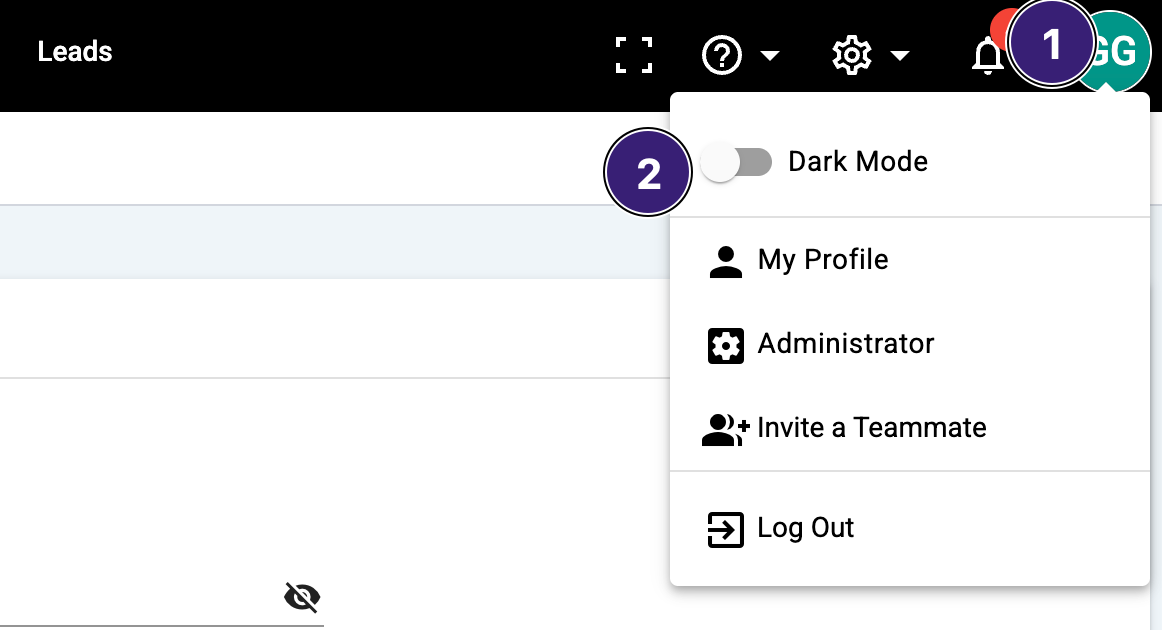
Step 3 — Enable Dark Mode
Click the toggle so it switches on.
The system display will immediately change to Dark Mode.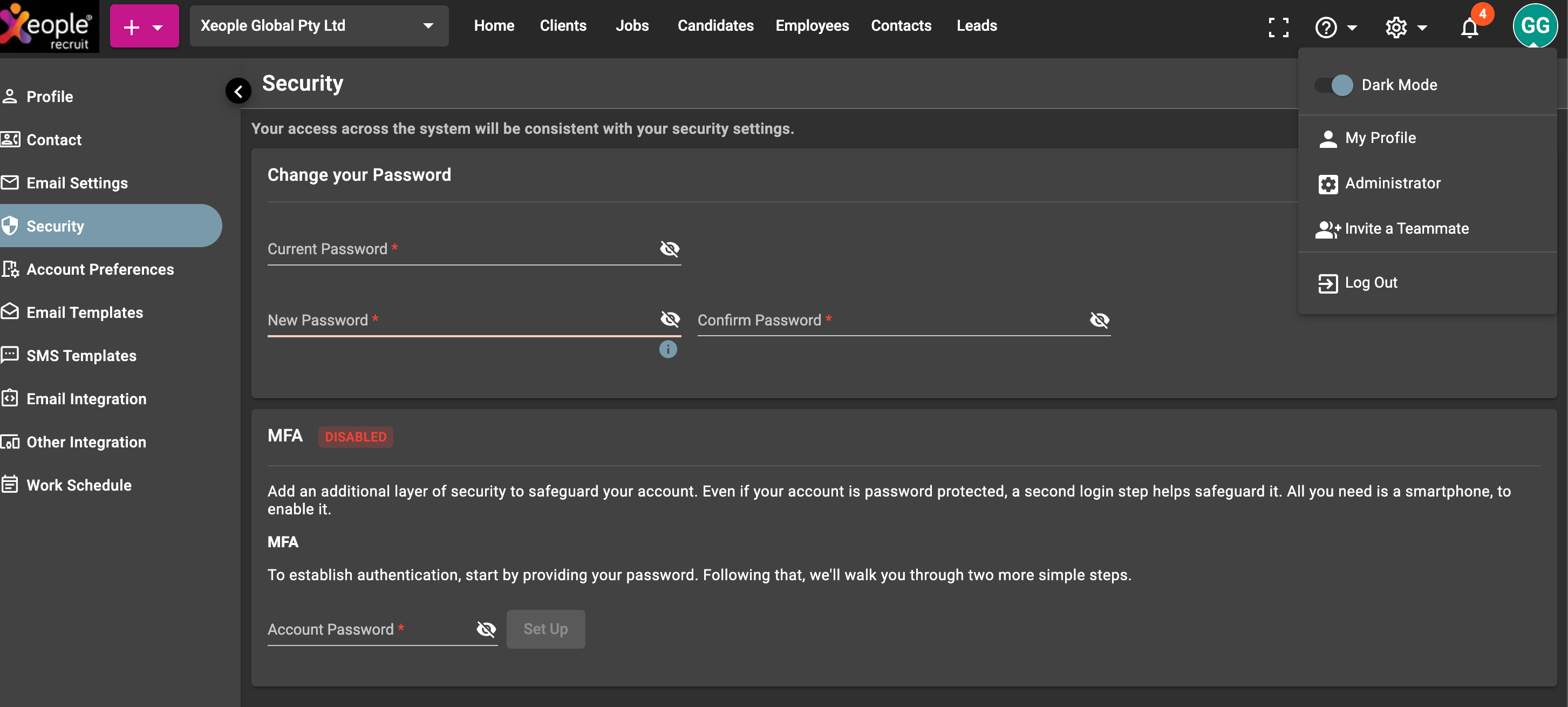
To Turn Dark Mode Off
Follow the same steps and toggle Dark Mode back off to return to the light theme.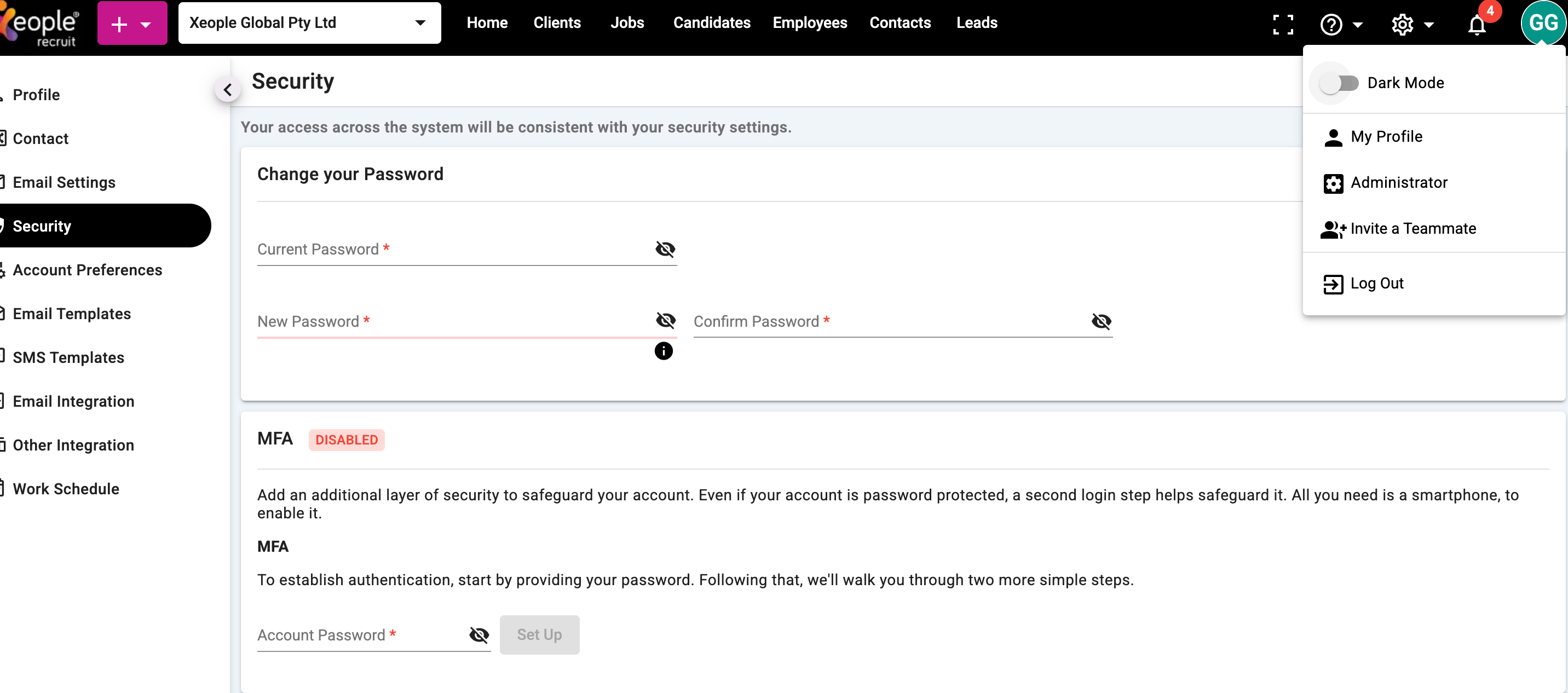
Notes
-
Dark Mode only affects how the system looks — it does not change data or settings.
-
Your preference is saved to your user profile.