
The Meeting / Task tab on the Employee Summary page lets you schedule, track, and manage meetings and tasks linked to an employee, keeping all scheduled activities and follow-ups in one organised place.
Managing meetings and tasks against an employee offers several benefits:
- Schedule meetings, interviews, training sessions, reviews, and follow-ups directly against the employee record.
- Keep a complete, time-ordered history of all meetings and tasks for that employee.
- Assign an organiser and set a duration so everyone knows who is responsible and when.
- Generate an online meeting link where a meeting platform integration is enabled.
- Mark meetings and tasks as complete so outstanding actions are easy to identify.
To add a meeting or task from the Employee Summary page, follow the steps below:
- Navigate to the main navigation header and click Employees.
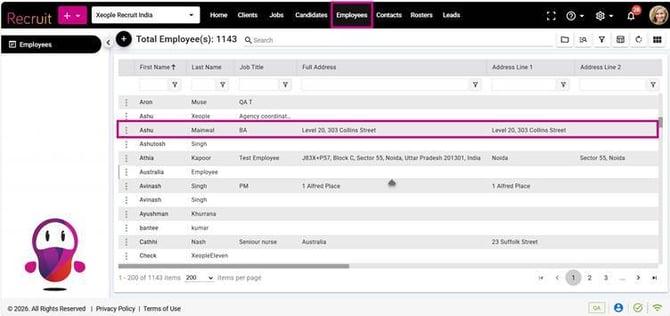
Employees – Employee Name
- Click the employee’s name to open the Employee Summary page.
- Navigate to the Meeting / Task tab.
- Click Add Meeting / Task. Complete the required fields.
- Click Save.
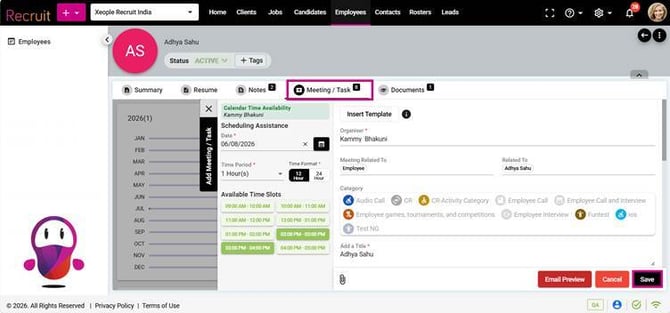
Meeting/Task – Save
Scheduling Assistance (Left Panel) – Fields
|
Field |
Description |
|
Calendar Time Availability |
Displays the organiser's existing calendar availability to help avoid scheduling conflicts. |
|
Date* |
Select the meeting or task date. |
|
Time Period* |
Select the duration of the meeting (for example, 1 Hour(s)). |
|
Time Format* |
Choose whether available time slots are displayed in 12 Hour or 24 Hour format. |
|
Available Time Slots |
Displays available and unavailable time slots for the selected date. Green slots are available, while unavailable slots are shown in a different colour. Selecting a slot automatically populates the meeting date and time. |
Right Panel– Fields
|
Field |
Description |
|
Insert Template |
Inserts a pre-configured employee template to automatically populate the meeting or task details. For details on how the email templates are created, click here: My Profile - Email Templates. |
|
Organiser |
Displays the user creating the meeting or task. This field is populated automatically. |
|
Meeting Related To |
Automatically displays Employee. This value is fixed and cannot be changed. |
|
Related To |
Automatically displays the employee from whose Employee Summary page the meeting or task is being created. This field is read-only and cannot be changed. |
|
Category |
Select the activity category, such as Audio Call, Employee Call, Employee Interview, Employee Call and Interview, Fun Test, etc. |
|
Add a Title* |
Enter a meaningful title for the meeting or task. This is a mandatory field. |
|
Date & Time |
Displays the selected meeting date, start time, end time and time zone. Selecting an available time slot automatically populates these values, which can be modified if required. |
|
Invite Required Attendees |
Add users who are required to attend the meeting. By default, the employee in the Related To is added. You can change as required. |
|
Access* |
Defines the visibility of the meeting or task (for example, Public). Use the + icon to manage access permissions. |
|
Description |
Use the rich text editor to enter the meeting agenda, notes, or task details. You can apply formatting and add hyperlinks, images, and attachments as needed. Job placeholders are not supported because no job context is associated with this meeting or task. |
|
Invite Optional Attendees |
Add attendees whose participation is optional. These attendees are included in the CC section of the meeting notification email. |
|
Meeting Platform |
Select the online meeting platform (for example, Microsoft Teams) if configured under My Profile > Other Integrations. |
|
Online Meeting URL |
Once a meeting platform is selected, the system automatically generates the online meeting link. This link is included in the calendar invitation. |
|
Search for a Room or Location |
Search for and select a meeting room or enter a physical meeting location. |
|
Send Email to Attendees |
Sends an email notification to all selected attendees when enabled. |
|
Send Calendar Appointment Invite to Attendees |
Sends a calendar invitation containing the meeting details and online meeting link (where applicable). |
|
Attachment |
Upload supporting documents using the paperclip icon. |
|
Email Preview |
Opens a preview of the email before it is sent. |
|
Save |
Saves the meeting or task. |
|
Cancel |
Closes the window without saving any changes. |
Meeting Created - Details
- At the top of the meeting record, the system displays the Created Date/Time alongside the meeting creator details (i.e., who created the meeting), as these details are related to the record's creation.
- Subject – The title of the meeting or task (for example, Interview – Springfield General Hospital).
- Within the meeting tile/summary section, the Scheduled (Booked) Date and Time are displayed as a dedicated field, as this is the primary information when viewing a meeting.
- Place Booked Time and Duration side by side for better clarity.
- Attendees and then the Organiser details.
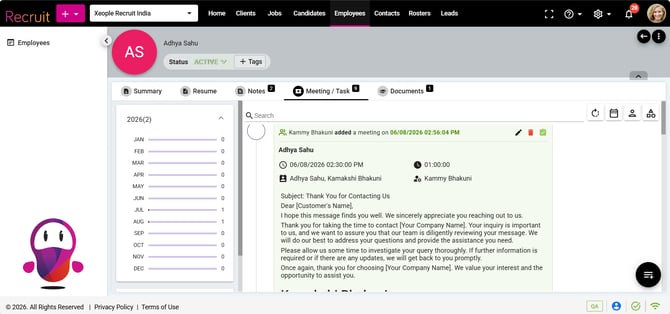
Meeting/Task Created - Fields
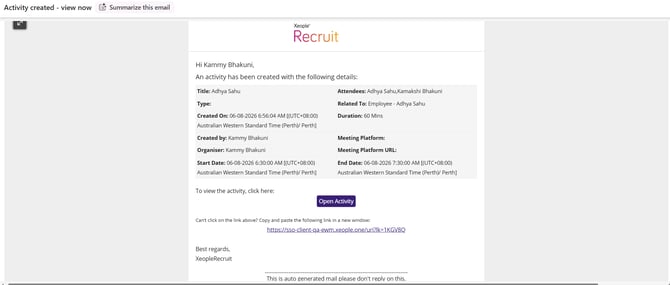
Once a meeting or task is saved (with Send email to attendees ticked), XeopleRecruit automatically sends an "Activity created – view now" notification email from notifications@xeople.com to the relevant people. It confirms the activity and includes an Open button (and a direct link) that takes the recipient straight to the activity in the system.
The email lists the activity details:
- Subject – the email subject ("Activity created – view now")
- Title – the meeting/task title
- Type – the category selected (e.g. Interview)
- Create On (Scheduled on) – date, time and time zone
- Created by – the user who created it
- Organiser – the assigned organiser
- Start Date - the date and time when the meeting will commence.
- Attendees – the invited attendees
- Related To – the linked record type and name (e.g. Client – [name])
- Duration – the meeting length (e.g. 60 Mins)
- Meeting Platform – the online platform, if one is set
- Meeting Platform URL – the online meeting link, if generated
- End Date – the date and time when the meeting will conclude.
- Open Activity– a link/button to view the activity directly
- To edit or delete an entry, click the pencil (edit) or bin (delete) icon shown on each entry.
- To mark a meeting or task as done, click the green tick (complete) icon on the entry.
Use the Search bar at the top to quickly find a specific meeting or task. On the left-hand side, entries are organised by year and month. If entries do not appear, select the desired month from the left panel to display the meetings and tasks created during that period.

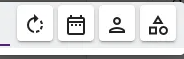
Those four icons are the action/filter bar for the Meeting / Task tab — same logic as the filters on the Notes tab. Left to right:
- Refresh (circular arrow) — reloads the meeting & task list.
- Date (calendar) — filter entries by date.
- Owner (person) — filter by the person who created/owns the entry.
- Category (shapes) — filter by category.
Optional Reading: To set up online meetings, see the Marketplace Configuration – Microsoft Teams Meeting article. Meetings and tasks added against a client are also logged in the Activity tab.
Back to Top