
The Employee Summary Page serves as the central profile hub for managing employee records. Once a candidate is successfully hired, their information transitions seamlessly into the employee management module, allowing recruiters, HR teams, and administrators to maintain a complete workforce record from a single location.
The Employee Summary Page provides instant access to employee details, contact information, qualifications, experience, documentation, compliance records, and other employment-related data.
Purpose of the Employee Summary Page
- Maintain a centralised employee profile.
- Store personal and professional information.
- Track employment history and qualifications.
- Manage employee documents and compliance records.
- Support workforce planning and reporting.
- Ensure accurate employee data management throughout the employee lifecycle.
Employee Profile Header
At the top of the page, users can view key employee information, including:
-
Employee Avatar: Displays the employee's profile picture or initials when no image is available.
-
Employee Name: Shows the employee's full name for easy identification.
-
Location: Displays the employee's current location, city, state, or country.
-
Employee Status: Indicates the employee's current status, such as:
-
- Active
- Inactive
-
- Terminated
- Suspended
Marking an employee as Inactive only updates their employment status within the system and does not prevent them from accessing the application.
If an employee no longer works for your organisation and should no longer have access to the platform, you must also disable their site access through User Management.
-
Tags: Custom tags can be assigned to categorise employees based on:
-
- Skill sets
- Departments
- Projects
- Employment types
- Certifications
- Talent pools
Tags improve filtering, searching, and reporting capabilities.
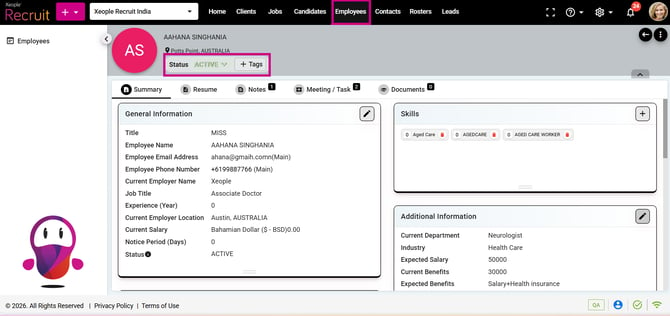
Employee Summary
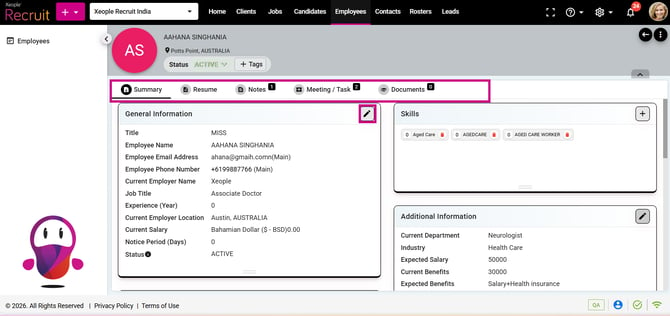
Summary Tab
The Summary tab provides a comprehensive overview of the employee's information.
-
General Information: Contains core employee details.
Fields Include:
| Field | Description |
|---|---|
| Title | System-defined dropdown field used to select the employee's title (Mr, Mrs, Ms, Miss, Dr, Prof) from the predefined values configured within XR. |
| Employee Name | Full employee name |
| Employee Email Address | Primary contact email |
| Employee Phone Number | Main contact number |
| Current Employer Name | Current employing organisation. This can not be edited from here. It is picked from the Experience section. |
| Job Title | Employee's role or position |
| Experience (Years) | Total professional experience. It is picked from the Experience section. Editing there will update automatically in this section. |
| Current Employer Location | Current work location. It is picked from the Experience section. Editing there will update automatically in this section. |
| Current Salary |
Existing salary details. It is picked from the Experience section. Editing there will update automatically in this section. The Currency field will automatically default to the currency configured under System Settings → Internationalisation across the application. Users can manually change the currency if required from the Experience section. |
| Notice Period (Days) | Required notice period. Enter Manually. |
| Status | Current employee status. Values coming from the employee status master. |
-
Skills Section: Allows recruiters and HR users to record employee competencies and technical expertise. Users can add, edit, and manage skills throughout an employee's tenure.
-
Additional Information: Stores supplementary employee data.
| Field | Mandatory / Optional | Data Source |
|---|---|---|
| Current Department | Optional | Entered manually |
| Industry | Optional | Entered manually. |
| Current Benefits | Optional | Entered manually |
| Currency | Mandatory | Currency field will automatically default to the currency configured under System Settings → Internationalisationacross the application. You can manually select it from the dropdown. |
| Expected Salary | Optional | Entered manually |
| Salary Unit | Optional | Selected manually from the dropdown |
| Expected Benefits | Optional | Entered manually |
| Gender | Mandatory | Selected manually from the dropdown |
| Date of Birth | Mandatory | Entered manually using the date picker |
| Nationalities | Optional | Selected manually from the dropdown |
| Languages | Optional | Selected manually from the dropdown |
| Employee Description | Optional | Entered manually using the rich text editor |
| GDPR Consent Status | Mandatory | Selected manually |
-
Address Management: Stores employee residential and mailing addresses.
| Field Name | Mandatory / Optional | Data Source |
|---|---|---|
| Address (Link to Map) | Optional | Map lookup |
| Address Line 1 | Mandatory | Manual entry |
| Address Line 2 | Optional | Manual entry |
| District / Suburb | Optional | Manual entry / Auto-populated |
| Town / City | Optional | Manual entry / Auto-populated |
| Country | Mandatory | Dropdown list. XR defined drop-down. |
| State | Optional | Dropdown list. Values coming from the States master. |
| Zip (Postal) Code | Mandatory | Manual entry / Auto-populated |
| Longitude | Optional | GPS / Map coordinates |
| Latitude | Optional | GPS / Map coordinates |
-
Dependents Section: Allows to record family members or dependents associated with the employee.
-
Experience Section: Captures previous employment history.
When the Current Company toggle is enabled, the End Date field is automatically disabled and cannot be edited, as employees marked as currently working at the company do not require an end date. Any existing End Date value will be ignored while the Current Company option remains selected.
You can maintain a detailed record of professional experience for workforce planning purposes.
-
Emergency Contacts maintained directly within the employee profile.
| Field | Mandatory / Optional | Data Source |
|---|---|---|
| First Name | Mandatory | Manually entered |
| Last Name | Mandatory | Manually entered |
| Relationship | Optional | XR system-defined dropdown |
| Phone Number | Mandatory | Manually entered |
| Address | Optional | Manually selected |
| Primary Contact | Optional | Manually - selected toggle (Yes/No) |
This information is particularly useful during workplace incidents or emergencies.
-
Education Section: Records academic qualifications and professional training.
| Field | Mandatory / Optional | Data Source |
|---|---|---|
| Degree Type | Optional | Dropdown values coming from the Degree Type master. |
| Degree Title | Optional | Manually entered |
| Name of the Institute | Optional | Manually entered |
| Name of the University | Optional | Manually entered |
| Start Date | Optional | Manual calendar selection |
| End Date | Optional | Manual calendar selection |
| Score Type | Optional | Dropdown values coming from the Score master. |
| Final Score | Optional | Manually entered |
| Qualification | Mandatory | Dropdown values coming from the Qualification/role master. |
| Location | Optional | Manually selected |
| Description | Optional | Manually entered |
-
Folder Management: Allows users to organise employee records into structured categories. You can map employee to specific folders from here.
-
-
Examples
- Compliance Documents
- Performance Reviews
- Training Records
- Contracts
- Payroll Documentation
-
Recommend Reading: How the employee folder works in details, click here: Organise Folders.
Resume Section
The Resume section allows users to upload, view, download, and manage an employee's resume and cover letter. It also provides resume parsing functionality to automatically extract employee information from uploaded resumes.
| Feature | Description |
|---|---|
| Resume | Upload and store the employee's resume/CV. |
| Parse Resume | Extract information from the uploaded resume and populate employee profile fields automatically. |
| Cover Letter | Upload and manage the employee's cover letter. |
| Add Resume | Upload a new resume document. |
| Download Resume | Download the currently stored resume. |
- Notes Section: Serves as a centralised hub for documenting crucial employee-related details. These concise yet comprehensive records capture important information and interactions pertaining to employees within the organisation.
Recommend Reading: How notes section works in detail, click here: Notes.
-
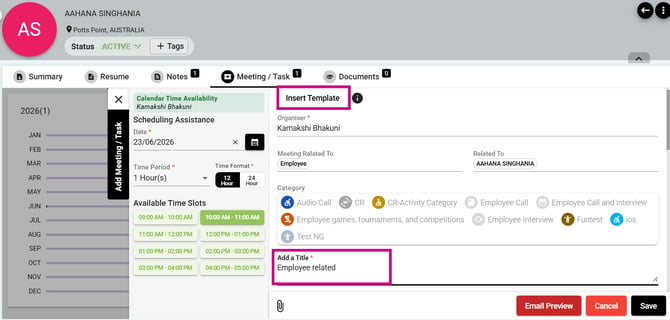
Meeting / Task tab on the Employee Summary page allows users to create, manage, and track meetings and tasks related to a specific employee. It provides a central location to schedule activities, send invitations, and view all employee-related interactions.
-
Auto-Populated Employee Information - When a Meeting or Task is created from the Employee Summary page:
- The Meeting Related To field is automatically set to Employee.
- The Related To field is automatically populated with the selected employee's name.
- The user does not need to manually select the employee.
-
| Field/Option | Description | ||||||||||||||||||
|---|---|---|---|---|---|---|---|---|---|---|---|---|---|---|---|---|---|---|---|
| Date | Select the meeting/task date using Scheduling Assistance. By default current date is selected. | ||||||||||||||||||
| Time Slot | Choose an available time slot for the meeting/task. | ||||||||||||||||||
| Time Period | Define the duration of the meeting/task. By default one hour is selected. Pick from the dropdown as per your requirement. | ||||||||||||||||||
| Time Format | Select either 12-hour or 24-hour time format. By default 12 hours is selected. | ||||||||||||||||||
| Available Time Slots |
Displays the available time slots for the selected date. The available slots are generated according to the value selected in the Time Period field. For example, if the Time Period is set to 1 hour, the time slots are displayed at 1-hour intervals. If the Time Period is 30 minutes, the time slots are displayed at 30-minute intervals. Green slots are available and red slots are unavailable or already booked. |
||||||||||||||||||
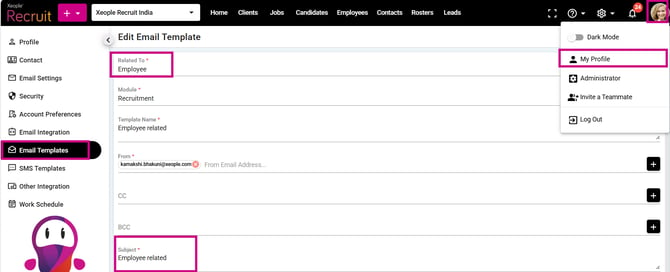
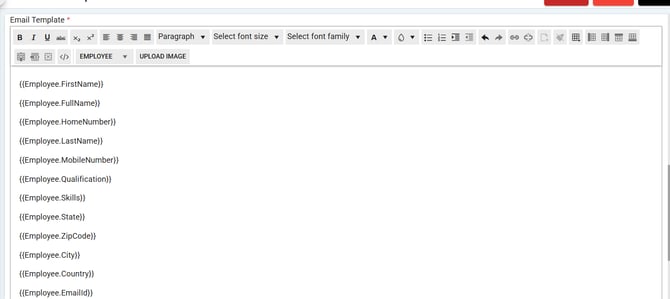
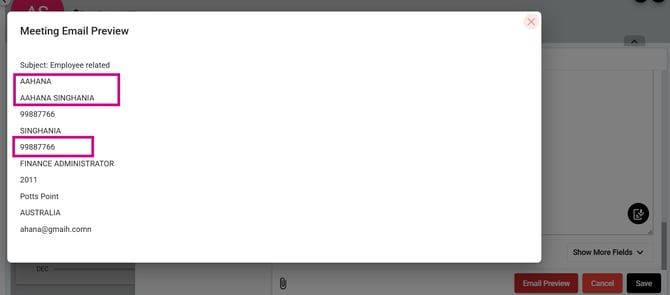
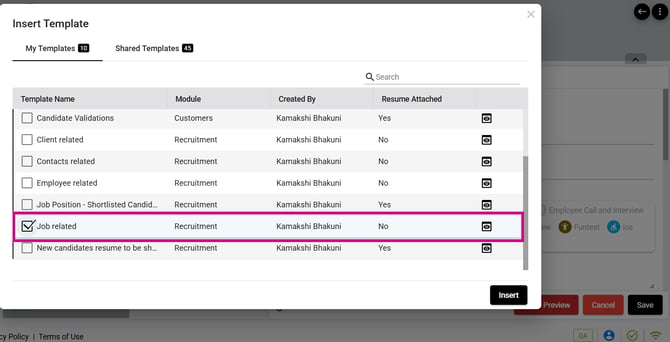
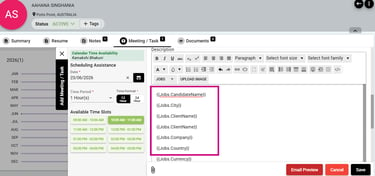
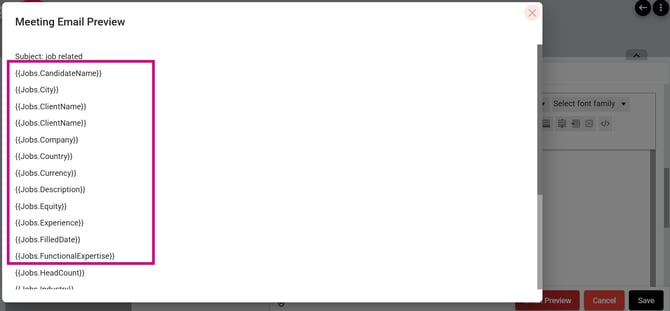
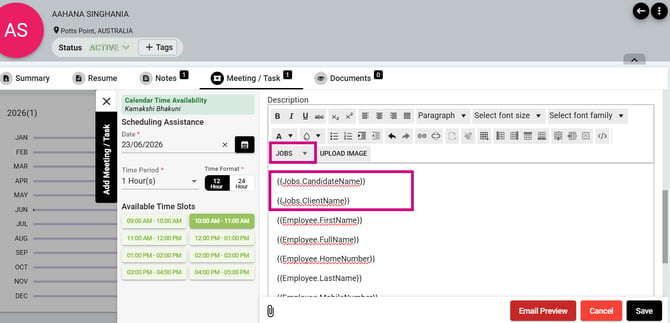
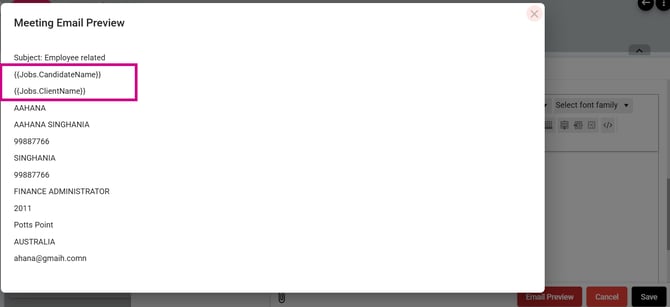
| Insert Template | Email Template Placeholder Replacement Based on Context Scenario 1: Employee Email Template Used in Employee Summary
Given
When
Then
Scenario 2: For example: Job Template Used in Employee Summary
Given
When
Then
Scenario 3: Job Placeholders Inserted in an Employee Template Given
When
Then
Example
Rule: Placeholders are replaced only when the corresponding module context is available.
|
||||||||||||||||||
| Organiser | Specifies the user organising the meeting or task. This field is automatically populated with the name of the user scheduling the activity and cannot be modified. After the meeting or task is created, a system-generated email notification is sent to inform participants that the activity has been scheduled. | ||||||||||||||||||
| Meeting Related To | Automatically set to Employee. | ||||||||||||||||||
| Related To | Automatically populated with the selected employee's name. | ||||||||||||||||||
| Category | Select the appropriate meeting/task category. | ||||||||||||||||||
| Title | By default, picked from the inserted template, if any. Enter the meeting/task title. | ||||||||||||||||||
| Date and Time |
Specify the meeting time zone, date, and duration. Selecting a slot from Available Time Slots automatically fills the Start Time and End Time fields. You can adjust the date or time manually if needed, allowing flexibility while ensuring accurate scheduling across different time zones. |
||||||||||||||||||
| Required Attendees |
By default, the employee in the Related To field is selected. The placeholders in the email preview are populated with the details of that employee (employee in the Related To), regardless of any additional employees added as attendees. A single email is sent to all the employees (if any others added in the Related To field, manually) along with the meeting calendar invitation. This depends on if you ticked the checkbox: Send email to attendees and Send calendar invite to attendees. |
||||||||||||||||||
| Access | Define the visibility level of the meeting/task. Public, Protected and Confidential. | ||||||||||||||||||
| Optional Attendees | Add attendees whose participation is optional. They will appear in the CC field of the same email. | ||||||||||||||||||
| Meeting Platform | If you have integrated teams from My Profile>Other Integrations it will appear in the drop-down. | ||||||||||||||||||
| Online Meeting URL | Once a meeting platform is selected (for example: Teams) a virtual meeting link is auto created. The calendar invite will go with the same meeting link. | ||||||||||||||||||
| Room or Location | Search and select a meeting room or physical location. | ||||||||||||||||||
| Send Email to Attendees | Sends an email notification to attendees when checked. | ||||||||||||||||||
| Send Calendar Appointment Invite | Sends a calendar invitation to attendees when checked. | ||||||||||||||||||
| Email Preview | Allows users to preview the email before sending. | ||||||||||||||||||
| Attachment | Upload and attach files to the meeting/task. | ||||||||||||||||||
| Save | Saves the meeting/task record. | ||||||||||||||||||
| Cancel | Closes the popup without saving changes. |
-
Documents Management: Enables centralised storage of employee-related files.
Recommend Reading: How document section works in detail, click here: Documents.
Employee Sections - Add Information
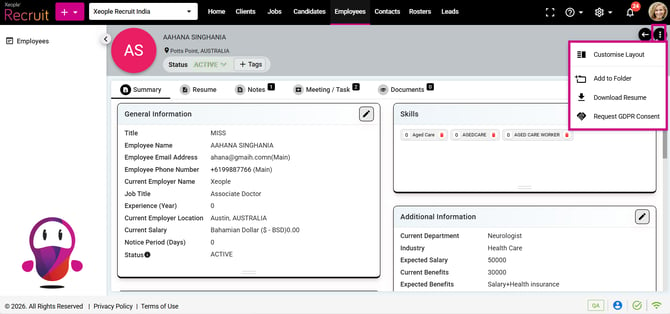
Three - dot Menu
-
Customise Layout: Help you arrange the summary tab sections as per your needs.
- Add to Folder: Allows you to organise employee records by adding them to folders. This helps group employees based on criteria such as department, location, project, or any custom category, making it easier to manage and access records.
- Download Resume: Enables you to download the employee's resume directly from the Employee Summary page. This provides quick access to the latest resume for review, sharing, or offline reference.
- Request GDPR Consent: Supports privacy compliance through consent tracking and secure data management.
Back To TopThree -dot – Actions to Perform