
Contact Tag allows you to categorise and label contacts based on specific criteria or characteristics. Tags help you organise and manage contact information effectively, making it easier to identify, search, and manage contacts based on their specific attributes.
Configuring Contact Tags offers several benefits:
- Tags allow you to categorise contacts into different groups, helping you organise contact data more effectively.
- Contact tags can be customised based on your business requirements, providing flexibility in how contacts are categorised and managed.
- Tags make it easier to identify and manage contacts based on specific characteristics, categories, or business requirements.
Recommend Reading: How to add client tags in the master data, click here: Client Tags.
To navigate to the contact tag, follow these steps:
- Navigate to the main navigation header bar and click on Contacts. You will view the list of all contacts along with their basic details.
- You can either click on the three-dot icon and select View Summary or simply click on the contact.
- This opens the Contact Summary page. In the page header, navigate to Tags and click the (+) button to open the tag drop-down menu.
Tags option in the page header allows you to view and manage tags configured under Client Tag > Master Data.
- You can search for a tag using the Search bar.
- The Tag pop-up displays the available tags along with their short code, configured colour, and full tag name.
- You can select or deselect multiple tags using the toggle control. Tags already mapped to the contact are displayed as selected.
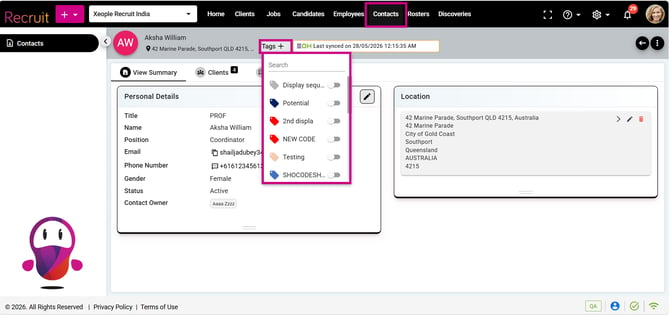
Contact Summary - Tags
-
Up to two mapped tags are displayed in the page header.
-
If more than two tags are mapped, click the + icon to view the additional tags. All tag mapping changes are saved against the contact.
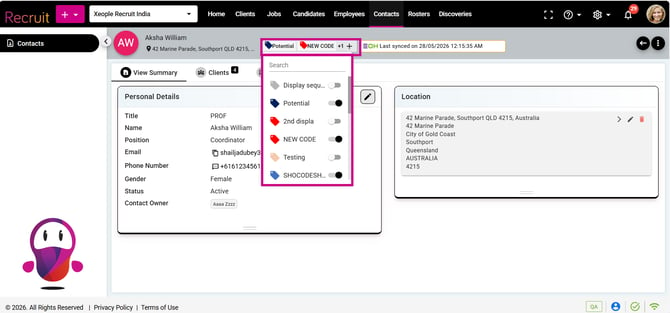
-
An Audit Log records tag additions, updates, and deletions.
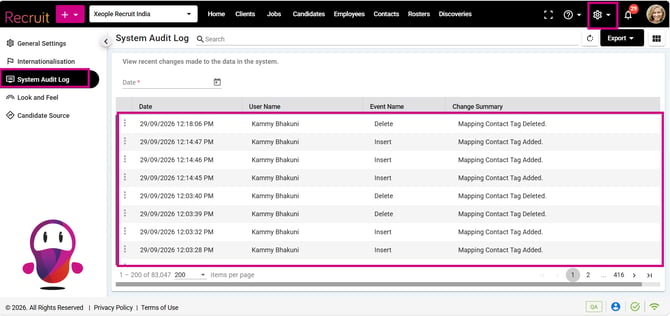
Settings - System Audit Log - Logs
Back to Top