
The Meeting / Task tab on the Candidate Summary page lets you schedule, track, and manage meetings and tasks linked to a candidate, keeping all scheduled activity and follow-ups in one organised place.
Managing meetings and tasks against a candidate offers several benefits:
- Schedule interviews, calls, and follow-ups directly against the candidate record.
- Keep a clear, time-ordered history of every meeting and task for that candidate.
- Assign an organiser and set a duration so everyone knows who is responsible and when.
- Generate an online meeting link where the meeting integration is enabled.
- Mark items complete so outstanding follow-ups are easy to see at a glance.
To add a meeting or task from the Candidate Summary page, follow these steps:
- Navigate to the main navigation header bar and click on Candidates.
- You will find a list of all candidates. By clicking on a candidate, you will be redirected to the Candidate Summary page. Then, navigate to the Meeting / Task tab.
- Click the option to add a new Meeting or Task, then complete the field
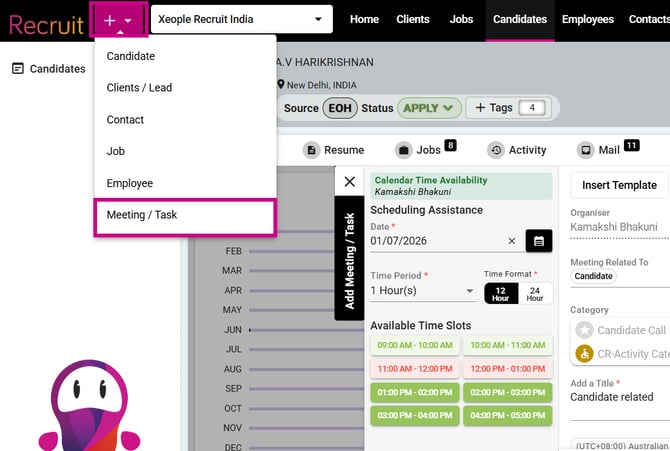
Or from the meetings tab
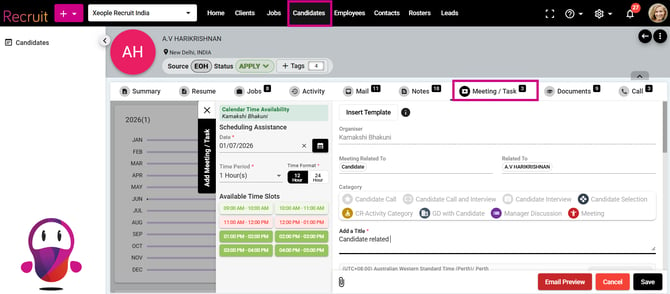
Client Summary Page – Meeting / Task task
- Enter the details in the respective fields and click Save.
-
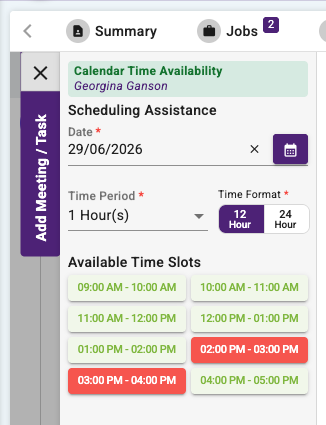
Scheduling Assistance (left panel) – helps you find a free time before you book:
- Calendar Time Availability – Shows the organiser's existing calendar availability so you can avoid clashes.
- Date* – The date you want to schedule the meeting or task. (Required.)
- Time Period* – The length of the meeting, for example 1 Hour(s). (Required.)
- Time Format* – Display the time slots in 12 Hour or 24 Hour format. (Required.)
- Available Time Slots – Suggested slots for the chosen date and period. Green slots are available and red slots are unavailable or already booked. Select a slot to set the meeting time.
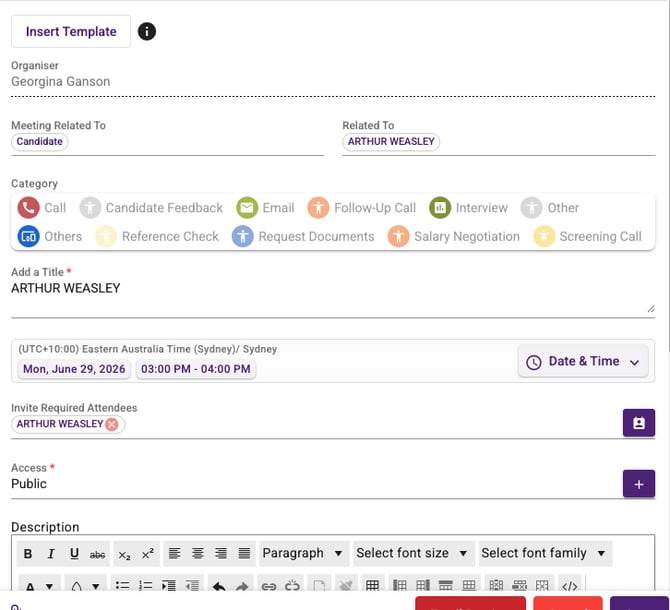
Meeting details:
- Insert Template – Insert a pre-saved template to quickly populate the details (click the info icon for guidance). For details on how the email templates are created and placeholders work, click here: My Profile - Email Templates, Profile Details (Candidate Summary).
- Organiser – The user creating the meeting or task. This is set automatically.
- Meeting Related To – The type of record the meeting is linked to (for example, Client, Candidate, Contact, Job, or Lead).
- Related To – The specific record the meeting is linked to (for example, the client's name).
- Category – Classify the activity. Options include Call, Daily Call Status, Email, External Meeting with Client, Interview, Meeting, Meeting with Stakeholder, Onsite Interview, Others, Promotional Events, and Share Documents.
- Add a Title* – A clear subject for the meeting or task, for example Interview – Springfield General Hospital. (Required.)
- Date & Time – Confirms the time zone, date, and start–end time. This populates from the slot you selected and can be adjusted using the Date & Time drop-down.
- Invite Required Attendees – Add the people who must attend, using the contact picker. A single combined email will be sent to all invitees/required attendees included in the meeting/task with a calendar invite based on the options checked: Send email to attendees and Send calendar invite to attendees.
- Access* – Sets the visibility of the meeting, for example Public. Use the (+) button to manage access. (Required.)
- Description – A rich-text editor for the agenda or notes, with formatting options and the ability to attach files using the paperclip icon.
- Job placeholder are not replaced if inserted from the Jobs drop-down.
- Optional Attendees: Add attendees whose participation is optional. They will appear in the CC field of the same email.
- Meeting Platform: If you have integrated teams from My Profile>Other Integrations it will appear in the drop-down.
- Online Meeting URL: Once a meeting platform is selected (for example: Teams) a virtual meeting link is auto created. The calendar invite will go with the same meeting link.
- Room or Location: Search and select a meeting room or physical location.
- Send Email to Attendees: Sends an email notification to attendees when checked.
- Send Calendar Appointment Invite: Sends a calendar invitation to attendees when checked.
- Email Preview: Allows users to preview the email before sending.
- Attachment: Upload and attach files to the meeting/task.
- Save: Saves the meeting/task record.
- Cancel: Closes the popup without saving changes.
-
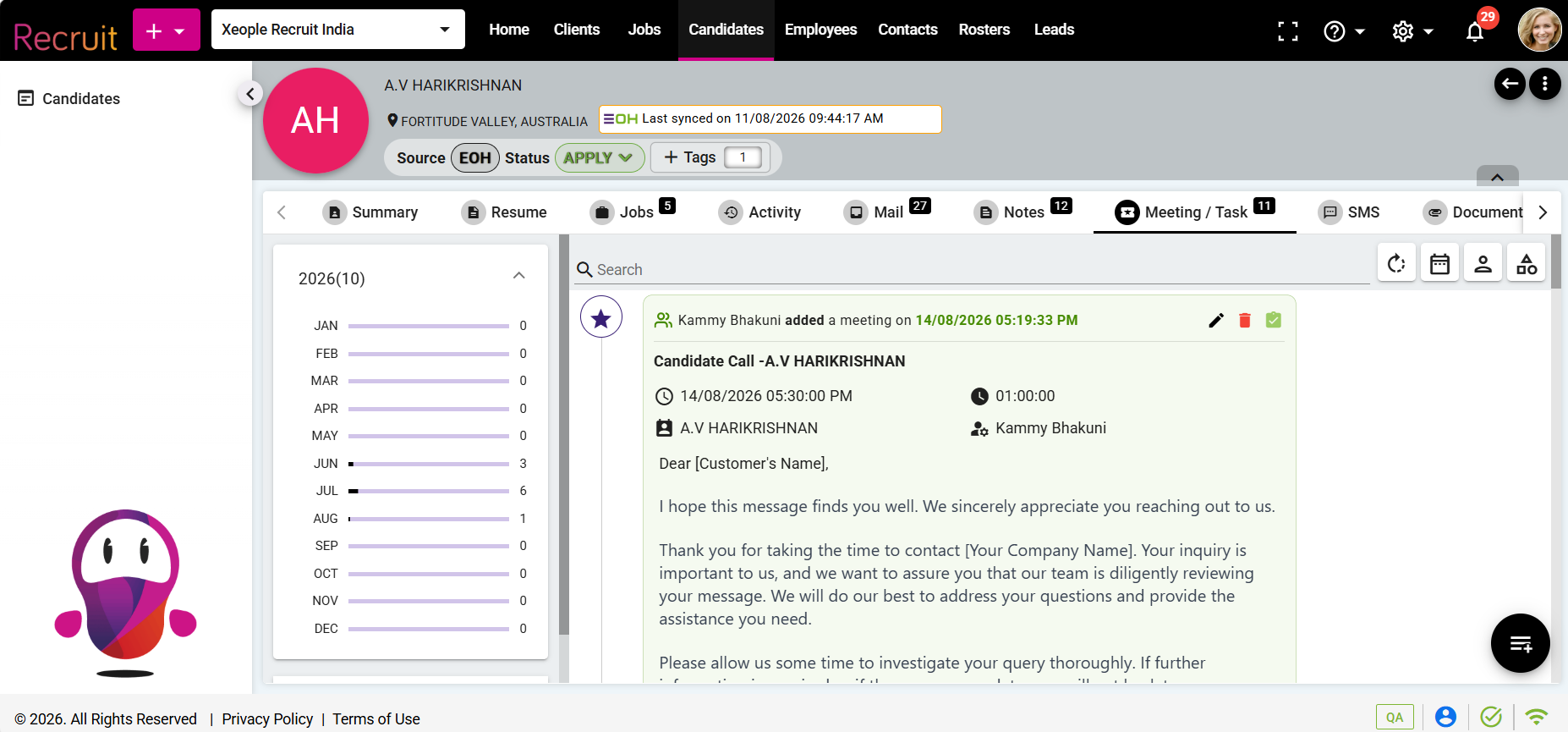
Meeting Created - Details
- At the top of the meeting record, the system displays the Created Date/Time alongside the meeting creator details (i.e., who created the meeting), as these details are related to the record's creation.
- Subject – The title of the meeting or task (for example, Interview – Springfield General Hospital).
- Within the meeting tile/summary section, the Scheduled (Booked) Date and Time are displayed as a dedicated field, as this is the primary information when viewing a meeting.
- Place Booked Time and Duration side by side for better clarity.
- Attendees and then the Organiser details.
Once a meeting or task is saved (with Send email to attendees ticked), XeopleRecruit automatically sends an "Activity created – view now" notification email from notifications@xeople.com to the relevant people. It confirms the activity and includes an Open button (and a direct link) that takes the recipient straight to the activity in the system.
The email lists the activity details:
- Subject – the email subject ("Activity created – view now")
- Title – the meeting/task title
- Type – the category selected (e.g. Interview)
- Create On (Scheduled on) – date, time and time zone
- Created by – the user who created it
- Organiser – the assigned organiser
- Start Date - the date and time when the meeting will commence.
- Attendees – the invited attendees
- Related To – the linked record type and name (e.g. Client – [name])
- Duration – the meeting length (e.g. 60 Mins)
- Meeting Platform – the online platform, if one is set
- Meeting Platform URL – the online meeting link, if generated
- End Date – the date and time when the meeting will conclude.
- Open – a link/button to view the activity directly
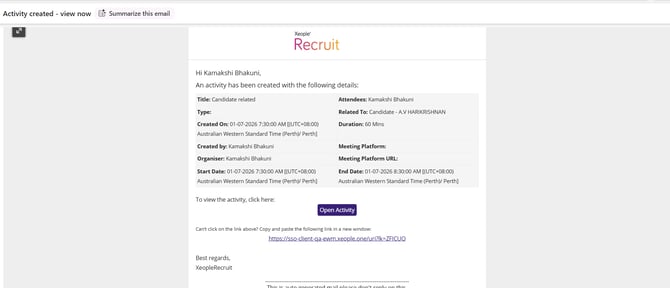
Activity Created - Email
- To edit or delete an entry, click the pencil (edit) or bin (delete) icon shown on each entry.
- To mark a meeting or task as done, click the green tick (complete) icon on the entry.
Use the Search bar at the top to quickly find a specific meeting or task. On the left-hand side, entries are organised by year and month. If entries do not appear, select the desired month from the left panel to display the meetings and tasks created during that period.

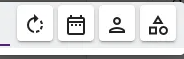
Those four icons are the action/filter bar for the Meeting / Task tab — same logic as the filters on the Notes tab. Left to right:
- Refresh (circular arrow) — reloads the meeting & task list.
- Date (calendar) — filter entries by date.
- Owner (person) — filter by the person who created/owns the entry.
- Category (shapes) — filter by category.
Optional Reading: To set up online meetings, see the Marketplace Configuration – Microsoft Teams Meeting article. Meetings and tasks added against a client are also logged in the Activity tab.